Synology NAS Guide: Setup, DSM, Backups, Security, Remote Access, and Apps
A Synology NAS is one of the easiest ways to add reliable network storage, backups, file sharing, media streaming, photo management, and surveillance storage to a home or small-business network. The main reason Synology works so well is DiskStation Manager, or DSM, which is the operating system that runs on Synology NAS devices.
I’ve used Synology devices and DSM for more than eight years across home lab, business, and consulting environments, and the biggest thing I’ve learned is that Synology is easy to start with, but the long-term setup still depends on making the right decisions early.
RAID type, Btrfs vs Ext4, storage pools, volumes, shared folders, user permissions, snapshots, backups, remote access, and security all matter. If you configure those correctly at the beginning, your Synology NAS will be much easier to manage long term.
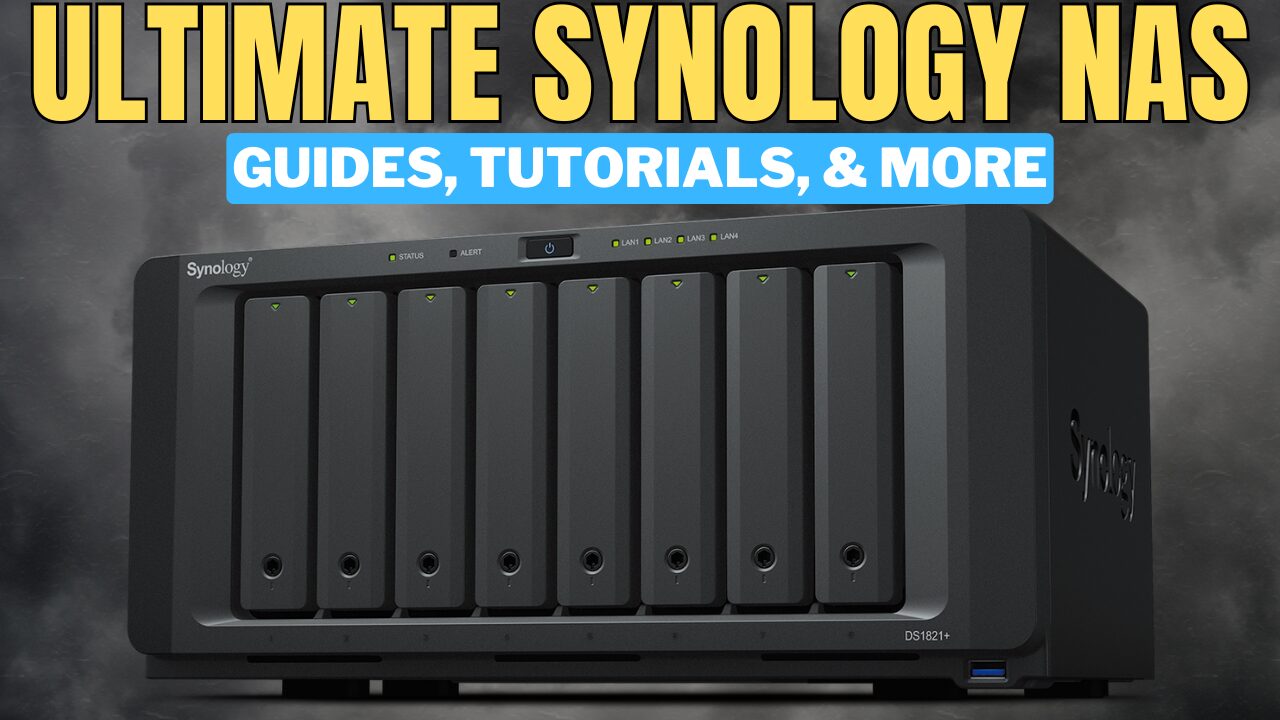
In my own setup, I’ve used Synology NAS devices (DS1019+, DS923+, DS1821+, DS925+) for storage, backups, Docker/Container Manager, media, file syncing, and general home lab workloads. The guides below come from things I’ve actually configured, tested, fixed, and helped others with as a consultant.
This page is meant to be the starting point for all of my Synology NAS guides. If you’re brand new, follow the “Start Here” section first. If you already have DSM running, jump into the sections for security, backups, remote access, Docker, Plex, Synology Drive, Surveillance Station, or maintenance.
New to Synology? Start Here
If you’re setting up a Synology NAS for the first time, I would not start by installing every package, enabling remote access, or exposing DSM to the internet. Get the foundation right first.
This is the order I’d follow:
- Pick the right NAS model using the Synology NAS buying guide.
- Decide on the best RAID type for your Synology NAS.
- Use Btrfs instead of Ext4 if your NAS supports it.
- Find the NAS on your network using Synology Assistant or your router.
- Follow the Synology NAS setup guide.
- Secure DSM before enabling remote access.
- Set up snapshots and backups before storing anything important.
That order is not the most exciting, but it avoids the biggest problems. A Synology NAS is not a backup by itself. RAID helps with drive failure, but it does not protect you from accidental deletion, ransomware, theft, fire, or a failed storage pool. Backups and snapshots are what make the setup resilient.
Should You Buy a Synology NAS?
A Synology NAS makes the most sense if you want an all-in-one storage device that is easy to manage. You are buying the hardware and DSM together, so you do not have to build your own server, choose your own operating system, or troubleshoot hardware compatibility.
That convenience is the main reason I recommend Synology for a lot of people. The hardware is not always the most powerful for the money, but the overall package is hard to beat if you want something stable, power efficient, and easy to manage.
If you’re still deciding which NAS platform makes sense, these comparisons are the best place to start:
In general, I’d choose Synology if you want the easiest NAS experience. I’d choose TrueNAS if you want maximum storage control and are comfortable managing your own hardware. I’d choose Unraid if you want a more flexible DIY server that combines storage, Docker, and VMs in a different way.
If you already know you want Synology, start with the Synology NAS buying guide. If you’re building a media server, also check out the best Synology NAS devices for Plex.
Synology DSM Setup and Beginner Guides
These are the guides I would use first when setting up a new Synology NAS:
- Best RAID Type for Synology Devices
- Btrfs vs Ext4 for Synology NAS Devices
- How to Find a Synology NAS on a Network
- Synology NAS Setup Guide
- Adding RAM to a Synology NAS
The biggest beginner mistake is rushing through the storage setup. Take your time when selecting the RAID type, file system, storage pool, and volume configuration. These are not things you want to redo after you’ve already copied terabytes of data to the NAS.
Secure DSM Before You Open Anything Remotely
Before you enable remote access, install a bunch of packages, or start storing important data, secure DSM first. This is one of those areas where a few simple changes can make a huge difference.
- How to Secure a Synology NAS
- Protecting a Synology NAS from Ransomware
- How to Configure the Synology Firewall
At a minimum, I’d use strong passwords, disable the default admin account, enable two-factor authentication, configure Auto Block, keep DSM updated, and avoid exposing DSM directly to the internet unless you truly understand the risk.
For ransomware protection, I like using a combination of snapshots and backups. Snapshots are fast and convenient, but they are not a replacement for a real backup to another device or cloud provider.
Storage, Performance, and DSM Configuration
Once DSM is installed and secured, you can start tuning the NAS for your use case. Some settings are worth configuring right away, while others only matter if you have a specific need.
- How to Expand a Storage Pool
- How to Configure SSD Cache
- How to Configure SMB Multichannel
- How to Use a Synology NAS as a Reverse Proxy Server
- How to Configure Link Aggregation
- How to SSH into a Synology NAS
- How to Replicate Snapshots to a Second Synology NAS
- How to Configure System Notifications
I would be selective with SSD cache and link aggregation. They can help in the right setup, but they are not magic upgrades. For many home users, better drives, more RAM, proper backups, and a good network design will matter more.
Apps I’d Actually Set Up First
One of the best parts of DSM is the package ecosystem. You can use a Synology NAS for file sync, backups, media, surveillance, photos, containers, and self-hosted applications.
- How to Set Up Synology Drive
- How to Use Docker and Container Manager on a Synology NAS
- How to Install Plex on a Synology NAS
- How to Configure Synology Surveillance Station
- How to Configure Jellyfin
- How to Configure Home Assistant
- How to Use Synology Cloud Sync
- Synology Photos Setup
- How to Set Up Pi-hole on a Synology NAS
- How to Configure Nginx Proxy Manager
My favorite first-party Synology apps are Synology Drive, Hyper Backup, Active Backup for Business, Synology Photos, and Snapshot Replication. Those are the apps that make DSM feel like more than just network storage.
For Docker and Container Manager, Synology can work well, but I would be careful with expectations. It is great for lightweight self-hosted services, but if containers are the main reason you are buying hardware, a dedicated Docker server or Proxmox host may be a better long-term option.
Backups, Snapshots, and Recovery
Backups are where Synology really shines, but only if you actually configure them. RAID is not a backup, and a NAS holding all of your data is still a single point of failure if nothing is copied somewhere else.
- How to Back Up macOS with Time Machine
- How to Configure Hyper Backup
- How to Back Up Linux Devices with Active Backup for Business
- How to Back Up a Windows PC with Active Backup for Business
- How to Back Up a Synology NAS to a Remote Synology NAS
- How to Back Up a Synology NAS to Backblaze B2
- How to Back Up a Synology NAS to Synology C2
For most people, I like using a layered approach: snapshots for quick recovery, Hyper Backup for NAS backups, and Active Backup for Business for Windows or Linux device backups. If the data matters, try restoring it at least once. You do not really know you have a good backup until you know you can restore from it.
Remote Access and VPN Options
Remote access is useful, but it is also where a lot of people make security mistakes. I generally do not like exposing DSM directly to the internet through port forwarding unless there is a specific reason and you understand the risk.
- How to Configure OpenVPN on a Synology NAS
- How to Configure Synology QuickConnect
- How to Configure Tailscale on a Synology NAS
- How to Access DSM with DDNS
- How to Configure Twingate on a Synology NAS
- How to Connect to NordVPN on a Synology NAS
For most home users, I would look at Tailscale or Twingate before opening ports. QuickConnect is convenient and works well for many people, but I still prefer VPN or zero-trust-style access when possible.
File Services and Network Shares
At its core, a Synology NAS is still a network storage device, so file services matter. SMB is what most Windows and macOS users will rely on, but NFS and iSCSI are useful in home labs, virtualization setups, and more advanced environments.
If you are just sharing files with normal computers, SMB is usually the right starting point. If you are connecting the NAS to Proxmox, VMware, or another server, NFS or iSCSI may make more sense depending on the workload.
Maintenance and Hardware
Synology devices are generally low-maintenance, but they are not maintenance-free. You still need to monitor drive health, configure notifications, keep DSM updated, test backups, and make sure the NAS shuts down safely during a power outage.
- How to Configure Data Scrubbing
- How to View System Logs
- How to Replace a Failing Hard Drive
- How to Test Network Performance with iPerf3
- Best UPS Devices for Synology NAS
- How to Configure Wake-on-LAN
- How to Use a Synology NAS as a NUT Server
If your NAS holds important data, I strongly recommend using a UPS. A clean shutdown during an outage is one of those boring things that can save you from a much bigger problem later.
What I Would Avoid as a Synology Beginner
If you are new to Synology, I would keep the setup simple at first. DSM makes it easy to install packages and enable features, but that does not mean you should enable everything right away.
- Do not treat RAID as your backup. RAID helps with drive failure, but it does not protect you from deletion, ransomware, theft, fire, or a failed storage pool.
- Do not expose DSM directly to the internet unless you understand the risk. Use Tailscale, Twingate, VPN access, or QuickConnect where appropriate before opening ports manually.
- Do not skip snapshots if your NAS supports Btrfs. Snapshots are one of the easiest ways to recover from accidental changes or deleted files.
- Do not install every package just because it is available. Every package adds complexity, and some are only worth using if you actually need them.
- Do not assume SSD cache will automatically make the NAS faster. In many home setups, it will not be the upgrade people expect.
- Do not buy a NAS with too few bays if you know your storage needs will grow. It is usually better to plan for future expansion than to replace the entire NAS too soon.
- Do not store important data before testing your backup process. A backup strategy only matters if you know you can restore from it.
The best Synology setups are usually boring in the right ways: good storage planning, limited external exposure, snapshots, reliable backups, notifications, and a UPS.
Community Resources
Synology has a strong community, and it is worth using those resources when you run into something unusual. The official documentation is good, but real-world community discussions can be helpful for model-specific quirks, package issues, and home lab setups.
Final Thoughts
A Synology NAS is one of the best options if you want reliable storage without building and maintaining everything yourself. DSM is easy enough for beginners, but powerful enough that you can grow into backups, snapshots, Docker, Plex, Surveillance Station, remote access, and more advanced networking features.
The biggest thing is to build the setup in the right order. Choose the right NAS, configure storage properly, secure DSM, set up snapshots, and create real backups before you rely on it for important data.
If you’re just getting started, begin with the Synology NAS setup guide, then review the RAID guide, Btrfs vs Ext4 guide, security guide, and Hyper Backup guide. Once those are in place, you’ll have a much better foundation for everything else DSM can do.