Your Jellyfin server sits on your home network, which means the moment you leave the house it stops being reachable. There are four realistic ways to fix that, and they’re not equally good. Use Tailscale unless you have a specific reason not to. It takes about ten minutes, it needs no port forwarding, it works behind CGNAT, and it doesn’t put your media server on the public internet.
The other three still have their place. A reverse proxy is the right answer if you want a clean address that works on a smart TV. A VPN back to your router covers you if you’d rather reach your whole network. Port forwarding is the one I’d steer most people away from, and I’ll explain why rather than just asserting it.
The four methods compared
| Tailscale | Reverse proxy | VPN to your router | Port forwarding | |
|---|---|---|---|---|
| Difficulty | Low | High | Medium | Low |
| Exposed to the internet | No | Yes, behind TLS | No | Yes, directly |
| Needs a domain | No | Yes | No | No |
| Works behind CGNAT | Yes | No | No | No |
| Works on smart TV apps | Usually not | Yes | Usually not | Yes |
| App needed on the client | Yes | No | Yes | No |
| Cost | Free for personal use | Domain cost | Free | Free |
Access Jellyfin from anywhere without port forwarding
Tailscale builds a private network between your devices using WireGuard, and it handles the connection negotiation that normally forces you to open ports. Your phone and your server behave as though they’re on the same LAN no matter where either one is, and nothing about your Jellyfin install becomes reachable from the wider internet.
The setup is genuinely short, and it’s the same four steps regardless of what your server runs on.
- Create a free Tailscale account, which you can do with an existing Google, Microsoft, or GitHub login rather than making another password.
- Install Tailscale on whatever runs Jellyfin, whether that’s a NAS, a mini PC, or a Proxmox VM or container, and sign in. If you’re running it on a Synology, I’ve written a full Tailscale setup guide for the NAS.
- Install the Tailscale app on your phone or laptop and sign in with the same account, at which point both devices appear in your tailnet with their own addresses.
- Open Jellyfin using the server’s Tailscale address followed by port 8096, so something like 100.x.x.x:8096, and save that as your server address in the Jellyfin app.
One setting worth turning on afterwards is subnet routing, which lets your remote devices reach everything else on your home network through the machine running Tailscale rather than only that one server. It’s optional for Jellyfin alone, and useful the moment you want to reach a second service.
The one thing to understand before committing is that every device you want to watch on needs the Tailscale app installed and signed in. On a phone, tablet, or laptop that’s trivial. On a smart TV it usually isn’t possible at all, which is the single biggest reason people end up choosing something else.
Jellyfin remote access behind CGNAT
If your internet provider has you behind carrier-grade NAT, you don’t have a public IP address of your own, and that quietly breaks most of the traditional advice. Port forwarding cannot work because there’s no address to forward from, dynamic DNS points at an address you don’t control, and a reverse proxy has nothing to bind to. People often spend an evening on this before realizing the problem isn’t their configuration.
A quick way to check is to compare the WAN address shown in your router against what a “what is my IP” site reports. If they don’t match, you’re behind CGNAT. Addresses in the 100.64 to 100.127 range are the usual giveaway.
Tailscale is the answer here, and it’s genuinely the only one of these four methods that works without involving your provider. It negotiates the connection through its coordination service rather than needing an inbound port, so CGNAT stops being your problem. The alternative is asking your ISP for a static or at least public IP address, which sometimes costs money and sometimes isn’t offered at all.
Accessing Jellyfin from outside your network with a reverse proxy
A reverse proxy gives you a real address like jellyfin.yourdomain.com with a valid certificate, and everything connects to it normally without any client software. That’s what makes it the right choice for smart TVs, for sharing access with family who won’t install anything, and for anyone who wants the setup to feel like a normal streaming service.
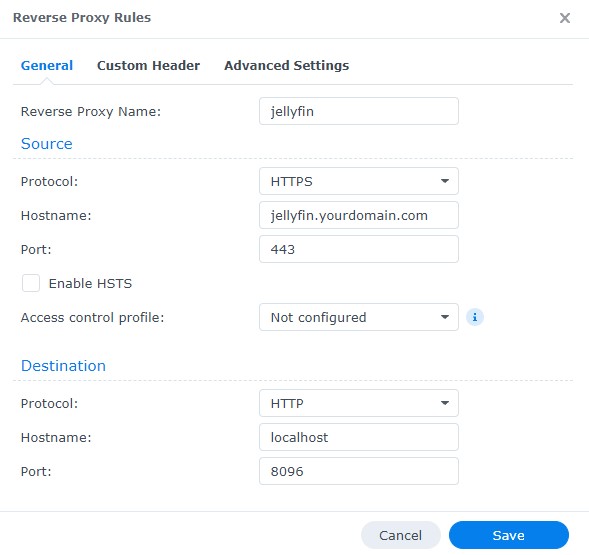
It’s also the most work of anything here. You need a domain name, a proxy such as Nginx Proxy Manager, Caddy, or Traefik, ports 80 and 443 forwarded to that proxy, and a certificate. Jellyfin’s own documentation covers the certificate side well in their Let’s Encrypt guide, and Jellyfin can also handle HTTPS directly if you’d rather not run a separate proxy.
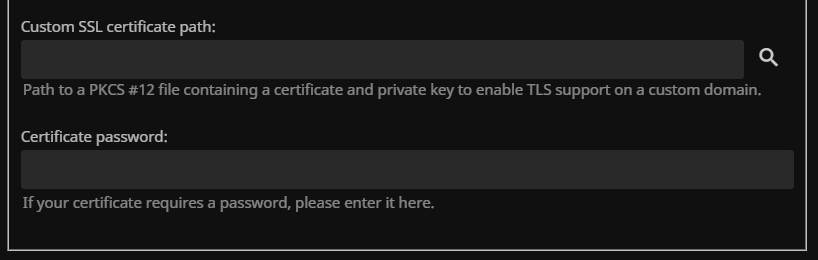
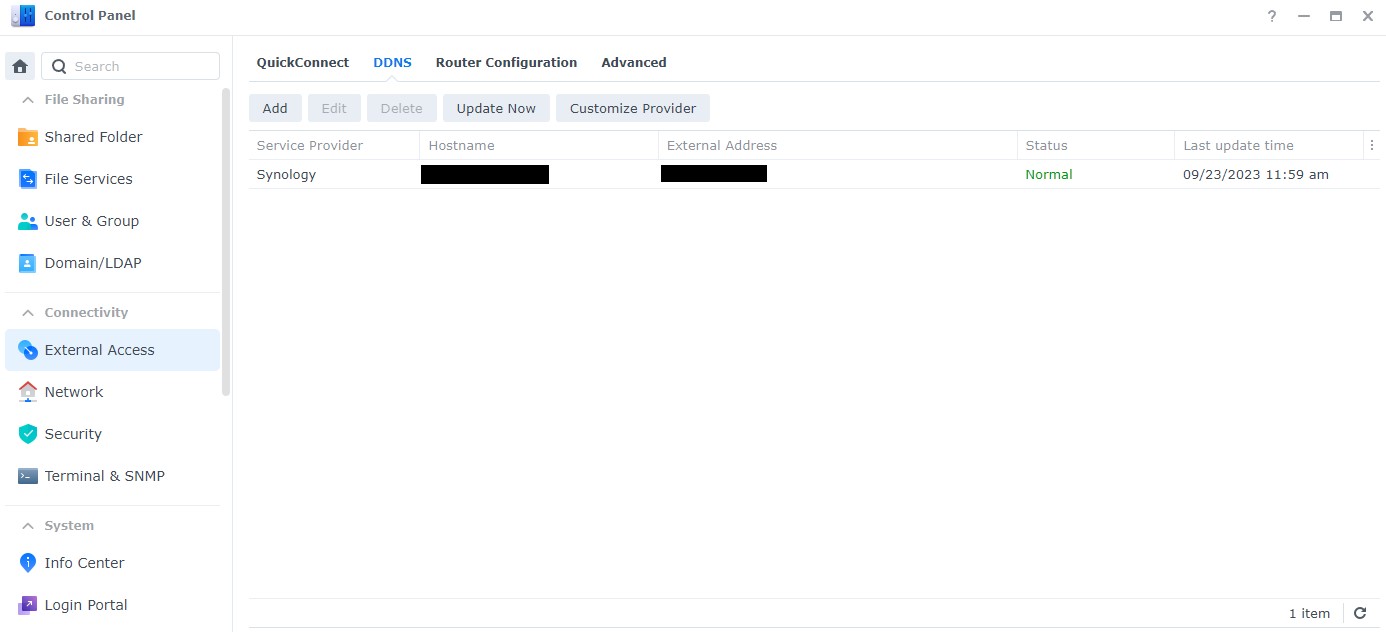
If your home IP address changes periodically, which it does for most residential connections, you’ll want dynamic DNS keeping your domain pointed at the right place. I’ve covered that on several platforms, including DuckDNS on pfSense, DDNS on OPNsense, and DuckDNS on a Raspberry Pi.
Understand what you’re accepting with this approach. A reverse proxy is still a service published to the internet, and while TLS protects the traffic and the proxy shields Jellyfin from direct contact, you’re now responsible for keeping both pieces patched and for using strong passwords on every account.
Jellyfin remote access with a VPN to your router
Running WireGuard or OpenVPN on your router or firewall gets you back onto your home network from anywhere, and Jellyfin is then reachable at its normal local address. The advantage over Tailscale is that you’re not depending on a third-party service, and you reach everything at home rather than only the devices you’ve enrolled.
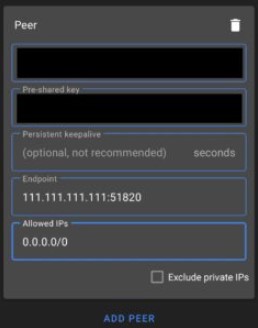
The trade-off is that it needs a port open for the VPN itself and it won’t work behind CGNAT, so it solves fewer situations than Tailscale does. Setup depends entirely on your hardware, and I’ve written guides for most of the common platforms: WireGuard on pfSense, OPNsense, UniFi, and a Raspberry Pi, plus OpenVPN on pfSense, UniFi, and a Raspberry Pi.
Port forwarding, and why it’s last on this list
Forwarding a port is the simplest thing to configure and the one with the largest consequences if you get it wrong. You point an external port on your router at your Jellyfin server’s local address and port 8096, and from that moment your media server is answering requests from anyone on the internet who finds it.
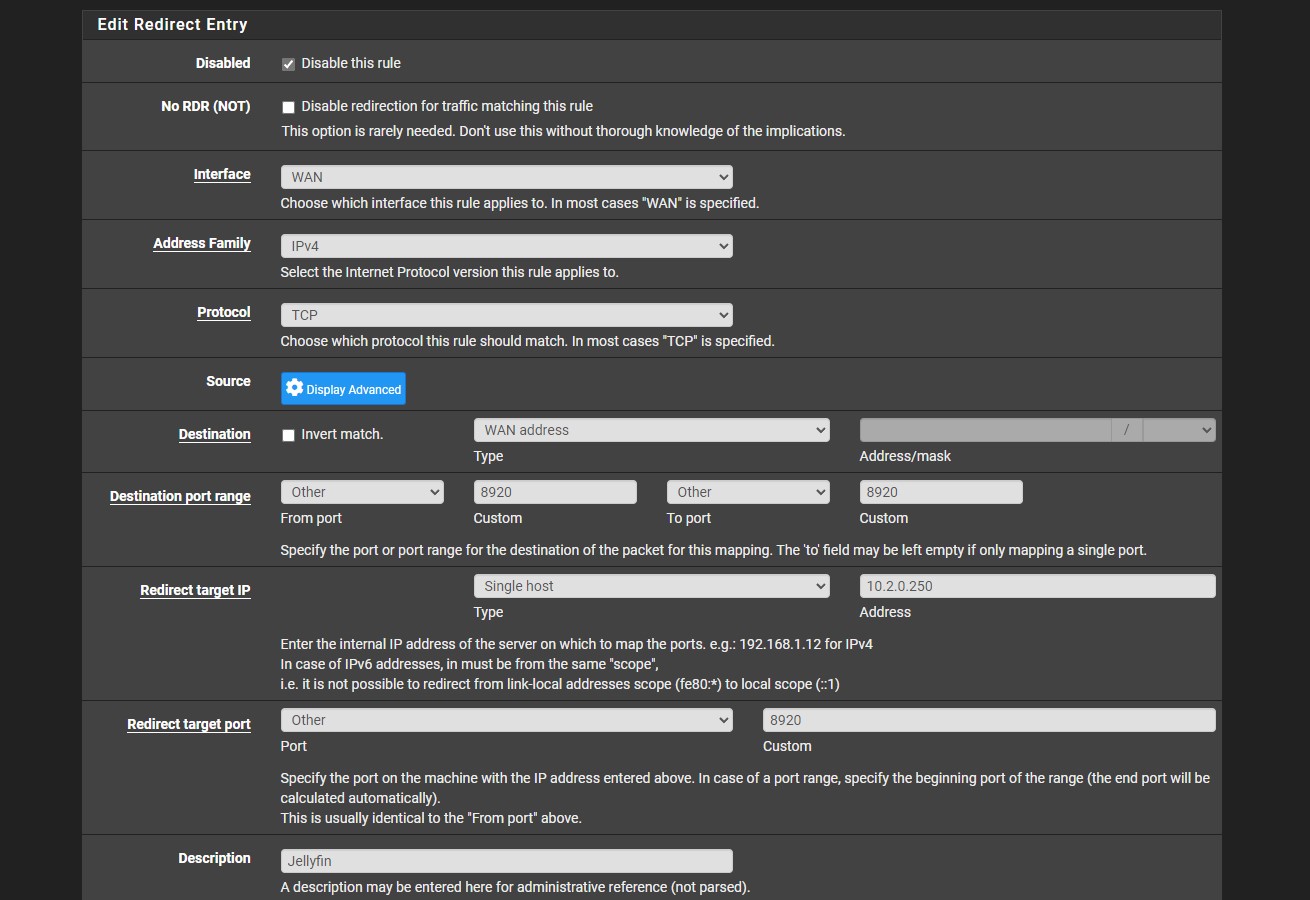
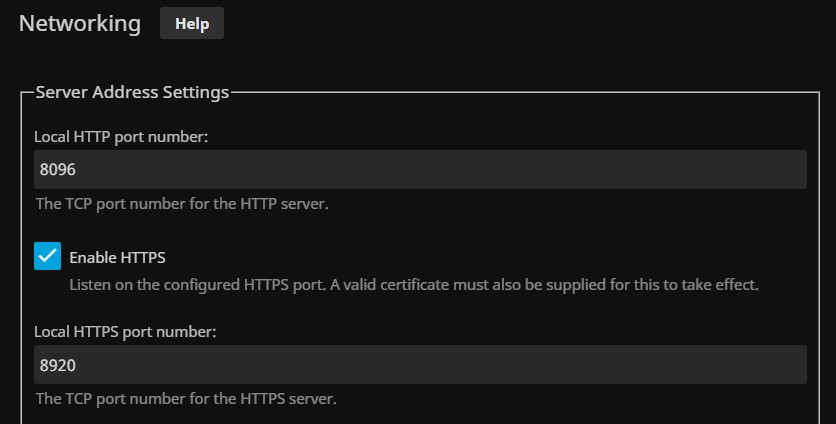
Jellyfin listens on 8096 for HTTP and 8920 for HTTPS by default, and if you go this route you’ll want the HTTPS side configured rather than sending credentials in the clear. You’ll also want dynamic DNS so the address stays valid, and the port-forwarding steps themselves vary by router, though I’ve documented the process for OpenWrt and the general approach carries across most interfaces.
My honest position is that there’s very little reason to choose this in 2026. Tailscale covers the same need with no exposure, and a reverse proxy covers the smart TV case with far better protection. If you do it anyway, use strong unique passwords on every Jellyfin account, keep the server updated, and check your logs occasionally.
As always with anything you expose, security guidance changes and nothing here is a guarantee. Treat a publicly reachable server as something you review periodically rather than configure once and forget about.
Which method works on which device
This is the part that catches people out, because a method that works beautifully on your phone can be useless on the television in the living room.
- Phone and tablet. Everything works. Tailscale and VPN clients both exist for iOS and Android, and the Jellyfin app connects to whatever address you give it.
- Laptop or desktop. Everything works, and the browser client means you don’t even need the app installed.
- Smart TV, Fire TV, or Roku. Tailscale and VPN apps generally aren’t available, so a reverse proxy with a real domain is the practical answer. Some Android TV devices can run Tailscale, but it’s inconsistent enough that I wouldn’t plan around it.
- Someone else’s house. A reverse proxy needs nothing from them. Tailscale means asking them to install an app and join your network, which is fine for family and awkward for anyone else.
A lot of people end up running two methods, and there’s nothing wrong with that. Tailscale for your own devices, and a reverse proxy for the television and for family, covers essentially every situation without leaving Jellyfin itself exposed.
If it still won’t connect
A handful of things account for most of the failures once the method itself is configured, and they’re quick to rule out in order.
- Check it locally first. If the server isn’t reachable from a device on the same network, the problem is Jellyfin or its host, and nothing you do remotely will help.
- Remote access is disabled in Jellyfin. There’s a setting under Networking that controls whether connections from outside the local subnet are allowed at all, and it’s easy to overlook.
- The firewall on the host machine. A fresh Linux install will often block 8096 by default, which looks exactly like a networking problem from the client side.
- Known local networks. Jellyfin treats addresses it considers local differently, and a VPN or Tailscale subnet may need adding there before remote clients behave properly.
- Playback fails but the interface loads. That’s transcoding rather than access, and it means the connection is fine.
Final thoughts
If you’re setting this up for the first time, install Tailscale and be done in ten minutes. It solves the problem for phones and laptops, it works behind CGNAT where nothing else does, and it doesn’t ask you to expose anything.
Add a reverse proxy later if a smart TV or someone outside your household needs access, since that’s the gap Tailscale genuinely can’t fill. And if remote playback stutters once it’s working, the problem is usually transcoding rather than the connection, which is worth checking in my Jellyfin transcoding guide before you blame the network.