I’ve tested various network-attached storage (NAS) devices from many manufacturers, NAS operating systems, and if you’ve followed me for any length of time, you’ll know that I always fall back to Synology as the best overall brand.
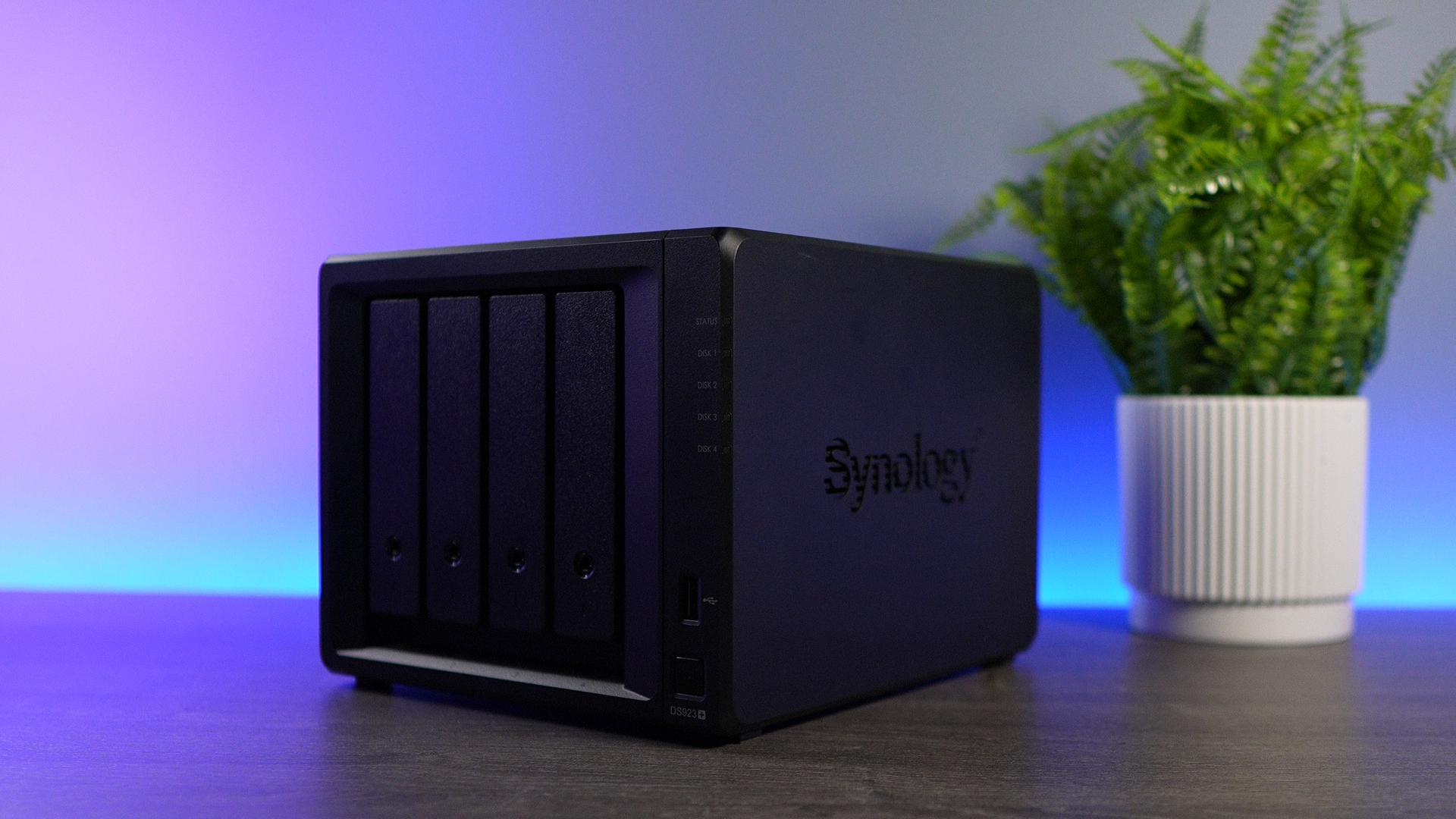
From an investment perspective, as well as a feature and functionality perspective, Synology models are generally the best overall devices, with new releases coming regularly, all running on a rock-solid operating system.
There was a brief blip of time where the 25-series Synology devices didn’t support third-party hard drives, but as of the update of this article (February 2026), they all support third-party hard drives (outside of xs+ devices).
Disclosure: Some links below are Amazon affiliate links which means that I earn a percentage of each sale at no cost to you. Thank you for your support.
Your Requirements for NAS Hardware
Overall, all Synology NAS models are similar because they run the same NAS operating system (DSM), but there are some differences that I’ve observed that will point you in the right direction.
Step 1: Selecting the Correct Synology NAS Model
Synology makes four models of devices: J-series, non-plus models, plus models, and xs+ models. Almost all users should purchase a “plus” series device, though there are some recent J-series models that have incredible value.
| Synology Models |
|---|
| J-Series (low performance, budget option) |
| Non-Plus (decent performance, budget option) |
| Plus(+) (good performance, upgrades available, non-budget option) |
| xs+ (best overall performance, upgrades come standard, terrible overall value) |
The benefit of a plus model is that you will have the best overall performance to value. Synology sells xs+ models as well, which provide the best overall performance, but they are going to be overkill for almost everyone and require specific things like Synology-branded, enterprise hard drives.
Step 2: Selecting the Correct CPU
All Synology models of the past generally came with Intel processors which supported Intel QuickSync that could be used with transcoding. That is no longer the case, as Synology switched to Ryzen processors around 2021, which do not support hardware transcoding (no integrated graphics).
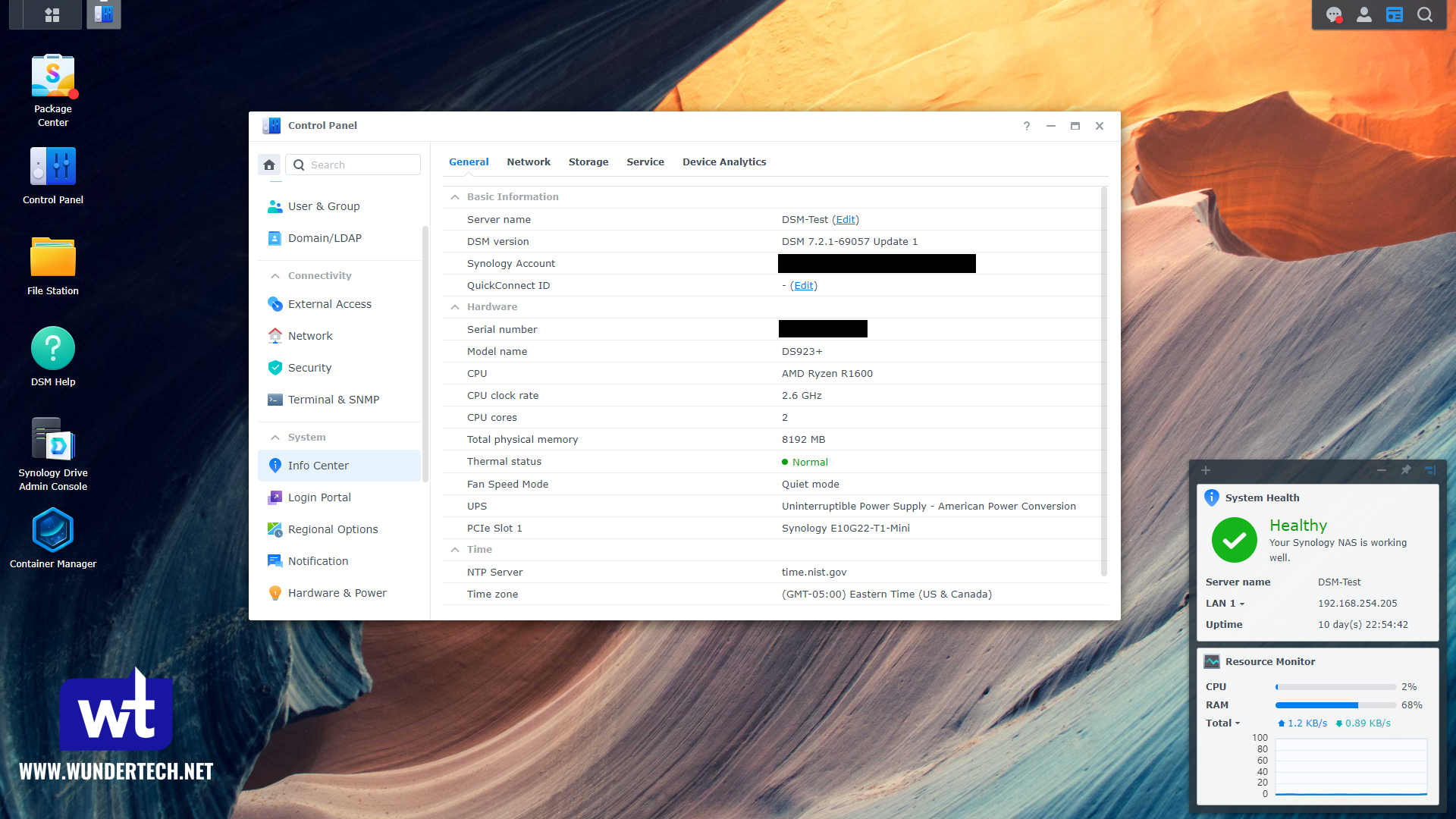
Synology devices now support error-correcting memory (ECC) from these processor changes. With ECC memory, if an error is detected, it’s corrected before being written to disk.
The models I suggest are all devices that support ECC memory, but if you really want to use hardware transcoding, look at these models that support hardware transcoding and are great for use as media servers.
Step 3: Selecting the Correct Number of Drive Bays
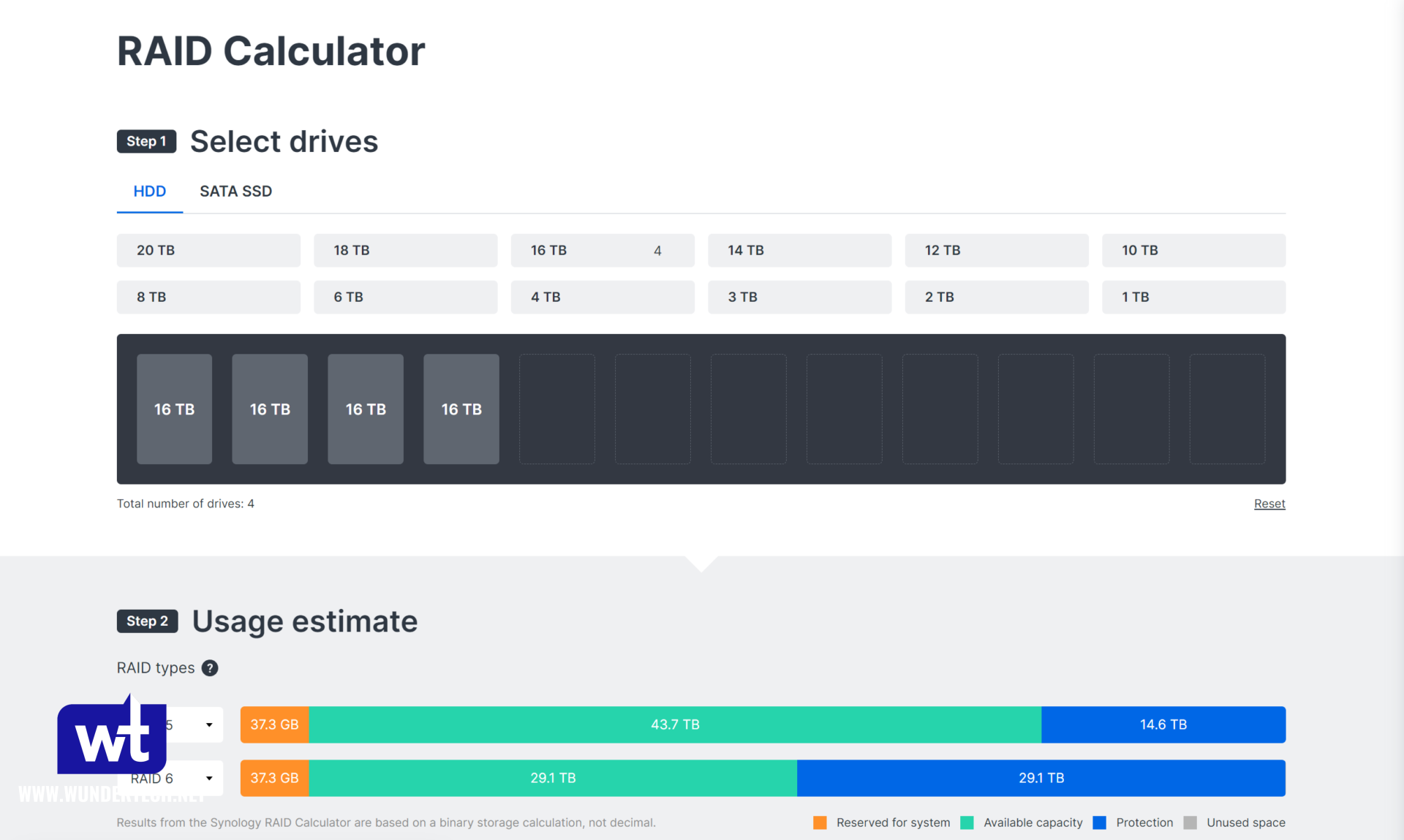
Synology NAS devices come with drive bays ranging from 2 bays to 12 bays. This will impact the RAID Type you can use, as well as the ability for data and RAID scrubbing to work properly. Let me break this down extremely simply for you: you should buy a device with a higher total number of drive bays than you think you’ll need if you can afford it.
To help determine which option is best for you, compare RAID types and storage requirements by using Synology’s RAID Calculator, and if possible, buy one model higher (if you think you’ll need four bays, go with a five-bay unit).
Step 4: Selecting the Correct Upgrades (Networking, RAM, SSD Cache)
Certain Synology NAS devices can be upgraded, either with upgraded networking capabilities (10GbE), removable memory to increase the RAM total, and NVMe SSD slots for SSD caching or NVMe Volumes.
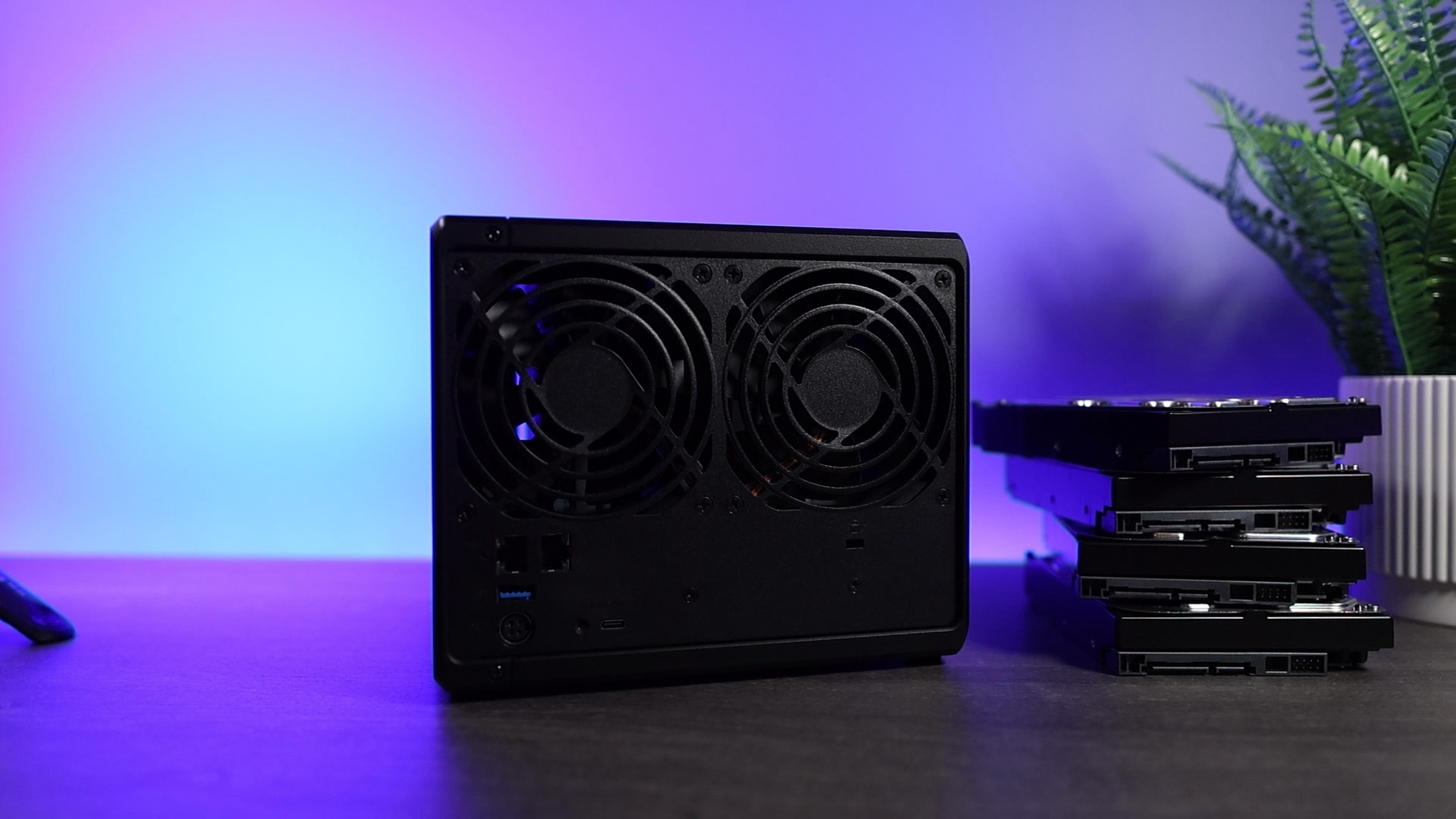
Not all devices can be upgraded, but I’d suggest you look at the upgrades and determine if they’re something that’s important to you.
Upgrade: 10GbE Networking Equipment
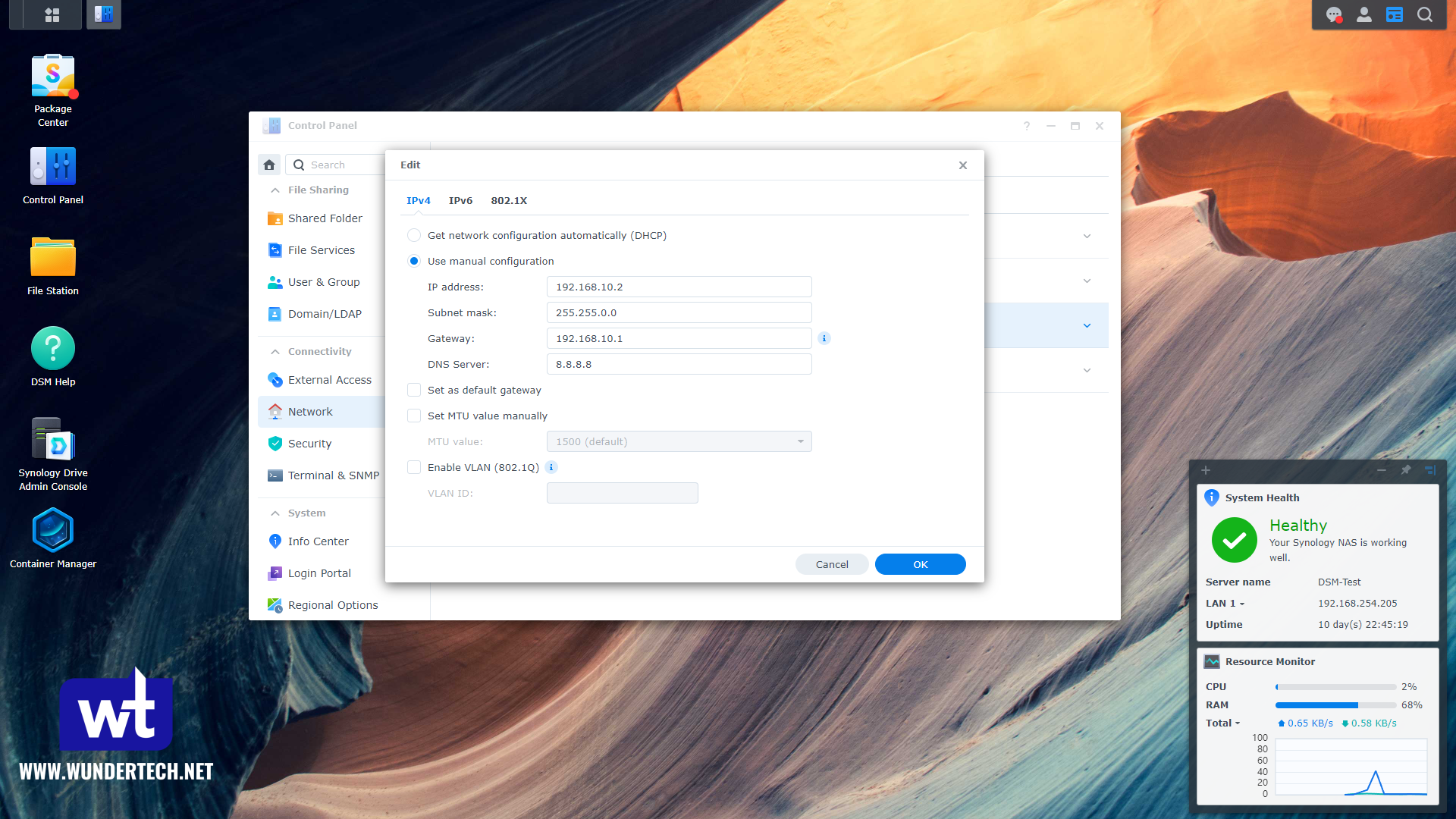
10GbE will increase the network throughput speeds versus the standard 1 or 2.5GbE interfaces that come on almost all Synology models. If you’re interested in increasing the network performance to 10GbE, you’ll have to purchase an E10G22-T1-Mini (for the Synology DS1525+), or an E10G18-T1 PCIe device for the Synology DS1825+.
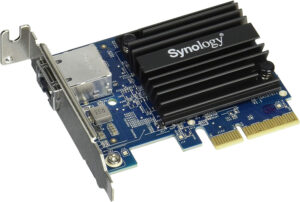
Keep in mind that you’ll need to increase your core networking to 10GbE as well, but this is a great way to improve the network transfer speeds of your new Synology NAS.
Upgrade: NVMe SSD Cache Drive
Another great option is to purchase NVMe SSD drives for SSD caching. If you’re interested in increasing the network transfer speeds (without being able to maximize the throughput with hard drives alone), you can look into using read/write SSD cache in RAID 1.
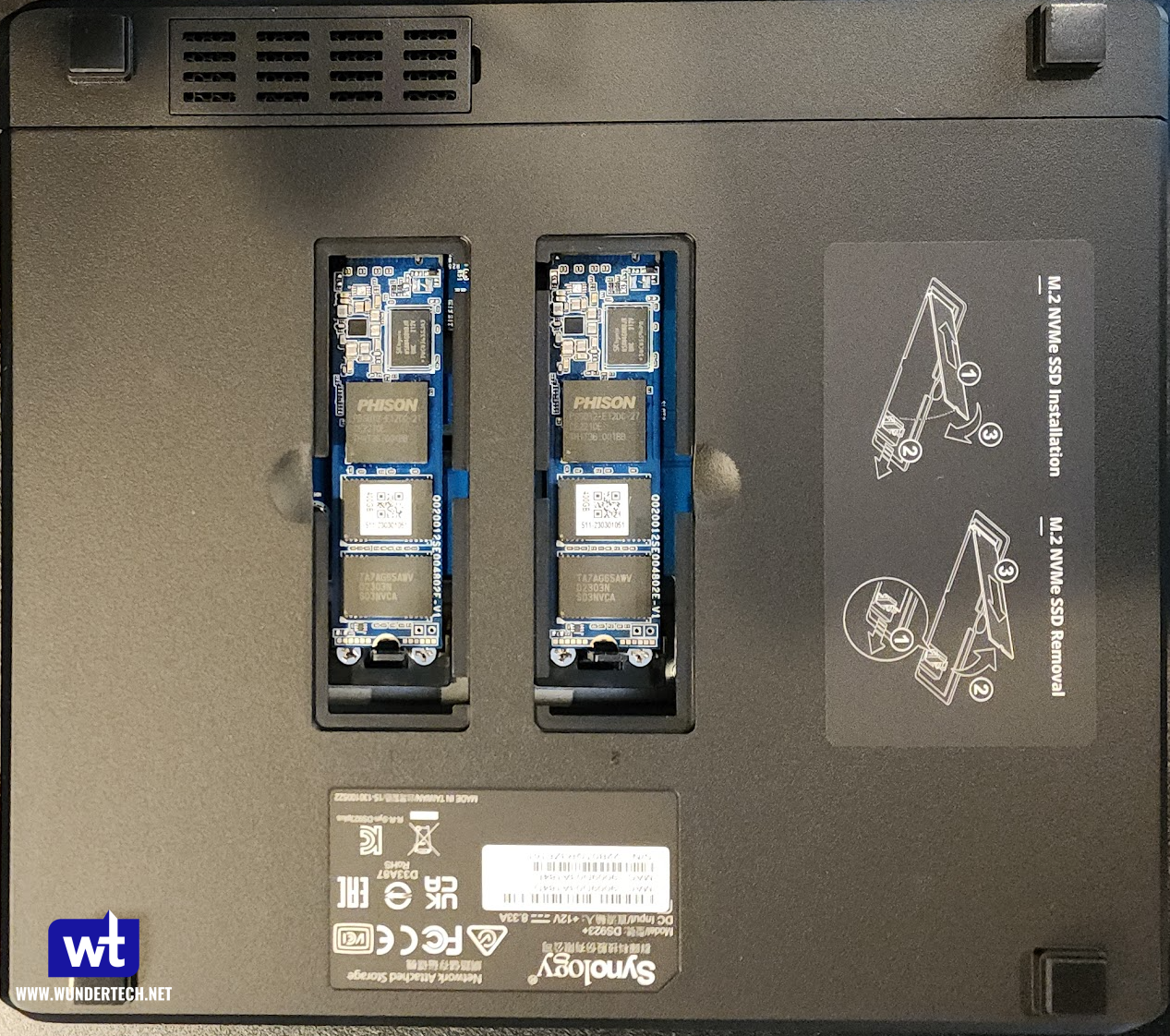
Not only can this increase the performance of network transfers, but you can and will get better performance for operations local to the NAS (like virtual machines).
The SNV3400-400G is a Synology NVMe Drive designed for SSD caching in Synology NAS devices, but you can use any NVMe SSD Cache drive you’d like.
Upgrade: Increase Memory (RAM)
The memory totals listed above are what comes standard on each Synology NAS device. However, you can always increase the RAM on a Synology NAS if you’d like.
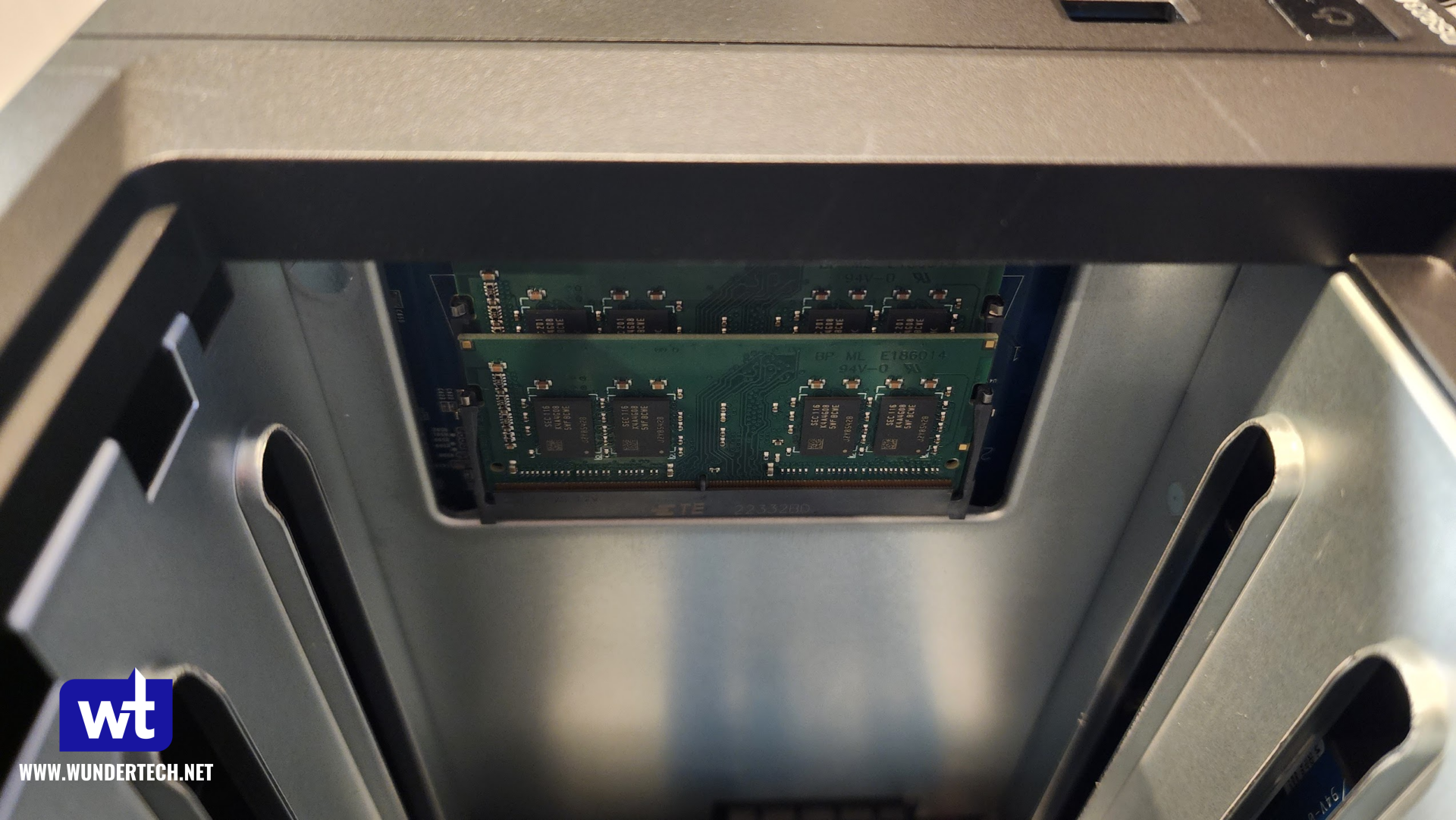
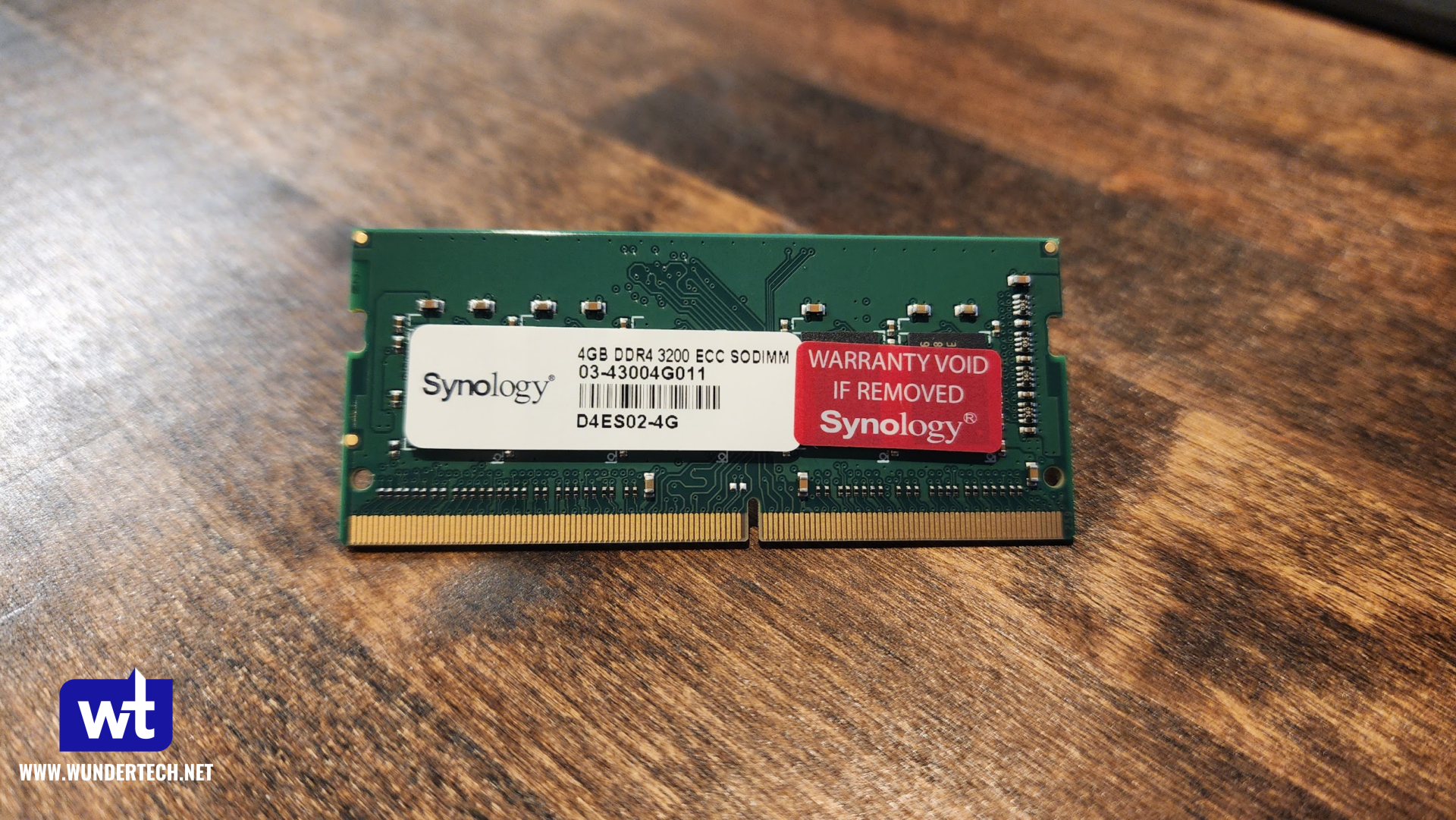
These links are for the standard, Synology-offered Memory upgrade kits. If you’d like to use unofficial memory, you can, but compatibility is not guaranteed by Synology.
| Model | Memory |
|---|---|
| Synology DS923/925+ | 4GB D4ES02-4G |
| Synology DS1825+ | 8GB D4ES01-8G |
What is the Best Synology NAS?
Now that we looked at the key differences, here are the best Synology NAS devices for you, based on your requirements.
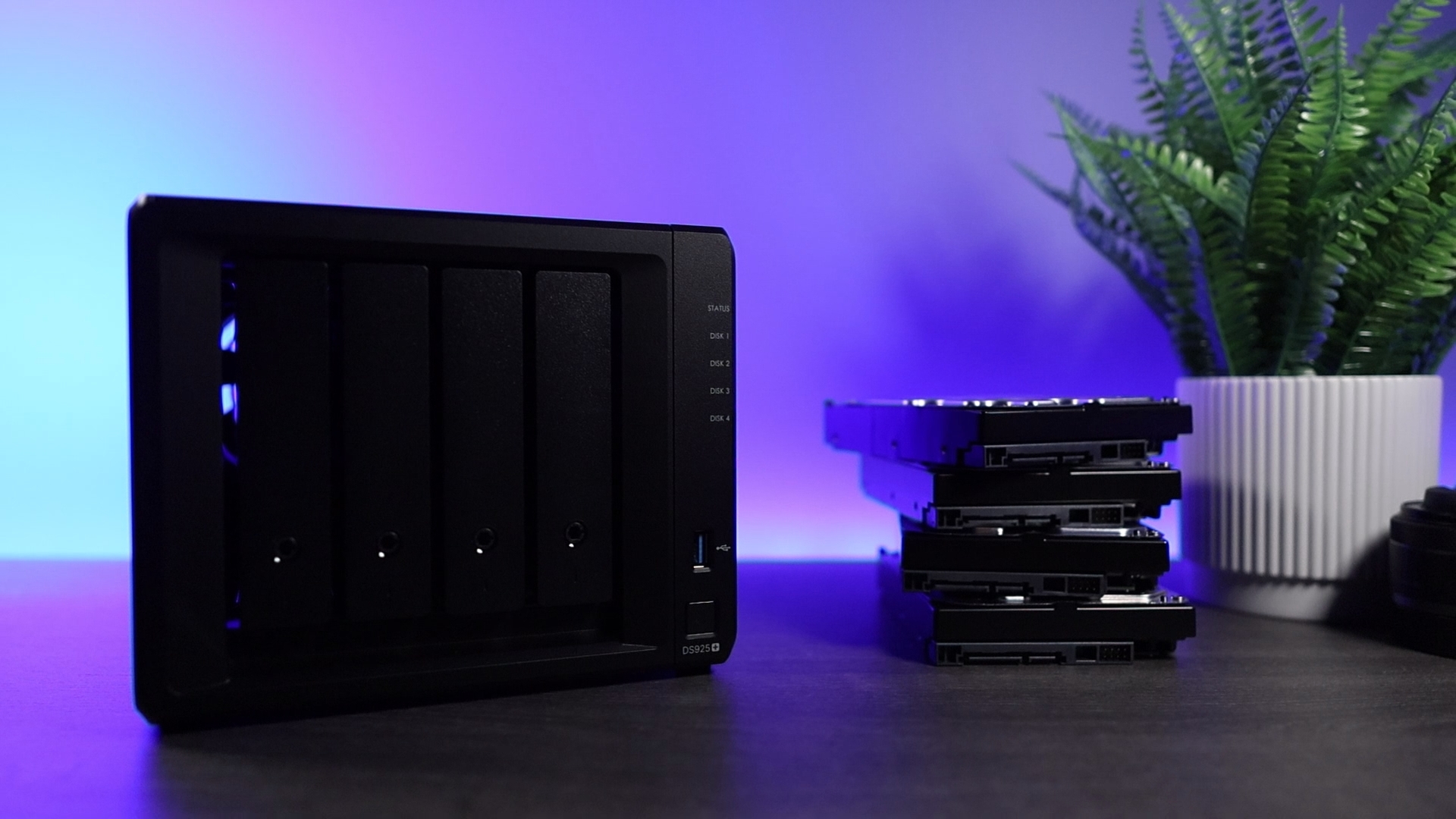
Synology DS925+: Overall Best Synology NAS
The overall best Synology NAS is the Synology DS925+. It’s a great starter NAS, can be upgraded with more memory, and NVMe SSDs for caching or volumes. It lacks the 10GbE upgrade card that existed in the DS923+, but now comes standard with 2 x 2.5GbE.
Click here to purchase the Synology DS925+ on Amazon
Synology DS923+ Pros and Cons
The Synology DS925+ is a four-bay NAS with an AMD Ryzen processor and 4GB of DDR4 ECC memory.
| Pros | Cons |
|---|---|
| Four drive-bays will be more than enough for most users. | Cannot use hardware transcoding for media servers. |
| Upgradable RAM, networking, NVMe | No 10GbE Upgrade card (like the DS923+). |
| Supports Btrfs | |
This is the best Synology NAS for almost everyone, and the device you should probably buy. It’s future-proof, has great performance, great upgrades, and is an awesome device.
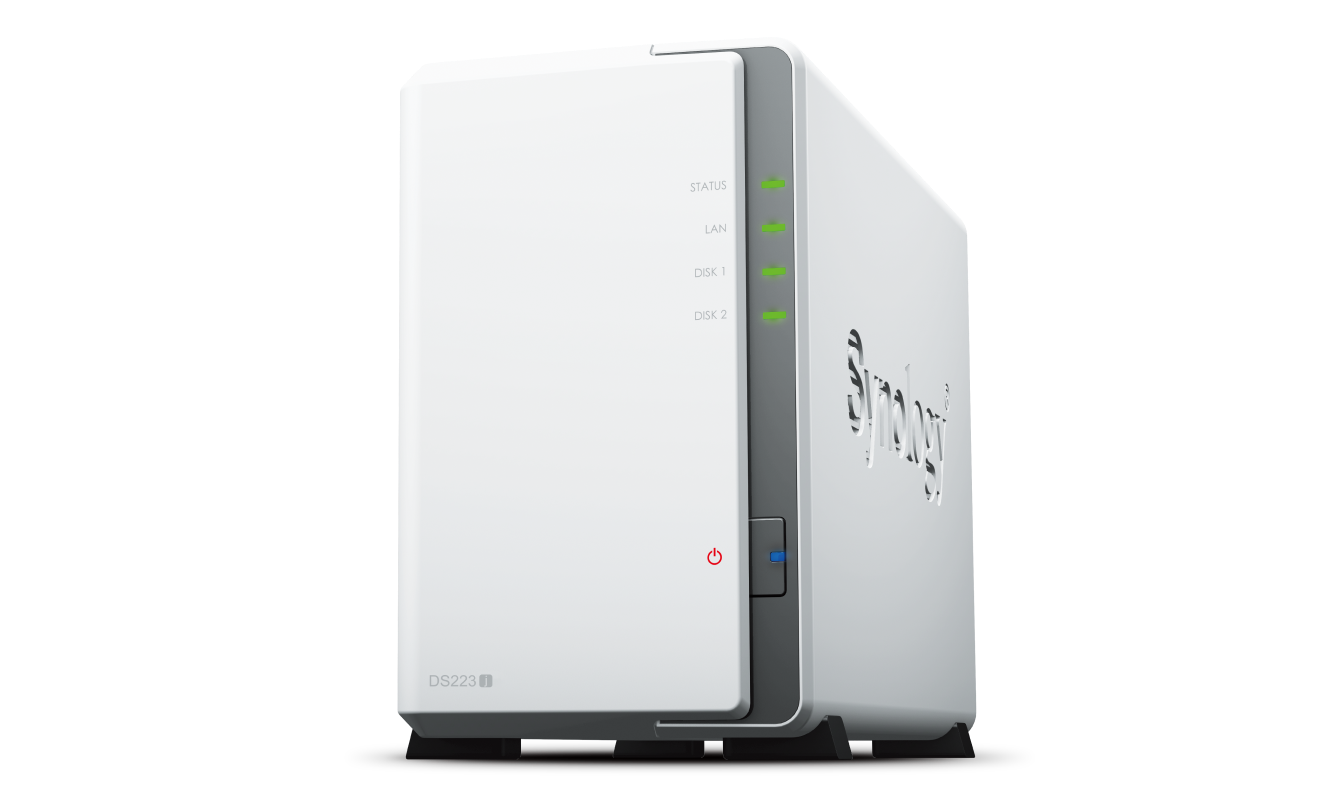
Synology DS223j: Best Budget Device
The Synology DS223j is a great overall budget option that’s underpowered. I don’t love it, and I’d say the majority of people shouldn’t buy it, but if you want to run DSM, need two bays, and don’t want to use it for anything other than a NAS (no Docker, applications, etc), it’s great.
Click here to purchase the Synology DS223j on Amazon
Synology DS223j Pros and Cons
I never recommended J-series Synology devices as they didn’t support BTRFS, though the Synology DS223j is an exception. The DS223j now supports BTRFS and is an overall great option for users looking to break into owning a Synology NAS and learning about Synology DSM.
| Pros | Cons |
|---|---|
| Incredible price for a 2-bay NAS device. | Underpowered CPU, and only 1GB of non-upgradeable memory. |
| Supports Btrfs | 1 RJ-45 network port (as opposed to the two that normally come standard) |
| Overall, underpowered device and should really only be used as a budget NAS. |
Ultimately, purchase this device if you want the get a Synology NAS and use it for limited file storage purposes while keeping budget in mind. If you want a two-bay NAS that’s a little more powerful, I’d recommend looking at the DS224+ below.
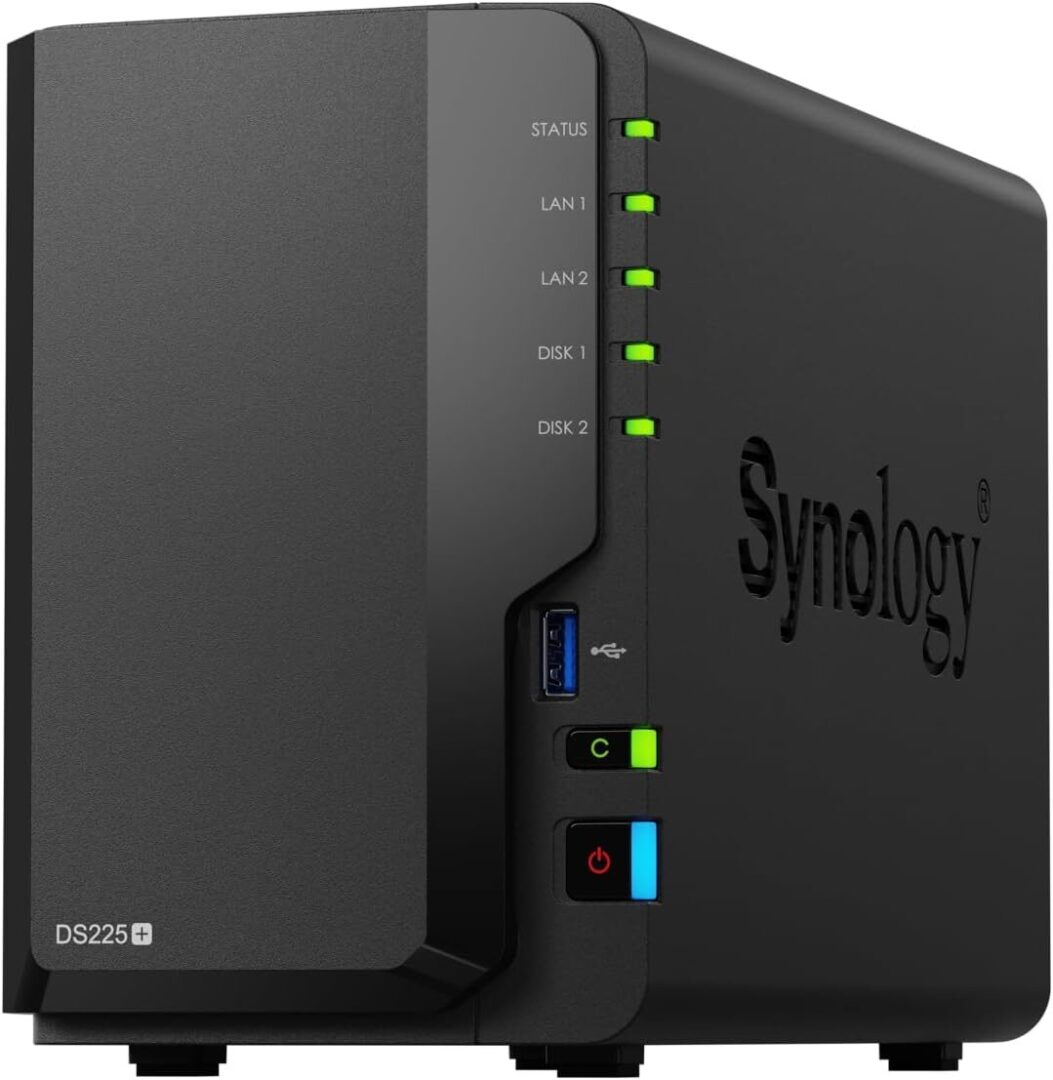
Synology DS225+: Best for Beginners
The Synology DS225+ is the best NAS you can get started with. It’s a better overall device than the DS223j above, and I think that it’s a better two-bay option overall. The downside is that from a value perspective, it’s not as great, but the DS223j is an extremely underpowered device, and this isn’t. Plus, it supports hardware transcoding!
Click here to purchase the Synology DS225+ on Amazon
Synology DS225+ Pros and Cons
The Synology DS225+ is a great Synology NAS for beginners and home users. For the most part, you’ll be able to do everything you need with this device, assuming that two bays are enough,
| Pros | Cons |
|---|---|
| Intel J4125 Processor can be used for hardware transcoding. | Non-upgradable networking, NVMe |
| Supports Btrfs | Limited to two drive bays (no expansion options) |
| Upgradeable memory, but only a maximum of 6GB of RAM. |
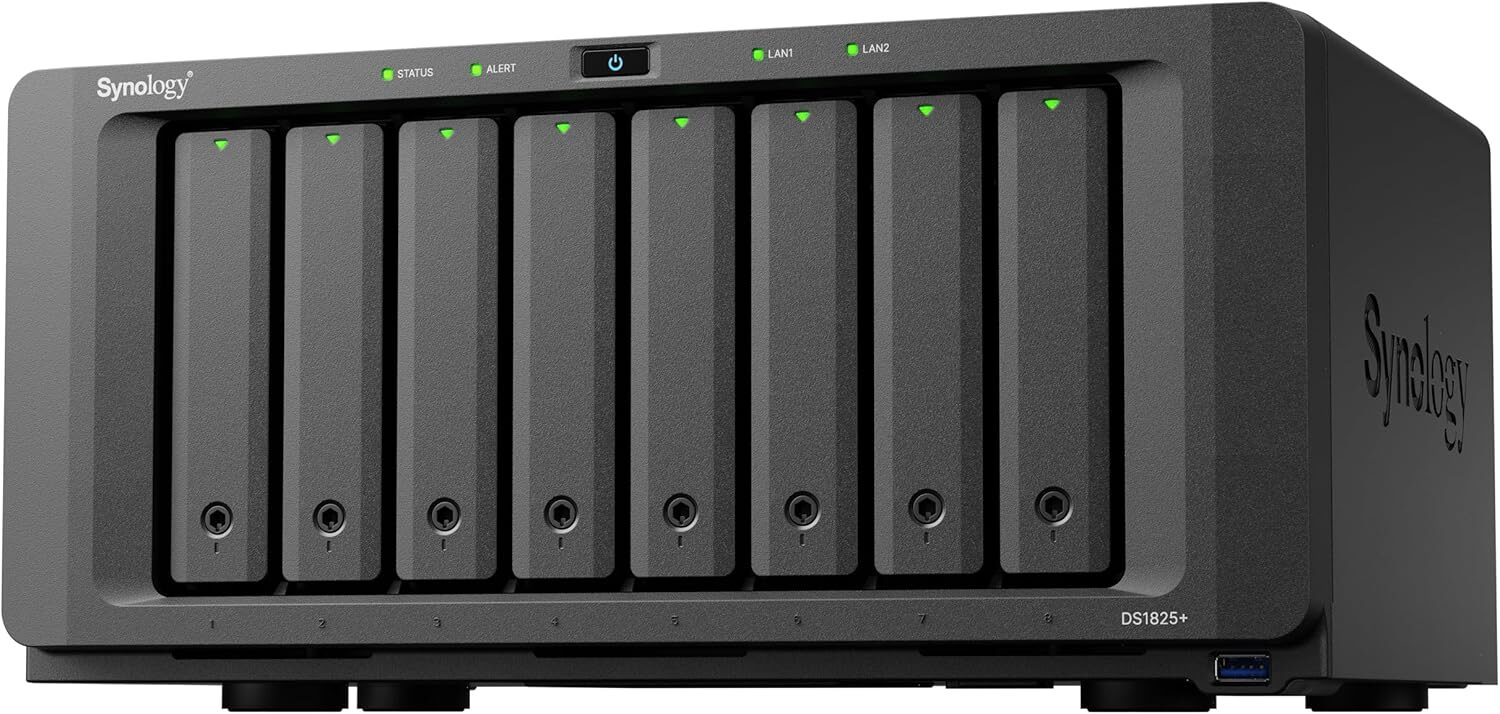
Synology DS1825+: Best for Power Users
As of right now, the DS1825+ is the best option for power users. It has awesome PCIe expansion options, has a better processor than the options above, has an integrated PSU, can be upgraded to 32GB of memory.
Click here to purchase the Synology DS1825+ on Amazon
Synology DS1825+ Pros and Cons
This is the best overall Synology device that the average home user would need. You can easily saturate 10-20 GB/s with the 10GbE of SFP28 upgrade card.
| Pros | Cons |
|---|---|
| Eight drive-bays are enough for almost everyone. | Cannot use hardware transcoding for media servers. |
| Upgradable RAM, networking, NVMe | Must purchase the Synology 10GbE network adapter. |
| Supports BTRFS | Overkill for most users. |
Final Takeaway: Best Synology NAS?
All Synology NAS, consumer-grade devices are relatively similar, so there isn’t a single “best Synology NAS” for all users, but this article hopefully helped you pick the best NAS for you.