I’ve been buying Synology hardware for close to ten years, through a DS1019+, a DS923+, and now a DS925+, and I still think DSM is the best NAS operating system you can run. The buying advice has genuinely changed in 2026 though, and not because the hardware got better. Two things now decide which model you should get: how many bays you actually need, and whether you can live with Synology’s drive rules on the 2025 lineup.
If you want the answer without the reasoning, most people should buy the DS925+. Four bays, room to grow, and every DSM feature available to it. If two bays are genuinely enough, the DS225+ is the one I’d get. Everything below is why, plus the two situations where I’d tell you to buy something other than a Synology.
| If you | Buy | Why |
|---|---|---|
| Want one NAS to last years | DS925+ | Four bays, ECC memory, NVMe slots. The default answer. |
| Only need two bays | DS225+ | Same DSM experience, smaller footprint and price |
| Want the cheapest way into DSM | DS223j | File storage only. No Docker, no VMs. Know that going in. |
| Run VMs, Docker, and 10GbE | DS1825+ | Eight bays, PCIe expansion, 32GB memory ceiling |
| Are buying it mainly for Plex | Look elsewhere | See the transcoding section below. This one has changed. |
Disclosure: Some links below are affiliate links, which means that I earn a percentage of each sale at no cost to you. Thank you for your support.
What Changed in 2026, and Why It Affects Your Choice
Two things moved, and both of them change which model makes sense rather than just which drives you put in it.
The drive rules. When the 2025 Plus models launched they would not create a storage pool with a third-party drive. DSM 7.3 reversed that, so hard drives from Seagate and Western Digital work normally again. What did not come back is everything else. DSM 7.4 shipped storage efficiency, the post-process deduplication feature, and put it behind Synology drives. M.2 NVMe is still restricted to validated models. So on a 25-series unit you can use the drives you want, with most of the functionality and not all of it. I go through what that costs in detail in my guide to the best hard drives for a Synology NAS.
Transcoding. This is the one that catches people buying for Plex. The Plus lineup moved to AMD Ryzen processors with no integrated graphics, so hardware transcoding is gone from the four-bay and larger models. The two-bay units still ship Intel chips, but the 2025 firmware situation means I would not buy a current Synology specifically to transcode. If Plex is a primary reason you’re buying, read my best Synology NAS for Plex breakdown first, because the honest answer may be a different brand entirely.
Your Requirements for NAS Hardware
All Synology models run the same operating system, so the differences that matter are hardware. Four things decide it, in this order.
Step 1: Pick the Right Tier
Synology sells four tiers: J-series, non-plus, plus, and xs+. Almost everyone should buy a plus model. That’s where the performance-to-price sits, and it’s the tier that supports the upgrades you’ll want in two years.
The xs+ models perform better and are overkill for a home user, and they expect Synology-branded enterprise drives rather than treating that as a preference. The J-series is genuinely cheap and genuinely limited. If you buy one, buy it knowing it’s a file server and nothing else.
Step 2: Understand the Processor Trade-Off
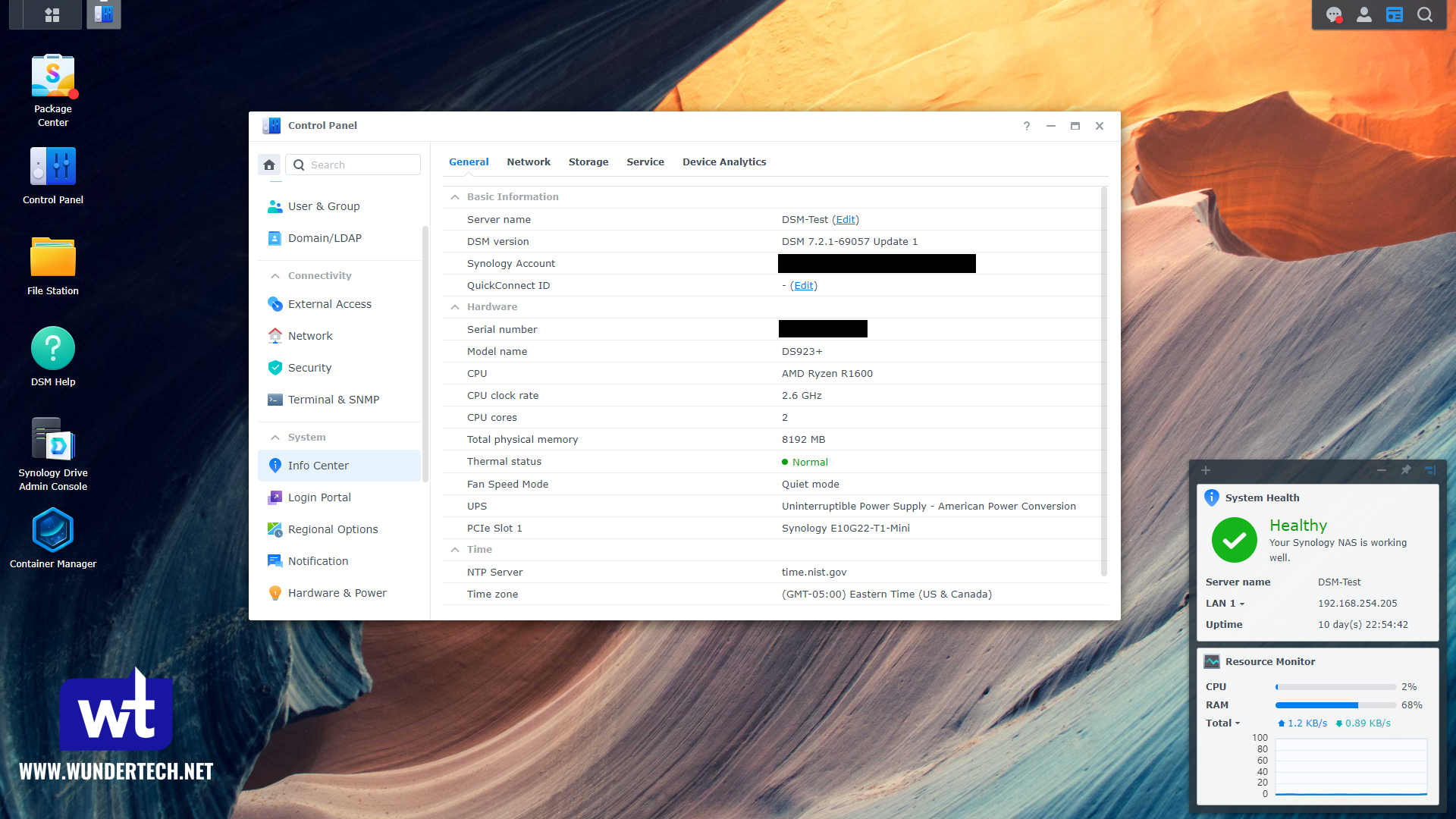
Older Synology models used Intel processors with Quick Sync, which is what made them good Plex boxes. The Plus line moved to AMD Ryzen, and those chips have no integrated graphics. You gained something real in that trade, which is ECC memory support. If an error is detected in memory, it’s corrected before it reaches your disks, and on a machine holding the only copy of your photos that matters more than most people think.
What you lost is hardware transcoding. Every model I recommend below supports ECC. None of the four-bay and larger ones will transcode for you.
Step 3: Buy More Bays Than You Think You Need
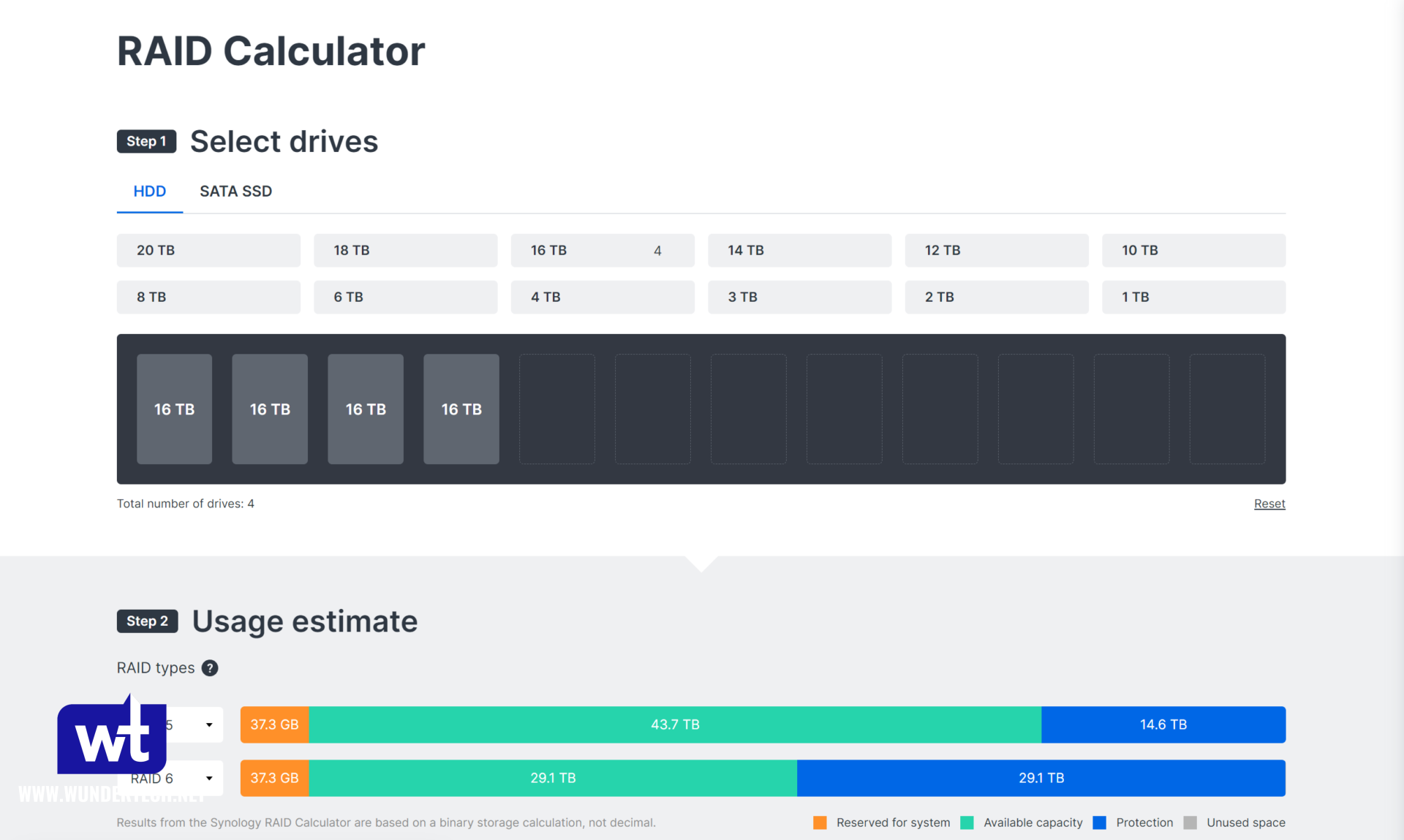
Bay count decides your RAID type, your usable capacity, and whether data and RAID scrubbing work the way they should. Let me make this simple: buy one model higher than you think you need. If four bays sounds right, get the five or eight bay unit.
I say that because adding capacity later means either replacing every drive one at a time or buying a second NAS, and both cost more than the bay you skipped. Use Synology’s RAID calculator to see what each configuration actually gives you before you decide.
Step 4: Check Which Upgrades You Can Add Later
Not every model can be upgraded, and this is where buying the cheaper unit tends to cost you. Three upgrades are worth caring about.
10GbE Networking
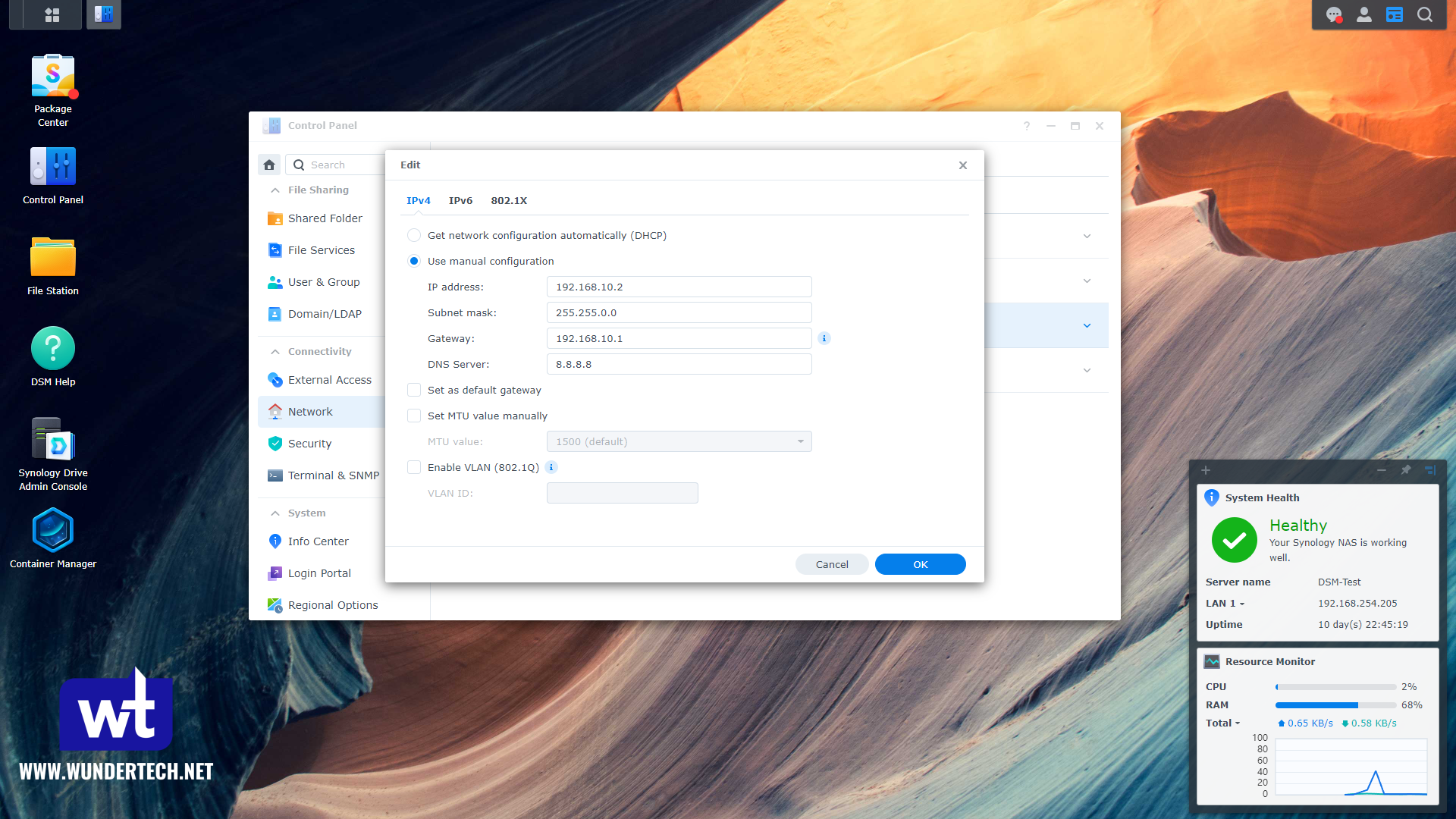
Most Synology models ship with 1GbE or 2.5GbE. If you want 10GbE, you need the E10G22-T1-Mini for the DS1525+, or the E10G18-T1 PCIe card for the DS1825+. Worth being honest with yourself here: your switch and your desktop have to support 10GbE too, or the card does nothing.
NVMe SSD Cache
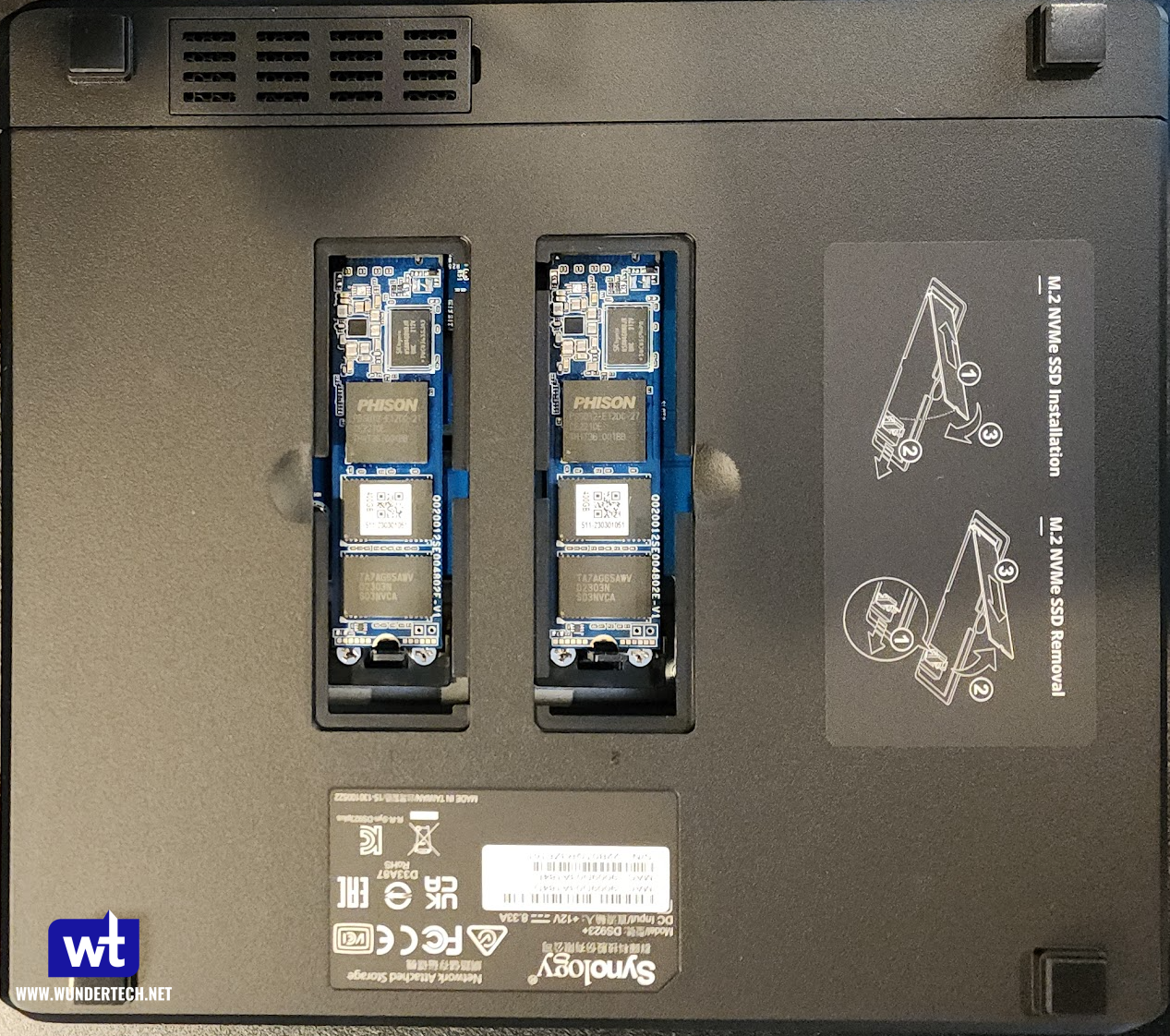
This is the restriction that did not get reversed. On current models the NVMe drive has to be a Synology-validated one, which in practice means the SNV3410 400GB. Older advice that you can use any NVMe drive you like no longer applies to the 2025 lineup.
Before you spend the money, be honest about whether you need it. On a home NAS serving files, photos and backups, read cache does very little, and I’ve pulled it out of more builds than I’ve put it into. It earns its place when you’re running virtual machines or databases on the NAS. I go through the real-world difference in my SSD cache guide.
Memory
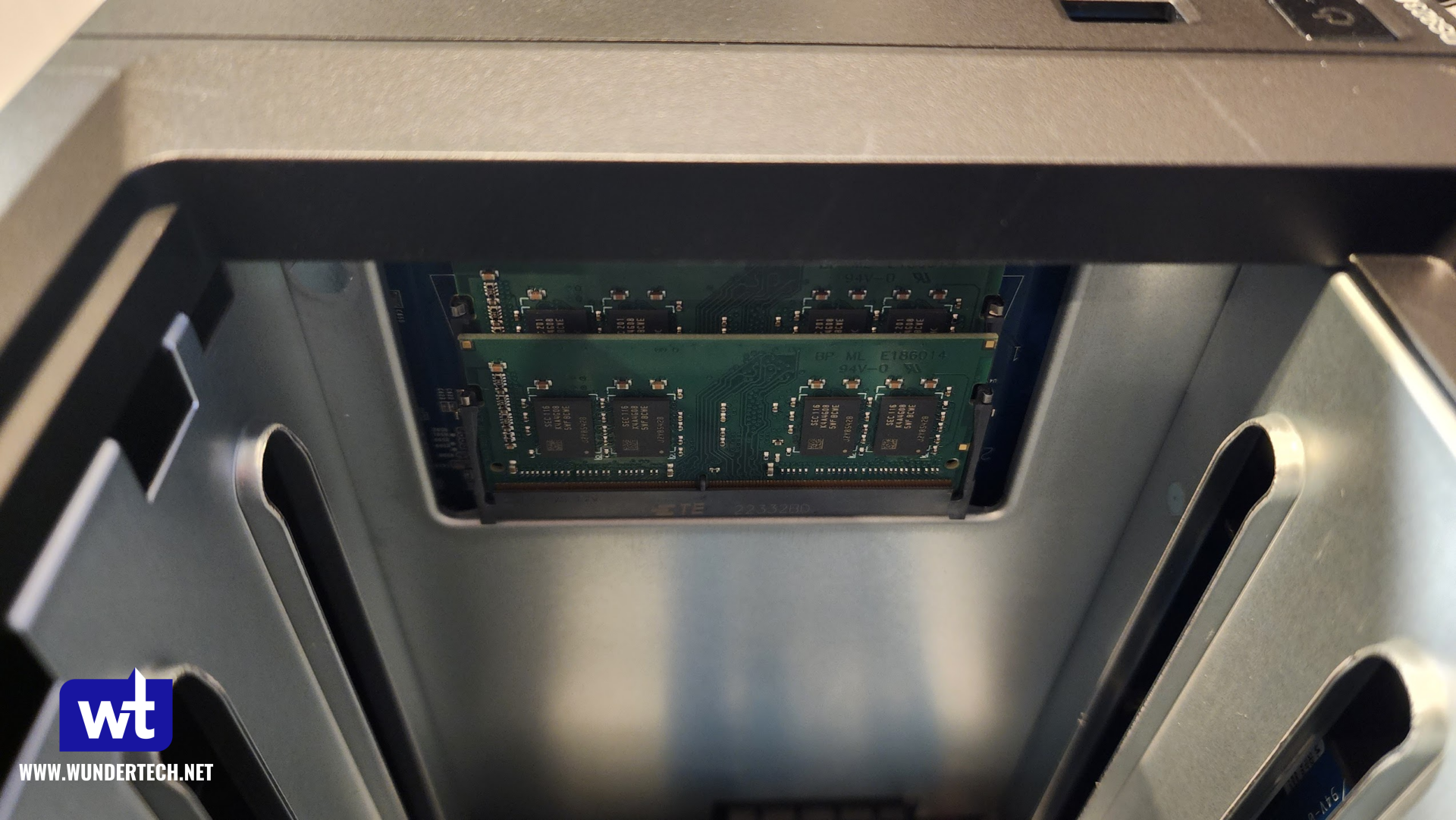
Every model below ships with less memory than you’ll eventually want if you run Docker or virtual machines. Synology’s own kits are the 4GB D4ES02-4G and the 8GB D4ES01-8G. Third-party memory usually works, but Synology doesn’t guarantee it and won’t help you if it misbehaves. My memory upgrade guide covers the process.
What is the Best Synology NAS in 2026?
Synology DS925+: The One Most People Should Buy
The DS925+ is the model I own and the one I recommend without hesitating. Four bays, AMD Ryzen, 4GB of DDR4 ECC memory out of the box, NVMe slots for cache or a dedicated volume, and two 2.5GbE ports as standard. For file storage, backups, photos, Docker containers and a couple of light virtual machines, it does everything and it does it quietly.
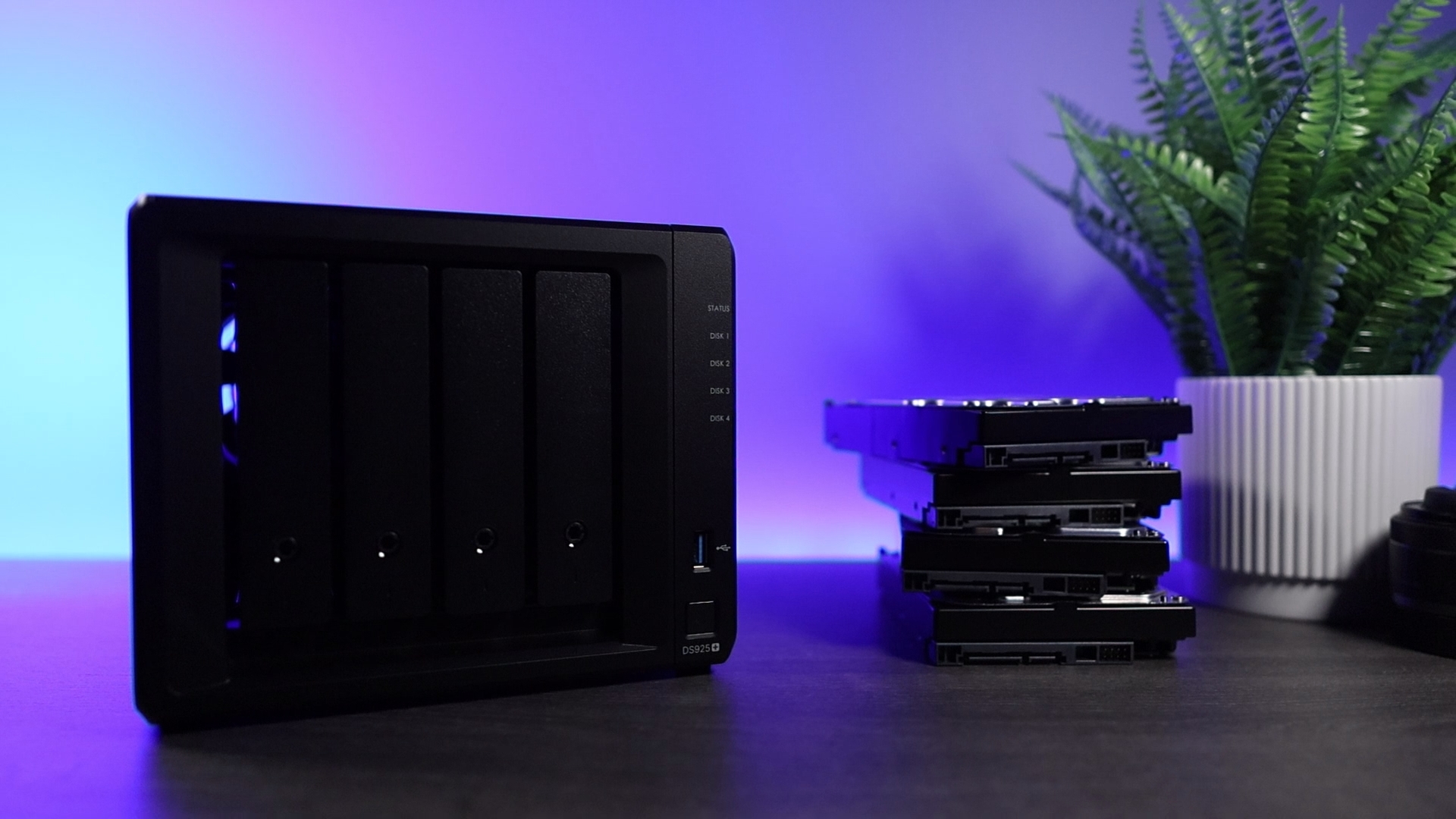
The catch is that it dropped the 10GbE upgrade slot the DS923+ had. Two 2.5GbE ports are plenty for most homes, and you can bond them, but if 10GbE was on your list you need to look at the DS1825+ instead. It also won’t transcode, so check the Plex situation before you commit if that’s the plan.
Synology DS225+: Best Two-Bay Option
If two bays genuinely covers you, the DS225+ is the one I’d buy. It’s a plus-series machine, so you get the full DSM experience: Docker, Synology Photos, Drive, Surveillance Station, all of it. It’s a much better machine than the J-series option below and the price gap is smaller than people expect.
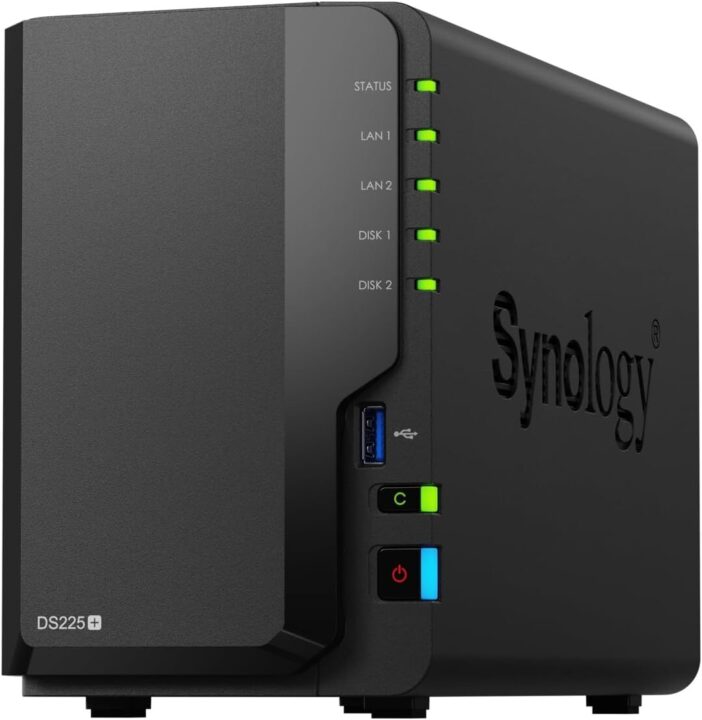
The catch is the bay count itself. Two bays in a mirror means half your raw capacity is parity, and expanding later means replacing both drives. If there’s any chance you’ll want more room in three years, the DS925+ is the better spend. Pair it with sensible drives from my Synology hard drive guide and it’ll run for years.
Synology DS223j: Cheapest Way Into DSM
The DS223j exists to get you into DSM for as little money as possible, and it does that. It supports Btrfs, which older J-series models didn’t, so you still get snapshots and checksumming. If you want network storage for files and backups and nothing else, it’s a fine machine.
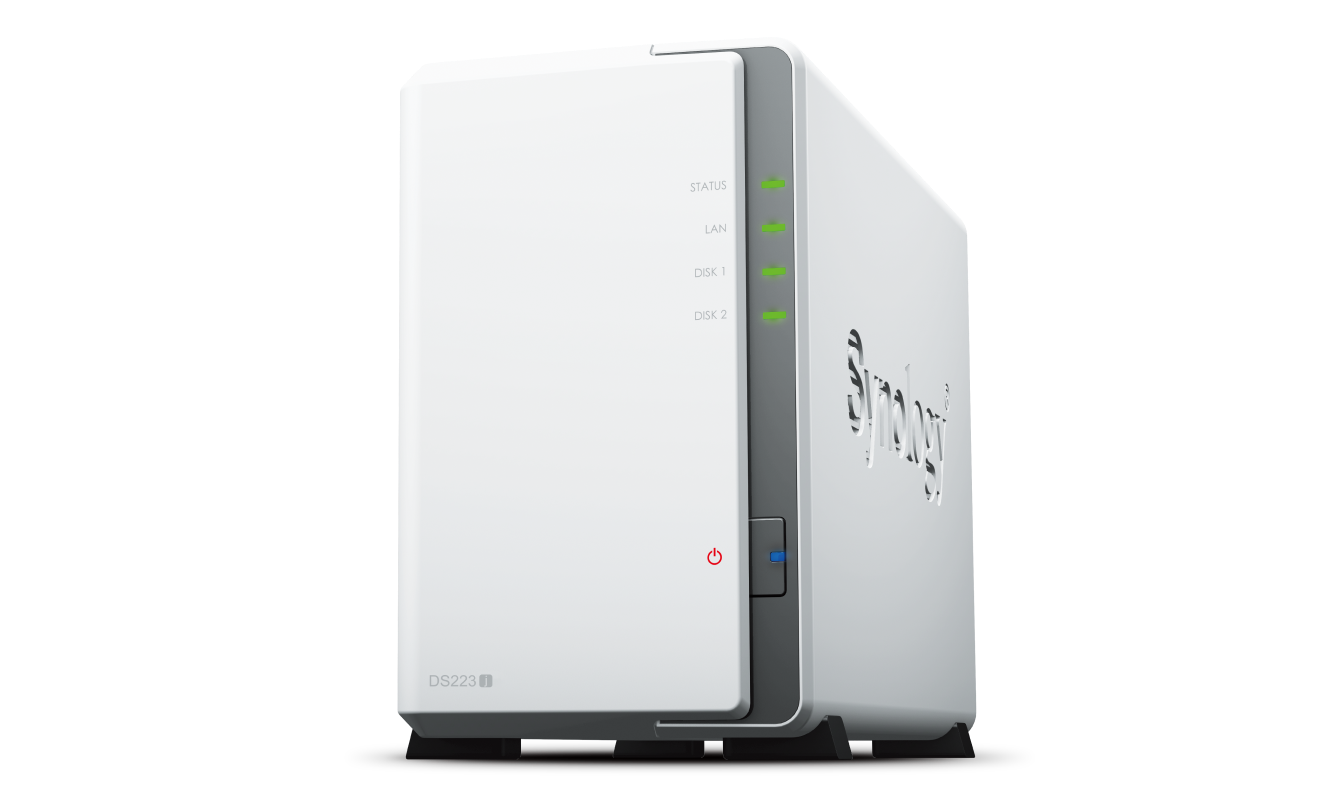
I’ll be straight about this one: most people shouldn’t buy it. It’s underpowered, you can’t run Docker properly on it, and the memory isn’t upgradable. Every time someone buys a J-series to save money and then wants to run one container, they end up buying a second NAS. Spend the extra on the DS225+ unless the budget genuinely will not stretch.
Synology DS1825+: For Power Users
The DS1825+ is where you go when four bays isn’t enough or you want networking above 2.5GbE. Eight bays, a stronger processor, an integrated power supply rather than an external brick, memory that goes to 32GB, and PCIe expansion for the E10G18-T1 10GbE card.
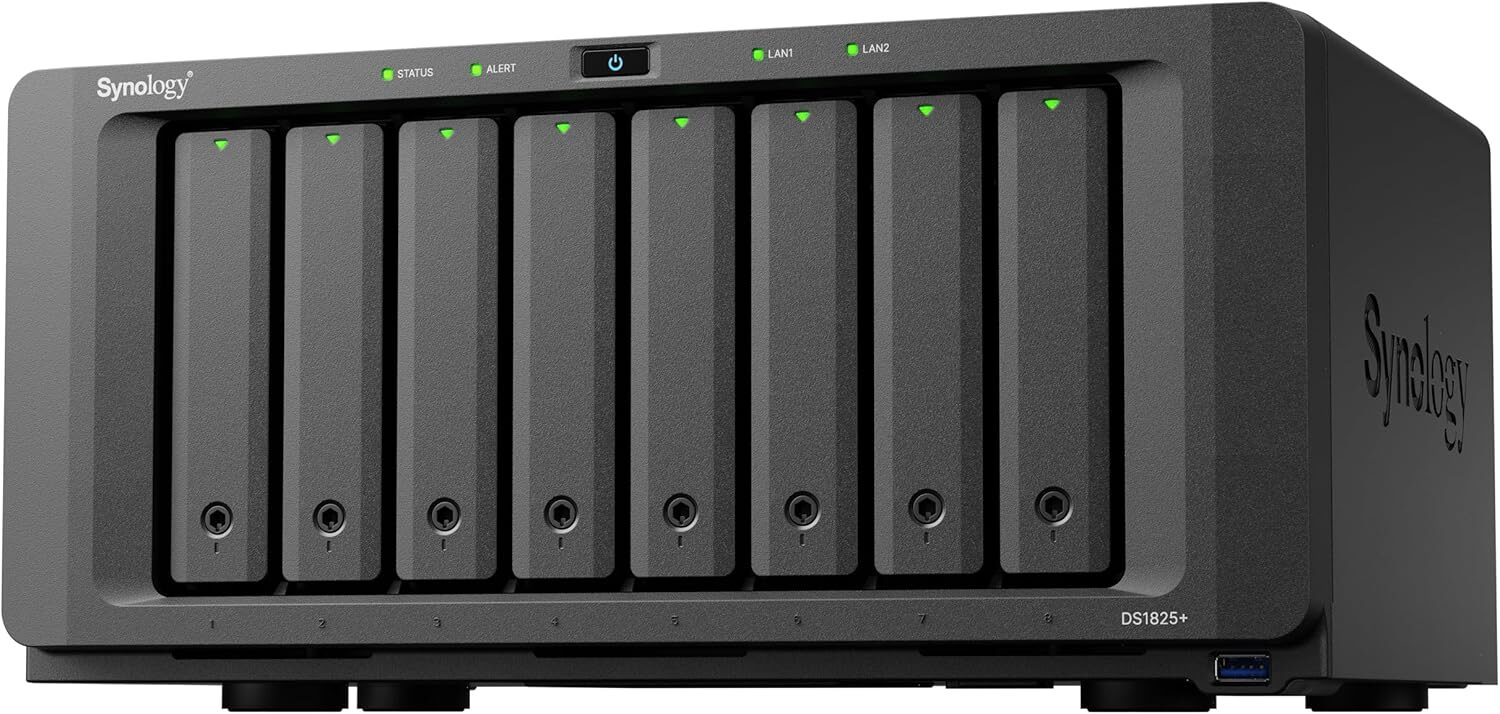
The catch is cost, and it compounds. Eight bays means eight drives, and filling it properly costs more than the unit. If you’re running virtual machines, a lot of containers, or you’ve already outgrown a four-bay, it’s the right machine. If you’re buying it because eight bays sounds better than four, buy the DS925+ and put the difference into drives.
So Which Synology Should You Buy?
Here’s my actual answer rather than a shrug about how it depends.
- Buy the DS925+. That’s the answer for most people reading this. Four bays, upgradable, and it’ll still be the right machine in five years.
- Buy the DS225+ if you’re certain two bays is enough and you want to spend less without giving up DSM features.
- Buy the DS1825+ if you need more than four bays or you actually have 10GbE networking to plug into.
- Buy the DS223j only if it’s this or nothing, and only for file storage.
- Buy something else if Plex transcoding is the point, or if the drive restrictions bother you enough to matter. I’d read my UGREEN vs. Synology comparison before deciding, because that’s a real conversation now in a way it wasn’t two years ago.
Whichever you land on, the drives matter as much as the box. Start with my guide to the best hard drives for a Synology NAS, and once it arrives, my initial setup guide covers the first hour.