
You can set up Pi-hole on a Synology NAS with Container Manager, a macvlan address for every device on your LAN, and a separate bridge address that only the NAS uses. This layout gives Pi-hole its own LAN IP without publishing DNS or web ports on the Synology host.
This is a fresh Pi-hole v6 setup. You’ll create one persistent folder, deploy the Compose project, verify both DNS paths, and then advertise Pi-hole through your router’s DHCP settings.
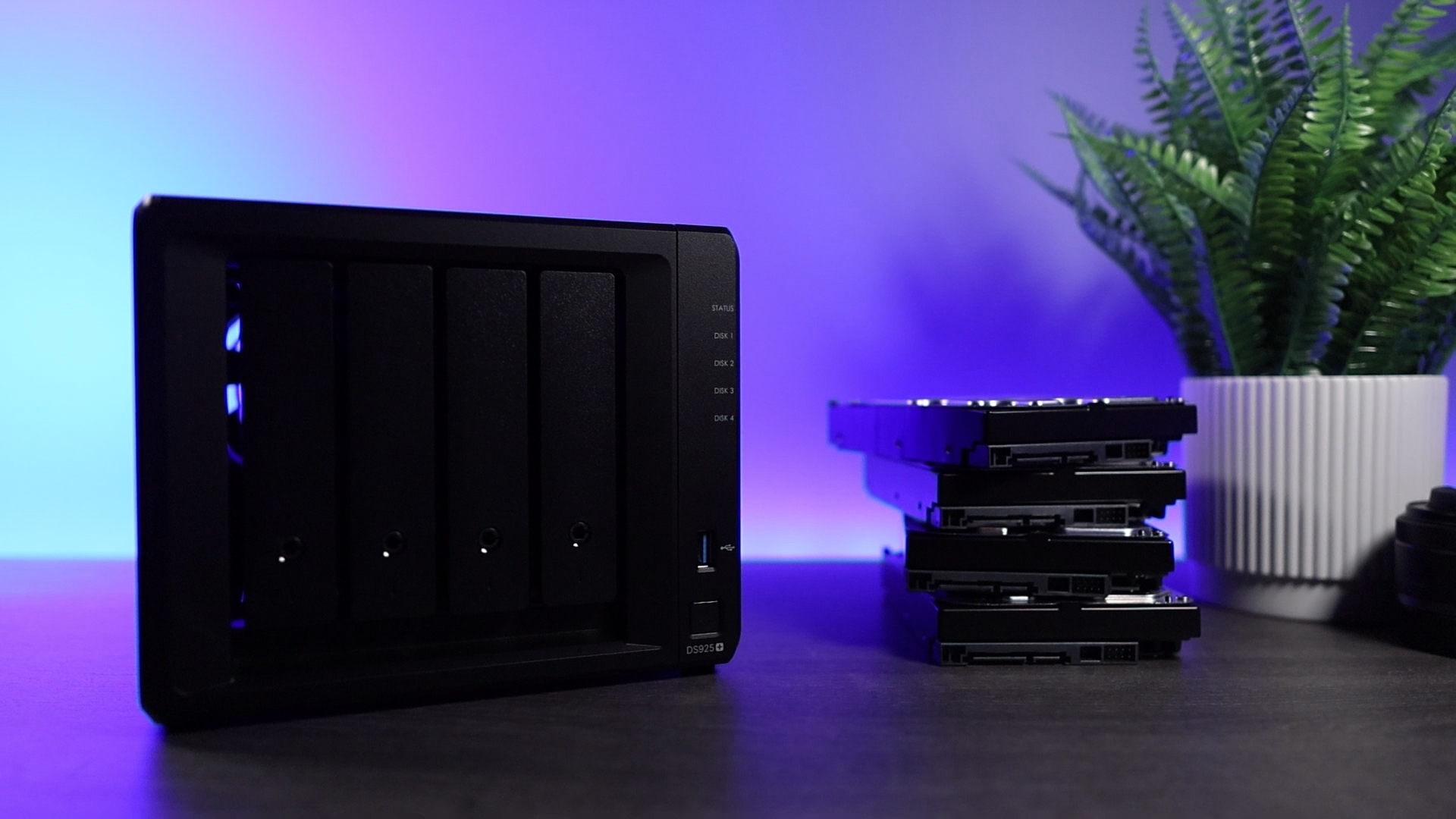
What Is Pi-hole?
Pi-hole filters DNS requests against its blocklists, so devices using it can stop requests to many advertising and tracking domains. Synology Pi-hole runs in a container, and the /etc/pihole bind mount keeps its configuration when the container is recreated.
Pi-hole on Synology NAS won’t block every ad, especially when an ad is served from the same domain as the content, but it covers your network without installing an extension on each device. If you’d rather use dedicated hardware, the Pi-hole on Raspberry Pi setup covers that option.
How to Set Up Pi-hole on a Synology NAS with Container Manager
This configuration uses two networks for two jobs. LAN clients use the macvlan address, 192.168.1.198, while the Synology NAS uses the Docker bridge address, 192.168.100.2, because a Docker host can’t directly communicate with its own macvlan container. The Docker macvlan network guide explains that limitation in more detail.
Before creating the project, confirm that the network equipment serving the NAS accepts macvlan’s additional MAC address, then choose the LAN address. It must be unused and either reserved or excluded from the router’s DHCP pool. For example, a pool of 192.168.1.100 through 192.168.1.150 leaves 192.168.1.198 outside the pool. The 192.168.100.0/24 bridge subnet must also be unused and must not overlap your LAN, VPN routes, or another Docker network.
Create the Pi-hole Folder
1. Install Container Manager from Package Center. If docker is missing, create that shared folder through Control Panel > Shared Folder > Create > Create Shared Folder.
2. Open File Station, create docker/pihole, then create docker/pihole/pihole inside it. This fresh v6 configuration only mounts that inner pihole folder.
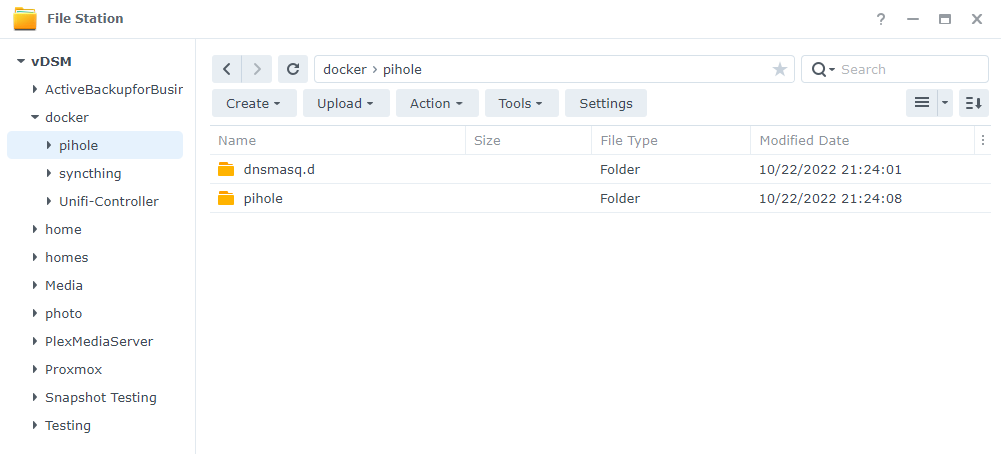
dnsmasq.d. A fresh Pi-hole v6 setup only needs the pihole folder; preserve dnsmasq.d only when an existing configuration has custom dnsmasq files.If you’re updating an existing configuration that uses custom files in dnsmasq.d, preserve that folder and mount, then add FTLCONF_misc_etc_dnsmasq_d: 'true' to the environment section. A fresh installation does not need it.
Find the Synology Network Interface
1. Connect to the Synology NAS through SSH and run the command below. Find the interface carrying the NAS LAN address, then use that name for parent in the Compose file.
ifconfig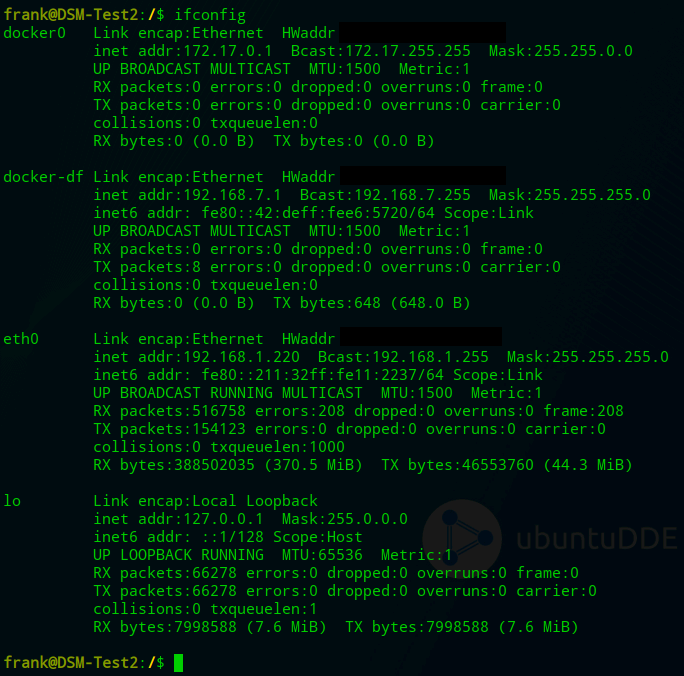
eth0, ovs_eth0, or something else on your NAS.Create the Pi-hole Container Manager Project
1. Open Container Manager, select Project, then select Create.
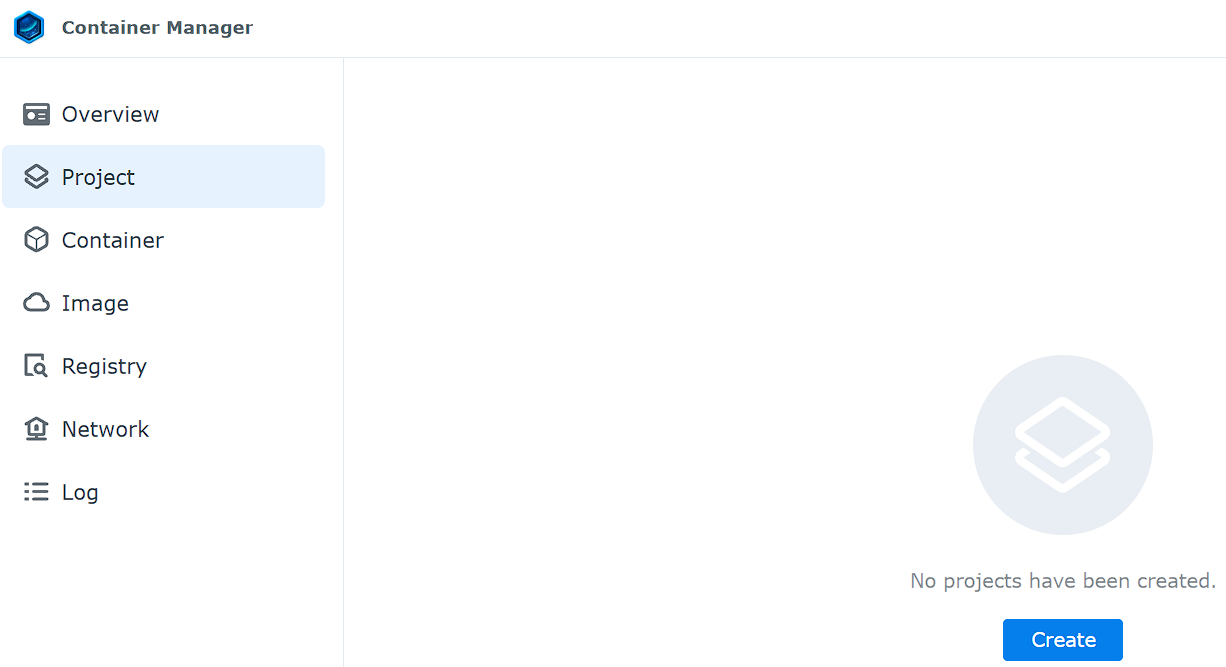
2. Enter pihole as the Project Name, select the docker/pihole folder as the path, then select Create docker-compose.yml.
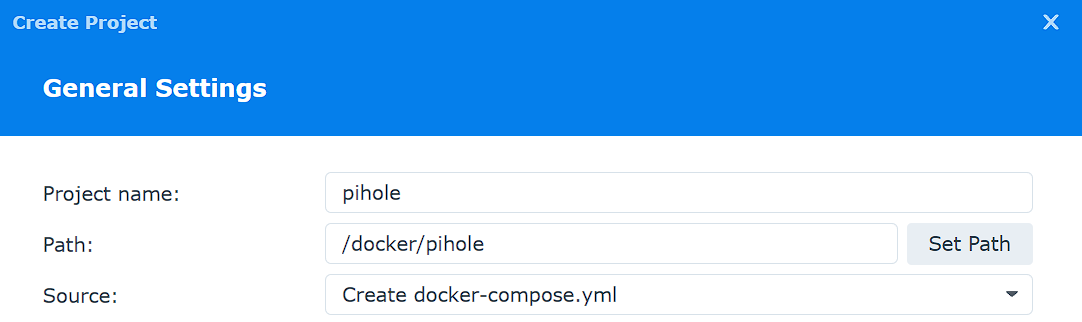
3. Paste the Pi-hole Docker Compose configuration below into the editor.
services:
  pihole:
    container_name: pihole
    image: pihole/pihole:2026.09.0
    environment:
      TZ: America/New_York
      FTLCONF_webserver_api_password: 'CHANGE_THIS_PASSWORD'
      FTLCONF_dns_listeningMode: LOCAL
    volumes:
      - /volume1/docker/pihole/pihole:/etc/pihole
    networks:
      ph_network:
        ipv4_address: 192.168.1.198
      ph_bridge:
        ipv4_address: 192.168.100.2
    restart: unless-stopped

networks:
  ph_network:
    name: ph_network
    driver: macvlan
    driver_opts:
      parent: eth0
    ipam:
      config:
        - subnet: 192.168.1.0/24
          gateway: 192.168.1.1
  ph_bridge:
    driver: bridge
    ipam:
      config:
        - subnet: 192.168.100.0/24
          gateway: 192.168.100.1
Before deploying, replace eth0, the LAN subnet and gateway, the macvlan address, the bridge subnet, gateway, and address, TZ, and 'CHANGE_THIS_PASSWORD'. Change /volume1/docker if the NAS stores its docker shared folder on another volume. If the real password contains a dollar sign, enter every literal $ as $$ because Compose treats $NAME and ${NAME} as variable interpolation. Security changes, and nothing is guaranteed.
The Compose file has no ports or cap_add section. Pi-hole receives DNS and web traffic directly on its macvlan address, while the bridge provides the NAS-only path, so publishing ports isn’t needed for this DNS-only setup.
4. Select Next. If Container Manager shows a Web portal screen, continue without adding a portal. Review the summary, select Done, then choose to start the project when Container Manager asks. Wait until the project and pihole container show as running.
Configure Macvlan and the Bridge Network
The macvlan interface is Pi-hole’s direct path to the LAN, while the bridge gives the Synology host a separate path to the same container. Keep both networks attached, don’t publish the container ports on the NAS, and use each address only for its intended clients.
Open http://192.168.1.198/admin from a LAN client and sign in with the password from the Pi-hole Container Manager project. Replace the example address if you chose a different one.
Test Pi-hole and Configure Router DNS
1. From a LAN client, run nslookup example.com 192.168.1.198. It should return an answer, and the request should appear in Pi-hole’s Query Log.
2. From an SSH shell on the NAS, run nslookup example.com 192.168.100.2. It should return an answer and appear in the same Query Log.
3. After the bridge lookup works, open DSM Control Panel, select Network, then General. Select Manually configure DNS server, enter 192.168.100.2 as the Preferred DNS server, leave the alternative blank unless you have a second Pi-hole, then select Apply.
These checks prove the two network paths separately: 192.168.1.198 is the address for LAN clients, and 192.168.100.2 is only for the Synology host. If either lookup fails, leave the router DNS unchanged and recheck the project status, parent interface, LAN CIDR and gateway, address reservation, and bridge subnet.
Configure Router DNS for Pi-hole
For this setup, open the router’s LAN or DHCP settings and advertise 192.168.1.198 as the only DNS server. Leave secondary DNS blank unless you have a second Pi-hole instance, because a public secondary resolver lets clients bypass Pi-hole.
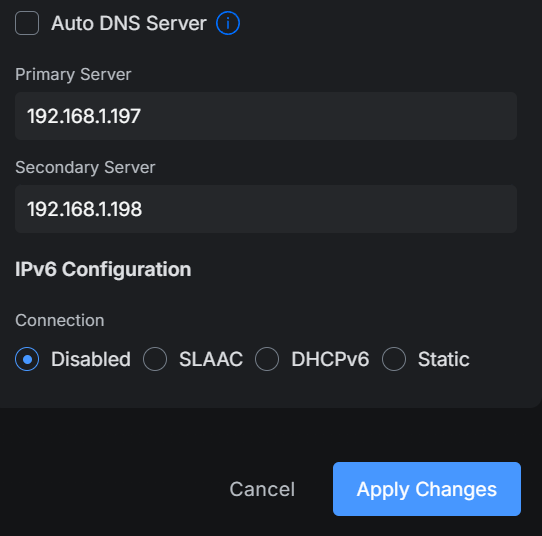
192.168.1.198 as primary DNS, leave secondary blank unless a second Pi-hole exists, and handle IPv6 according to your network rather than copying this screen.Renew a client DHCP lease, then run a normal nslookup example.com without naming a server. Confirm the client received the Pi-hole address and that the request appears in Query Log before rolling the change out further. Manually configured DNS, separate IPv6 DNS advertisements, and encrypted DNS can bypass the IPv4 resolver supplied by DHCP.
You can instead configure the router to query Pi-hole itself, but that is a different topology and can hide individual clients in the Query Log. Never point Pi-hole upstream to that same router, because the two systems will create a DNS loop.
Troubleshooting Pi-hole on Synology
- The admin page and both lookups fail: Confirm that the Container Manager project and
piholecontainer are running. - The project log says FTL cannot run as a non-root user or cannot set capabilities: Add
DNSMASQ_USER: rootunderenvironment, recreate the project, and retest both lookups. Pi-hole documents this as necessary on some Synology NAS systems. - The LAN lookup fails: Recheck the
parentinterface, LAN subnet and gateway, and confirm that the macvlan address is unused and excluded from DHCP. - The NAS lookup fails: Query
192.168.100.2, not the macvlan address, and confirm that the bridge subnet doesn’t overlap another local, Docker, or VPN network. - Clients still use another resolver: Renew their DHCP leases, remove any public secondary DNS server, and check for separate IPv6 or encrypted-DNS settings.
Back Up and Update Pi-hole
Pi-hole publishes date-based image tags, and 2026.09.0 pins this Compose file to a specific release. Before updating, back up the Compose file and /volume1/docker/pihole/pihole directory, change the image tag to a newer date-based release, and recreate the project. Repeat both address-specific nslookup checks before changing router DNS.
If the update fails those checks, restore the saved directory and redeploy the saved Compose file.
The full Pi-hole update guide covers the update process, while the advanced Pi-hole setup is the better next step if you’d like to add Unbound or a second Pi-hole.
Leave the router on its current DNS until both Pi-hole addresses answer correctly and the queries appear in the log.