UniFi firewall rules are zone-based policies now. A UniFi firewall setup starts by putting every network, WAN interface and VPN into a zone, then writing policies that allow or block traffic from one zone to another. The old per-rule model with its LAN In, LAN Out and LAN Local types is gone once a site on UniFi Network 9.0 or newer has been migrated to the Policy Engine.
I ran zone-based policies on a test gateway while they were still a release candidate in January 2025, and my own network has run them since 2025, so the screens below are my own. The mapping from the old rule types to the new zone pairs is under UniFi LAN In vs LAN Out vs LAN Local, and What Replaced Them, further down.
Where UniFi Firewall Settings Are Now
The UniFi firewall settings live under Settings, in the Policy Engine group. Two entry points matter: Zones and the Policy Table, every policy on the site in one filterable list. You need a UniFi Cloud Gateway or UniFi Gateway running the zone-based firewall, which means Network 9.0 or newer with gateway firmware 4.1 or newer.
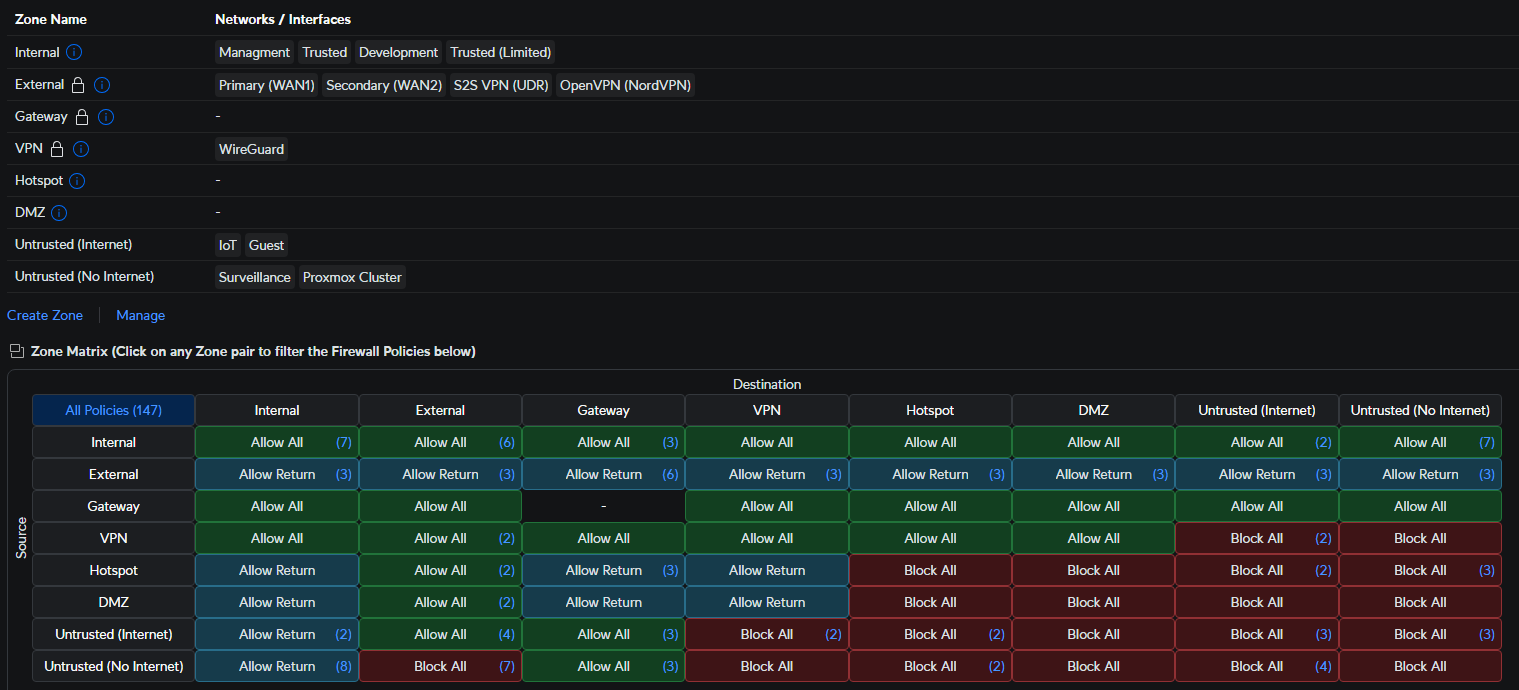
A zone is a group of interfaces, and six zones are built in: Internal, External, Gateway, VPN, Hotspot and DMZ. Every network belongs to exactly one zone and lands in a built-in zone when you create it. You change that either on the network itself or by editing the zone. None of the six can be deleted, and External, Gateway and VPN carry a padlock. You can create your own on top of those, up to 30.
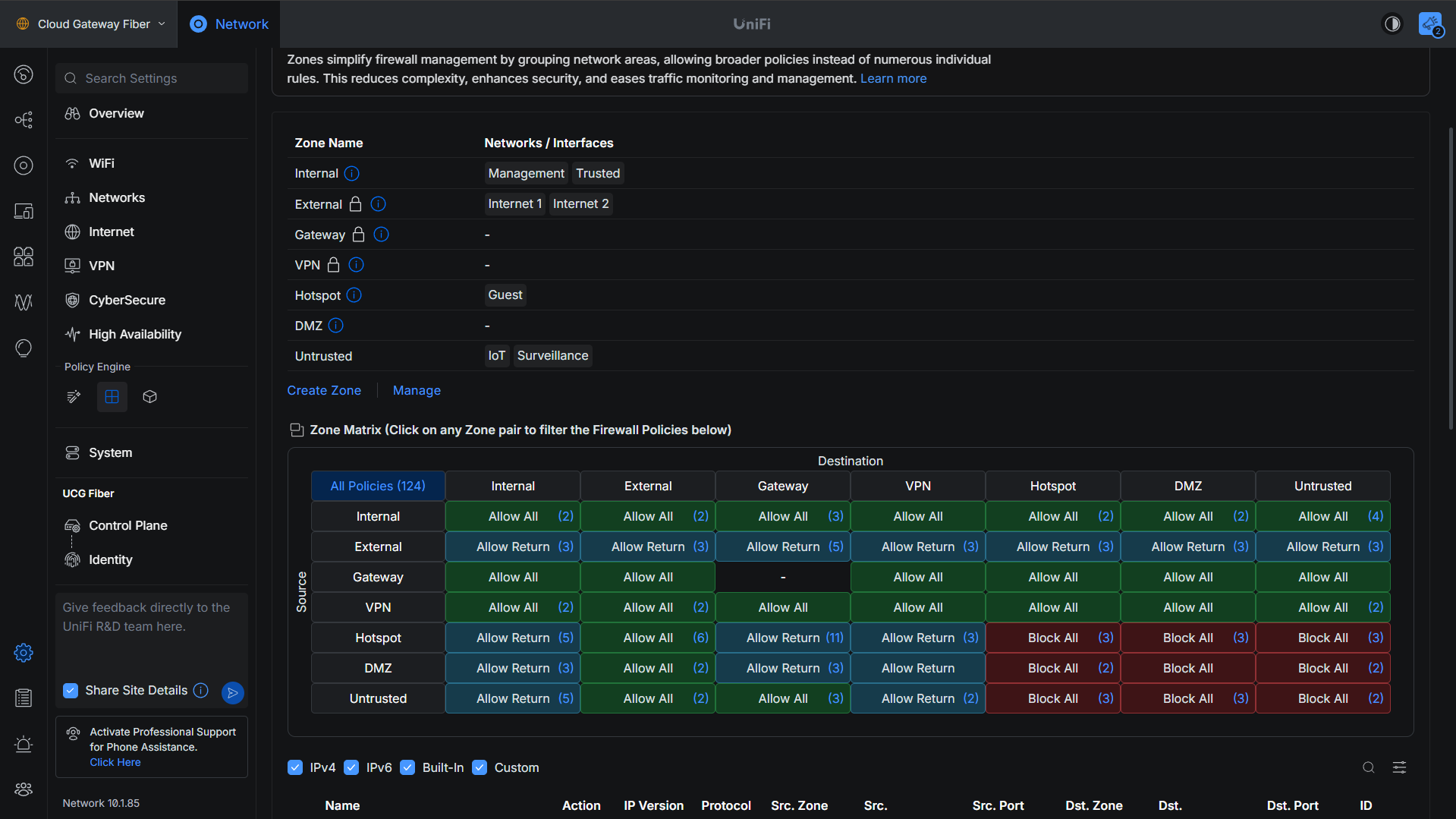
The Zone Matrix is the part worth getting comfortable with. The rows are source zones, the columns are destination zones, and each cell shows what’s allowed for that pair. Clicking a cell filters the policy table below it to the policies governing that one flow. The cell itself reads one of four ways: Allow All, Block All, Allow Return (Ubiquiti’s docs call it Allow Return Traffic: the source can start a conversation and the destination can only reply to it), or Policies, which means a mix of allows and blocks, and that’s how most pairings with External read before you add any policies of your own.
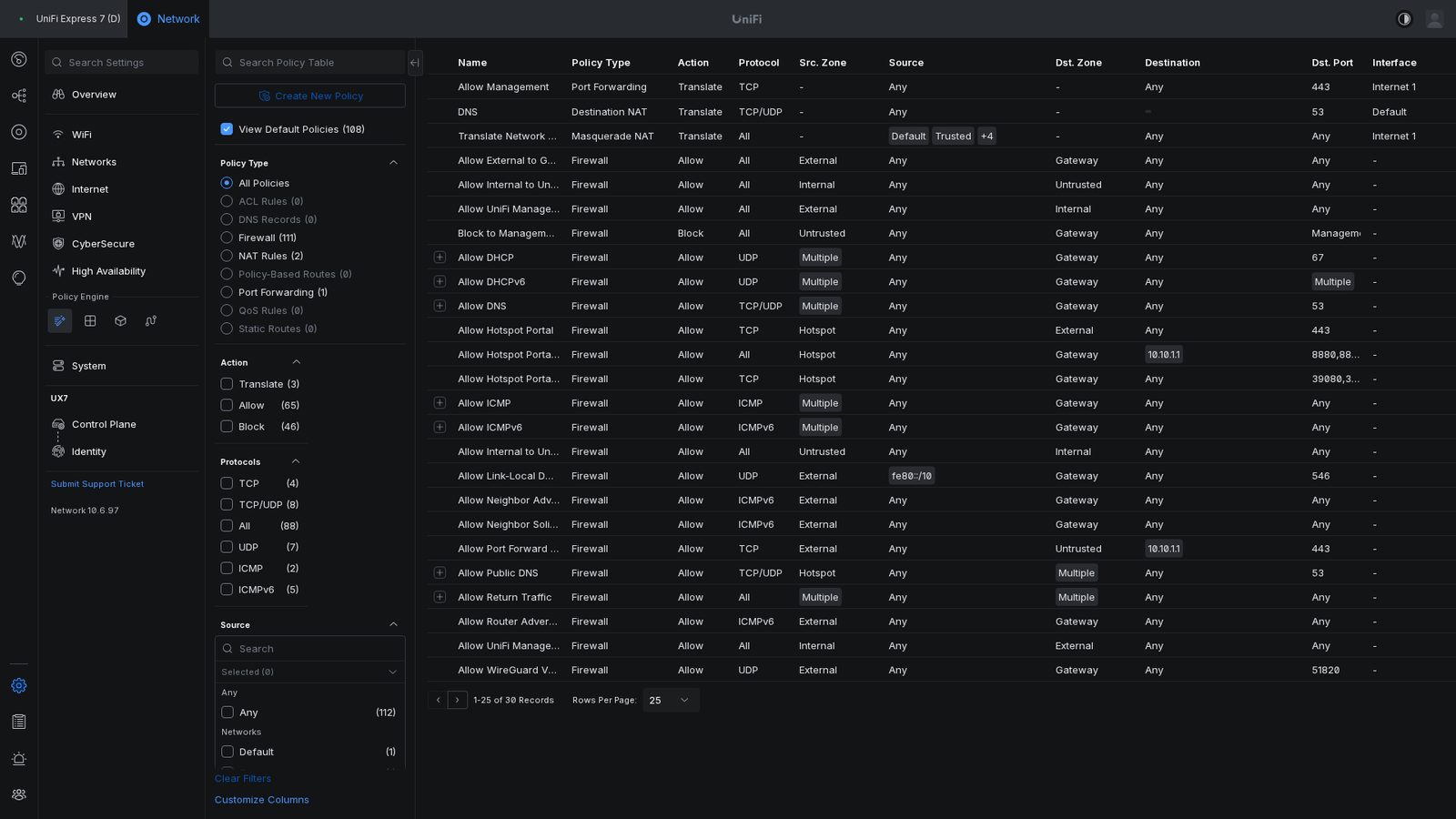
Traffic rules aren’t a separate screen anymore. Ubiquiti pulled firewall policies, routing, QoS, NAT, port forwarding and DNS records into one Policy Engine. The built-in policies in the table (Allow All Traffic, Block Invalid Traffic, Allow Return Traffic, Block All Traffic) carry a lock icon and can’t be edited or deleted.
If your site hasn’t been migrated yet, everything below assumes you’ve clicked the Upgrade to the New Zone-Based Firewall banner first; the LAN In vs LAN Out section below has the path.
How to Configure UniFi Firewall Rules
A UniFi firewall setup is two decisions: which zone each network belongs in, and which policies you write between those zones. There’s one policy dialog now, so the Simple and Advanced split is gone.
1. Open Settings and find the Policy Engine heading in the sidebar. It’s a row of small icons rather than names: the grid icon opens Zones and the list icon beside it is the Policy Table. The grid gives you the zone list with the Zone Matrix underneath it.
2. Decide where each network belongs. Trusted devices stay in Internal, the guest network goes in Hotspot, which also switches on its landing page, and everything you don’t trust (IoT, cameras, a lab VLAN) goes in a zone you create.
3. Select Create Zone, give it a Zone Name, and add the networks that belong to it under Networks / Interfaces, then save it.
4. Look at the matrix again. The new zone reads Block All against Internal, VPN, Hotspot, DMZ and itself, and Allow All to External and Gateway, so the devices in it have internet, DHCP and DNS and nothing else until you write a policy.
5. Create the policy. Click the cell for the pair you’re configuring to filter the table to it, then select Create Policy, or open the Policy Table and create one there. Name it for what it does, set the source and destination zones, then narrow each side with the options that zone offers (Any, Device, Network, IP, MAC or Region). Set Port to Any, Specific (a Service from the list, or a port number) or List, and use the App or Web (domain) fields if you’re matching on those.
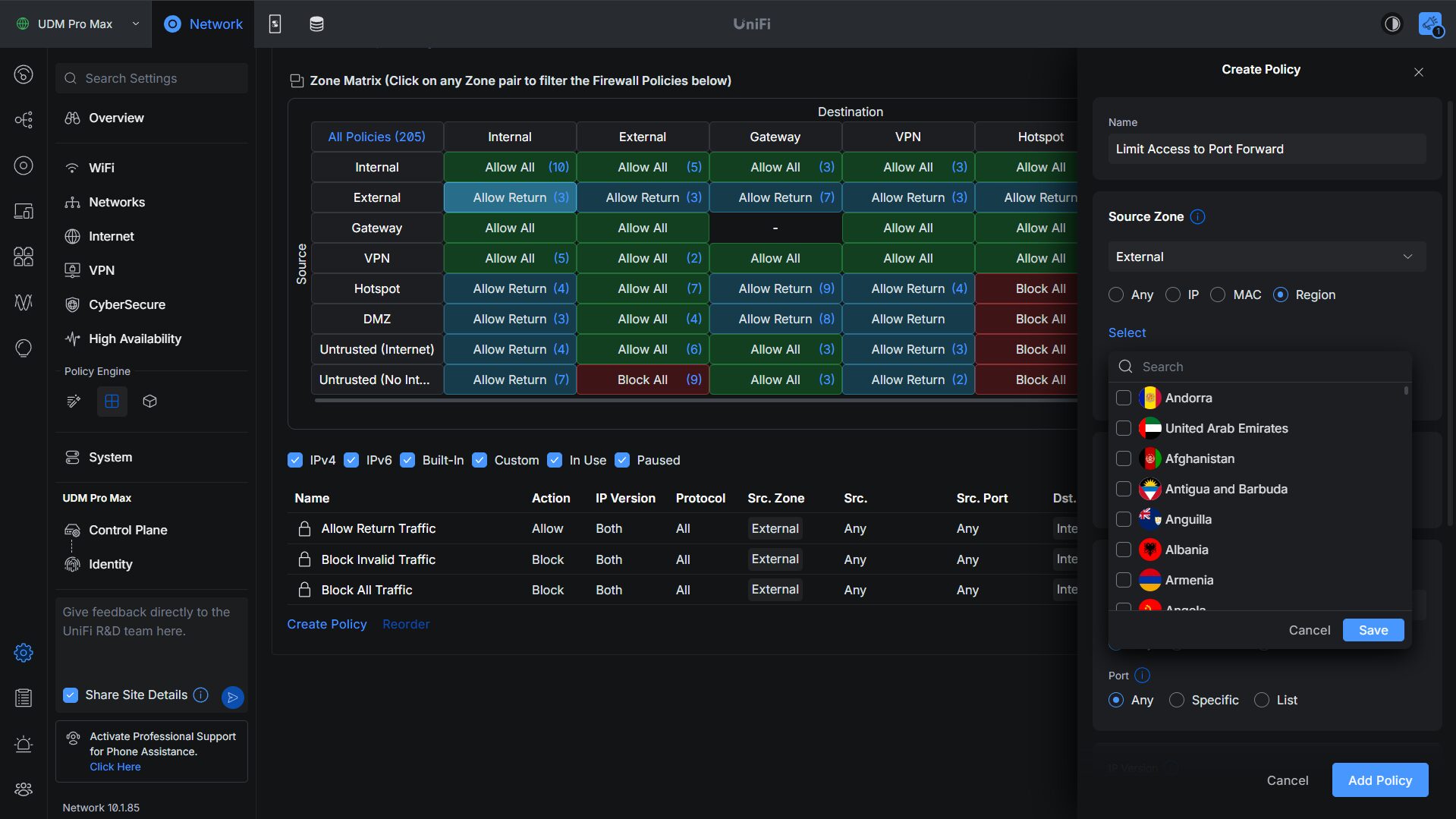
6. Pick the action. Allow passes the traffic and gives you the Auto Allow Return Traffic option (which lets the destination answer), Block silently drops it, and Reject blocks it and notifies the sender, so the client fails immediately instead of timing out.
7. Set the optional restrictions if you need them: IP Version (IPv4, IPv6 or both), Protocol, Connection State, a custom schedule, and syslog logging.
8. Save it. A custom policy sits above the built-in policies and below your other custom policies; Rule Order below covers moving it.
The policy almost every network needs is Internal to your untrusted zone, set to Allow with Auto Allow Return Traffic ticked. As soon as it’s saved, the untrusted to Internal cell flips from Block All to Allow Return, the quickest confirmation you did it right.
How to Block Traffic with a Firewall Policy
Blocking is the same dialog with the action set to Block, and there are three ways to stop one network from reaching the others. The blunt one is Network Isolation on the network itself (Settings > Networks), which automatically creates the rules to block inter-VLAN traffic in a click. It works, but it writes policies of its own alongside yours, so I turn it off when I’m managing the zones myself.
The second way is the zone itself, and it’s what I’d suggest for most people. Drop the VLANs you don’t trust into a custom zone and they’re blocked from your other networks and from each other by default, internet still working, including every VLAN you add to that zone later. The third way is a policy between two specific networks. You can do that inside a single zone as well as between zones, so two networks that both sit in Internal can still be separated with an Internal to Internal policy.
For anything narrower, open the smallest hole that does the job. When I give a camera VLAN access to my NAS, the policy names the NAS by IP and the SMB port rather than the whole zone, so those devices reach one service on one box and nothing else. Region, app and domain blocking live on the same source and destination fields. If an app or domain rule doesn’t appear to do anything, it is nearly always a policy above it matching first.
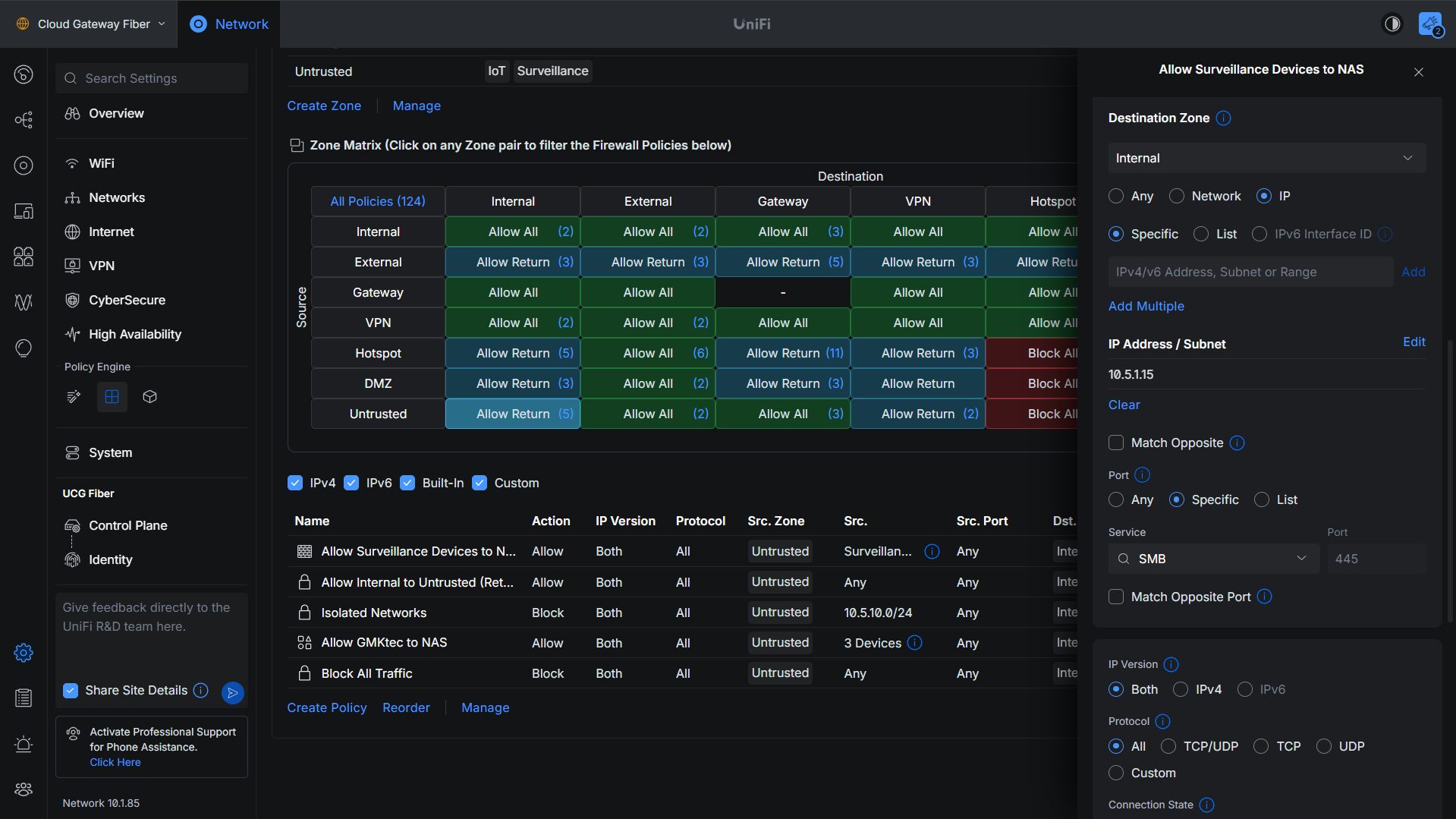
Match Opposite under the address field inverts that selection, and Match Opposite Port does the same for the port, so you can pick the one network or port you care about and have the policy apply to everything except it. I demonstrated it back in January 2025, and it still saves listing every network by hand.
Blocking traffic to the gateway itself needs a lighter touch. The Gateway zone is traffic to and from the gateway: DHCP, DNS, and the HTTPS and SSH management interfaces. I set the destination Port to List, click Create New under it and build one with 80, 443 and 22 in it, then block it from my untrusted zone to the Gateway zone, which closes the management interface and nothing else. Ubiquiti warns that blocking traffic to the Gateway zone may disrupt DHCP and DNS, and a broken DNS looks exactly like a dead internet connection. That’s the first thing I’d check if the internet seems to die right after a gateway policy.
Two things look like firewall rules but aren’t. Device Isolation (ACL) under Settings > Networks is enforced by the switches, and Client Device Isolation under Settings > WiFi stops clients on the same AP and VLAN from seeing each other. Neither appears in the policy table.
Firewall Rules for VPN and Teleport Traffic
VPN traffic has its own zone, which means UniFi VPN firewall rules are written exactly like every other policy. The built-in VPN zone covers remote users coming in over Identity One-Click VPN, WireGuard on UniFi, L2TP and OpenVPN on UniFi. It also covers site-to-site VPN in UniFi over Site Magic, IPsec or OpenVPN.
The default matters here more than anywhere else on the page. VPN to Internal is Allow All, and so are VPN to Gateway, Hotspot and DMZ, so a remote client that connects has the run of the network until you write a policy that says otherwise. To limit it, create a policy with the source zone set to VPN, the destination zone set to Internal and the action set to Block, then pick the networks the VPN shouldn’t reach. It lands above the built-in Allow All on its own, so there’s nothing to reorder.
If you’ve read anything written before this (the earlier version of this article included), you were told that VPN traffic needs a LAN Out rule, because the VPN server runs on the router itself rather than behind it. That is finished. As I said in January 2025, you no longer have to remember that it’s LAN Out for VPNs and LAN In for internal.
Teleport VPN on UniFi is the odd one out. It’s Ubiquiti’s zero-configuration VPN, built on WireGuard and turned on under Network Settings > VPN, where an invitation works for a single device and expires after 24 hours. Ubiquiti doesn’t publish which zone a Teleport client lands in, so test any policy you write for it against a connected Teleport client before you rely on it.
Automatic Firewall Rules for UniFi Networks
Policies get written for you in a few cases too. Setting up a VPN server, a port forwarding rule or IPTV streaming all generate additional policies automatically, below whatever you write yourself, and they only show in the Policy Table when View Default Policies is ticked.
Rule Order: How Policies Are Evaluated
Policies are evaluated from top to bottom and the first one that matches wins, which is the one thing that hasn’t changed from the old model. Anything you haven’t matched falls through to the built-in policies at the bottom. The list under the matrix, not the Policy Table, is the one shown in evaluation order, top to bottom. So the practical rule is to put the allow for the traffic you want above the block that denies the rest.
By default a custom policy takes precedence over the built-in ones but follows your other custom policies. You change that from Zones: click the zone pair in the matrix to filter the policies below, then click Reorder under that list. The Policy Table won’t do it for firewall policies. The built-ins themselves (things like “Allow Neighbor Advertisements”) carry a lock icon and can’t be edited or deleted, so your own policy beats one simply by sitting above it, which it already does.
When a rule appears to do nothing, it’s almost always one of three things. The first is return traffic. If you allowed A to B without Auto Allow Return Traffic, B can’t answer and the connection fails, unless another policy already allows the return traffic. The second is direction: a block from zone A to zone B holds even when B to A is allowed. The third is that something above it matched first.
UniFi LAN In vs LAN Out vs LAN Local, and What Replaced Them
The old model asked you to pick a rule type: LAN In caught traffic on its way into the firewall, LAN Out caught traffic heading out to the LAN, and LAN Local only traffic aimed at the firewall itself. Internet In, Internet Out and Internet Local did the same job for WAN traffic (Ubiquiti’s migration table below calls them WAN_IN, WAN_OUT and WAN_LOCAL), with a duplicate set for IPv6 on top of that.
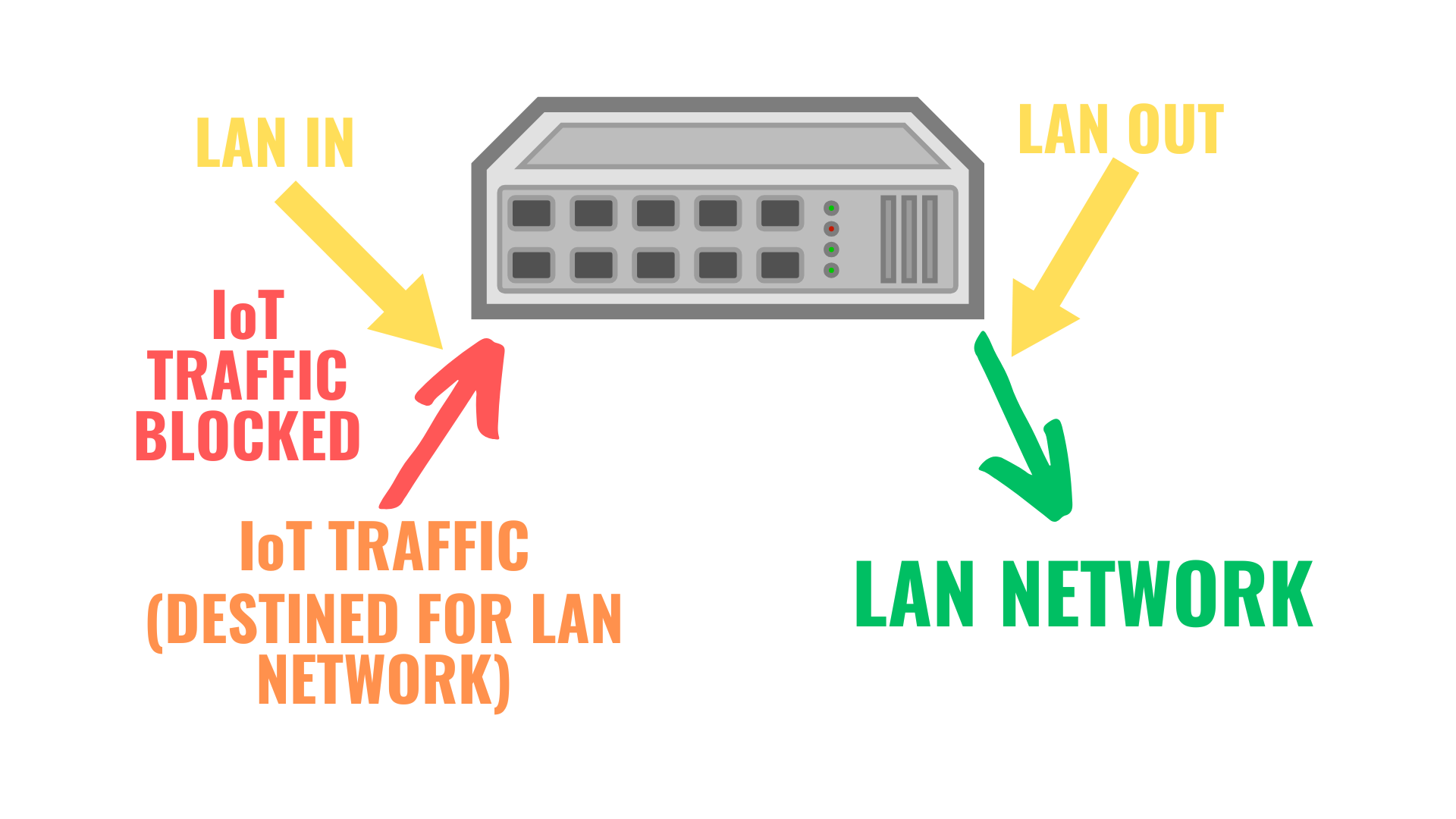
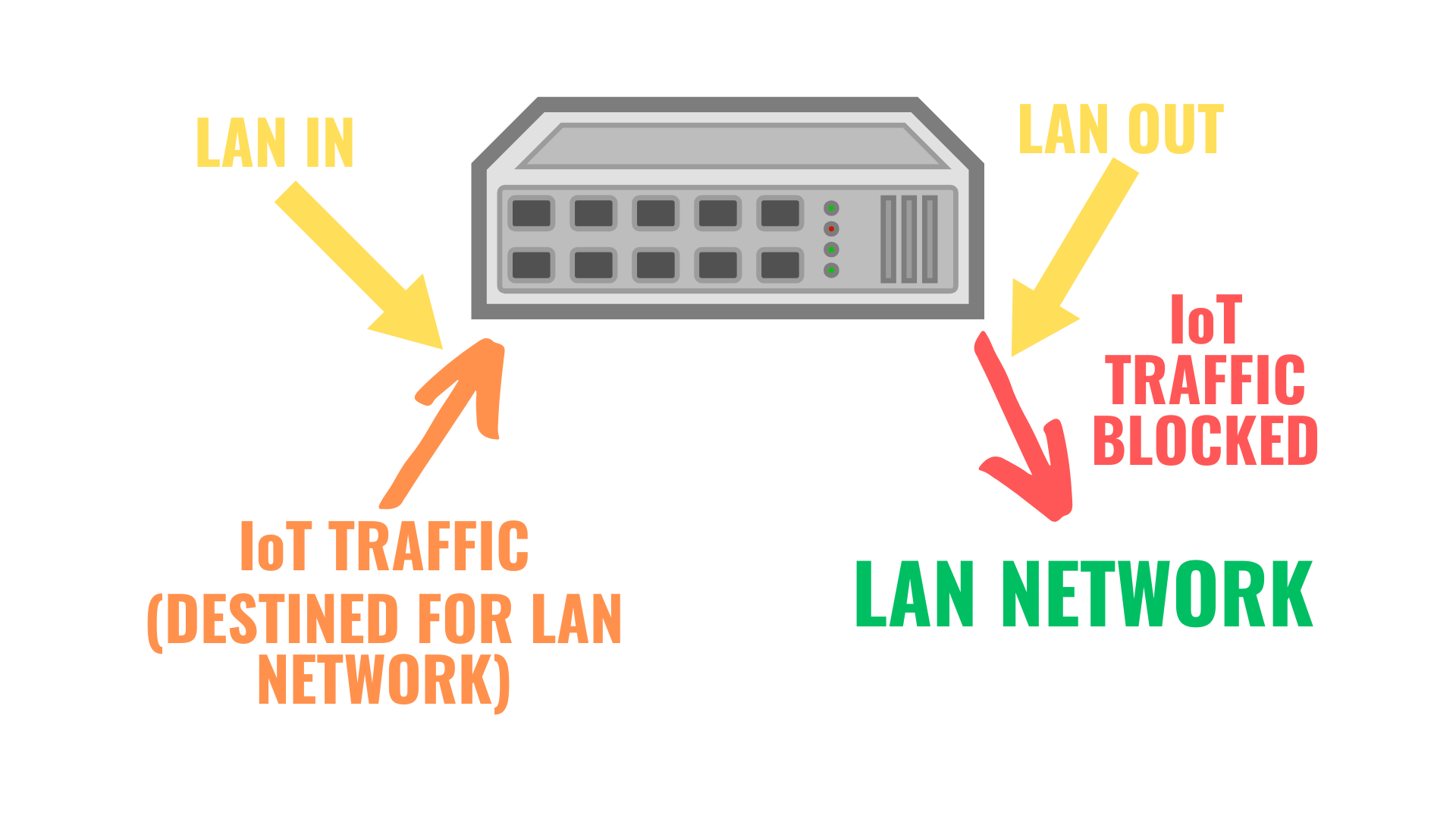
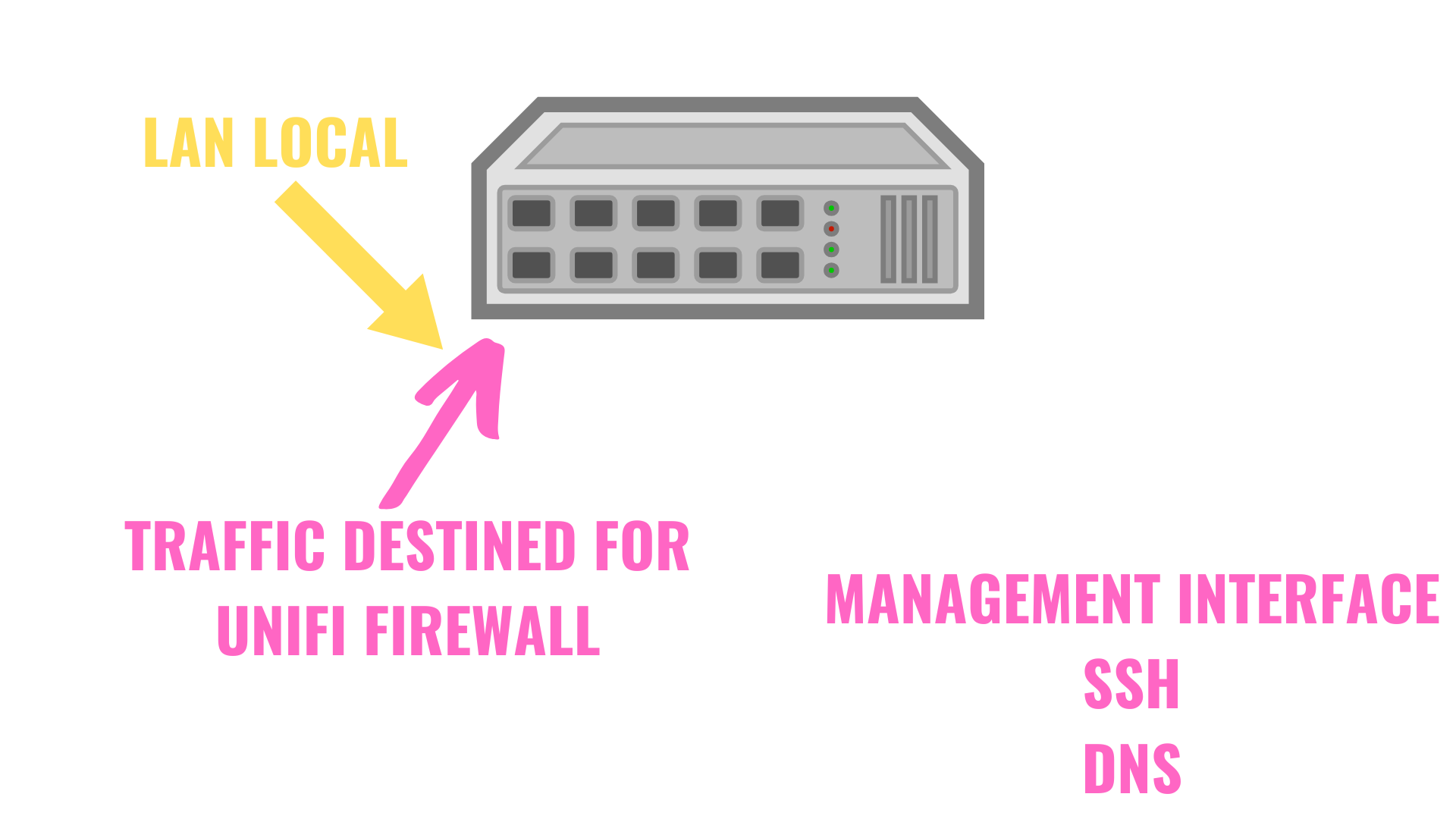
None of those types exist after migration. The direction is the zone pair instead, so you pick a source zone and a destination zone, and one policy can cover IPv4, IPv6 or both. When I first covered the zone-based firewall I said that new users found the difference between LAN In and LAN Out confusing, especially with IPv4 and IPv6 to keep straight, and that those days were gone. Having run it since, that held up.
If you want to know where your old rules went, Ubiquiti published the mapping it uses when it migrates a site. It’s the expansion the migrator runs, one policy for every zone pair in the row, which is why migration multiplies your rules. Building one by hand, keep the single source and destination the traffic really used, and read Internal as whichever zone that network is in now.
| Legacy ruleset | Source zone | Destination zone |
|---|---|---|
| LAN_IN | Internal | Internal, Hotspot, External, VPN |
| LAN_OUT | Internal, Hotspot, External, VPN | Internal |
| LAN_LOCAL | Internal, VPN | Gateway |
| GUEST_IN | Hotspot | Internal, Hotspot, External, VPN |
| GUEST_OUT | Internal, Hotspot, External, VPN | Hotspot |
| GUEST_LOCAL | Hotspot | Gateway |
| WAN_IN | External | Internal, Hotspot, External, VPN |
| WAN_OUT | Internal, Hotspot, External, VPN | External |
| WAN_LOCAL | External | Gateway |
If your site hasn’t been migrated yet, nothing happens until you open Settings > Security > Traffic & Firewall Rules and click the Upgrade to the New Zone-Based Firewall banner across the top of it; the move is never done for you. The move takes a few seconds and traffic keeps passing while it runs. An automatic backup is taken first, and the notice that appears after the migration carries the link to restore the previous configuration.
Expect more rules afterwards, not fewer. Ubiquiti took a conservative approach so behaviour is identical after the move, which means it generates policies that are redundant or do nothing. It tells you to test first, then remove the ones doing nothing; they’re listed in the Policy Table. On the test gateway I migrated in January 2025, a single LAN In rule blocking IoT to the RFC1918 range came out the other side as four separate policies, so the cleanup is worth an evening once you’re confident the network still behaves. Your old IP and port groups survive as Objects, the cube icon in the Policy Engine group, and the Simple and Advanced rule screens are gone.
UniFi Firewall Rules Best Practices
The UniFi firewall rules best practices I keep coming back to are mostly about zone layout rather than clever policies, because the layout is what decides your defaults. The first is that the Internal zone is sacred: anything you put in it can reach everything else in it, so it’s for devices you genuinely trust. The second is to group VLANs into a few zones rather than creating one zone per VLAN. Networks inside a custom zone can’t talk to each other by default while networks inside Internal can talk to everything, and that one difference does most of your segmentation for you.
In my opinion, two custom zones cover 95 to 98% of what people actually need: one untrusted zone with internet access and one without, the second being the same kind of zone with a block policy to External. IoT gear and cameras go in whichever of the two fits. Then you write the few policies that punch holes for the traffic that has to cross.
- Put the guest network in the Hotspot zone rather than Internal, then uncheck Show Landing Page under the gear icon in Insights > Hotspot and check the captive portal is off on the WiFi network itself. Here’s the full guest network VLAN on UniFi setup.
- Park the default network in a custom zone with a block policy to External if you don’t use it, because any untagged switch port lands a device there.
- Consider both directions. Allowing one direction does not open the other. Auto Allow Return Traffic covers replies, not new connections from the far side.
- Don’t write an allow policy you don’t need. A single VLAN or a single port beats a whole-zone allow.
- Deleting a custom zone deletes every policy attached to it, so check what goes with it before you remove one.
These UniFi firewall best practices all assume the same build order: zones first, so the defaults are right, then the device-level exceptions. The other way around leaves you with a pile of policies and no idea which of them are load-bearing. Security changes and nothing here is a guarantee, so treat a policy set as something you re-read after firmware updates and whenever a new device shows up.