Building a home lab in 2026 is easier than it has ever been, but it is also really easy to buy the wrong stuff and make the whole thing more complicated than it needs to be. After years of running my own setup and testing hardware across every price range, I keep coming back to the same five categories. Get these right, and you have a real, functional home lab. Ignore any one of them, and you will feel the gap pretty quickly.
The NAS — Your Storage Foundation
This is where most people should start. A NAS is where you store documents, media, photos, backups — everything that needs to persist. You have two paths: a pre-built NAS from a vendor like Synology or UGREEN, or a DIY build where you run TrueNAS or Unraid on your own hardware. Which one makes sense depends almost entirely on what OS you want to run.
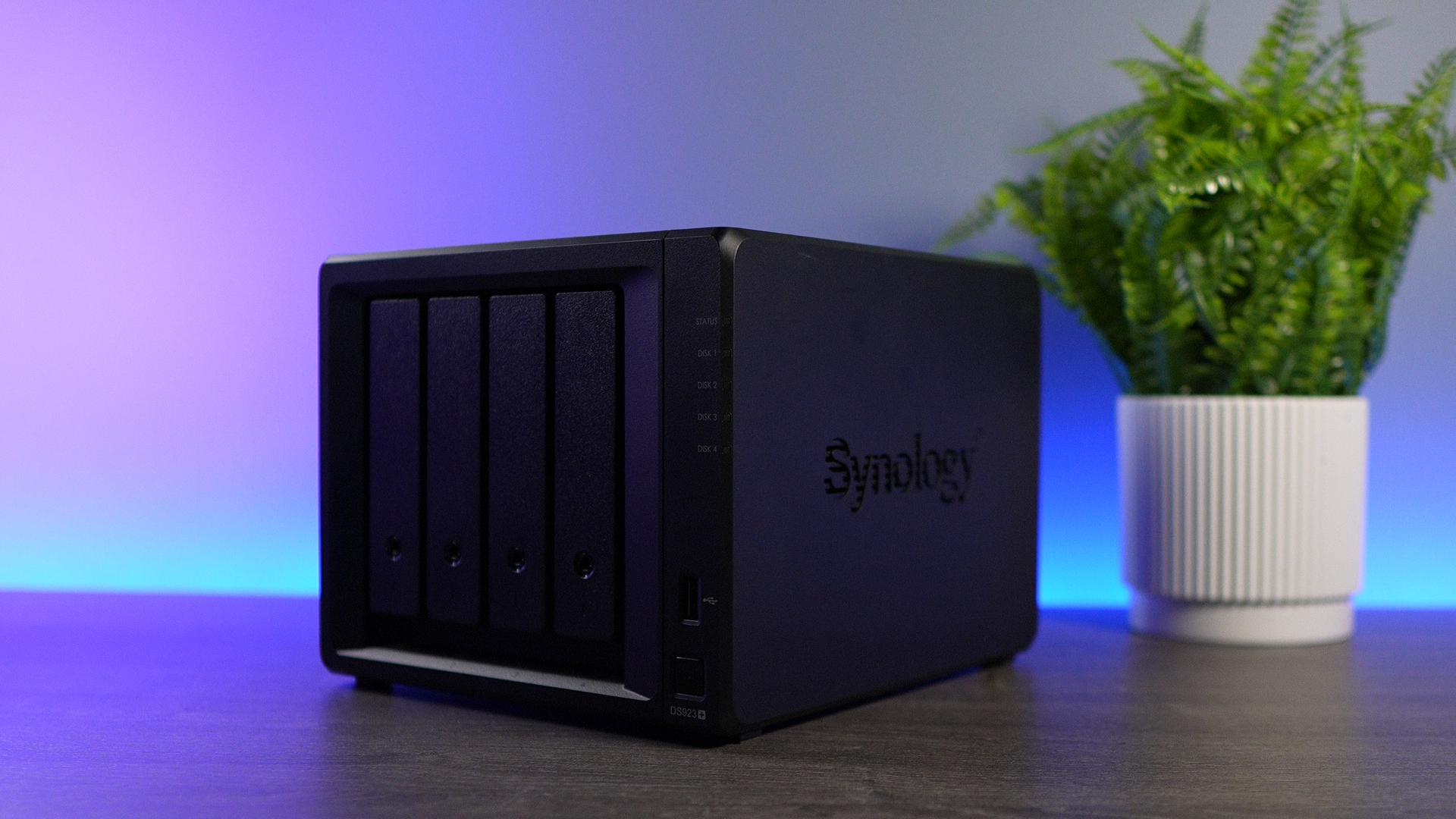
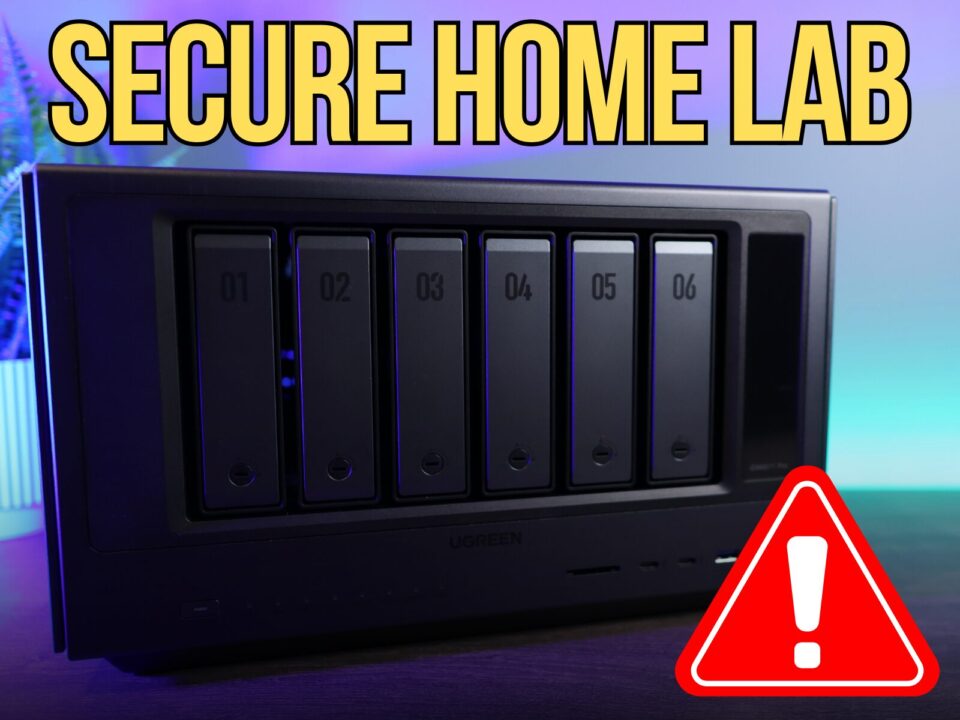
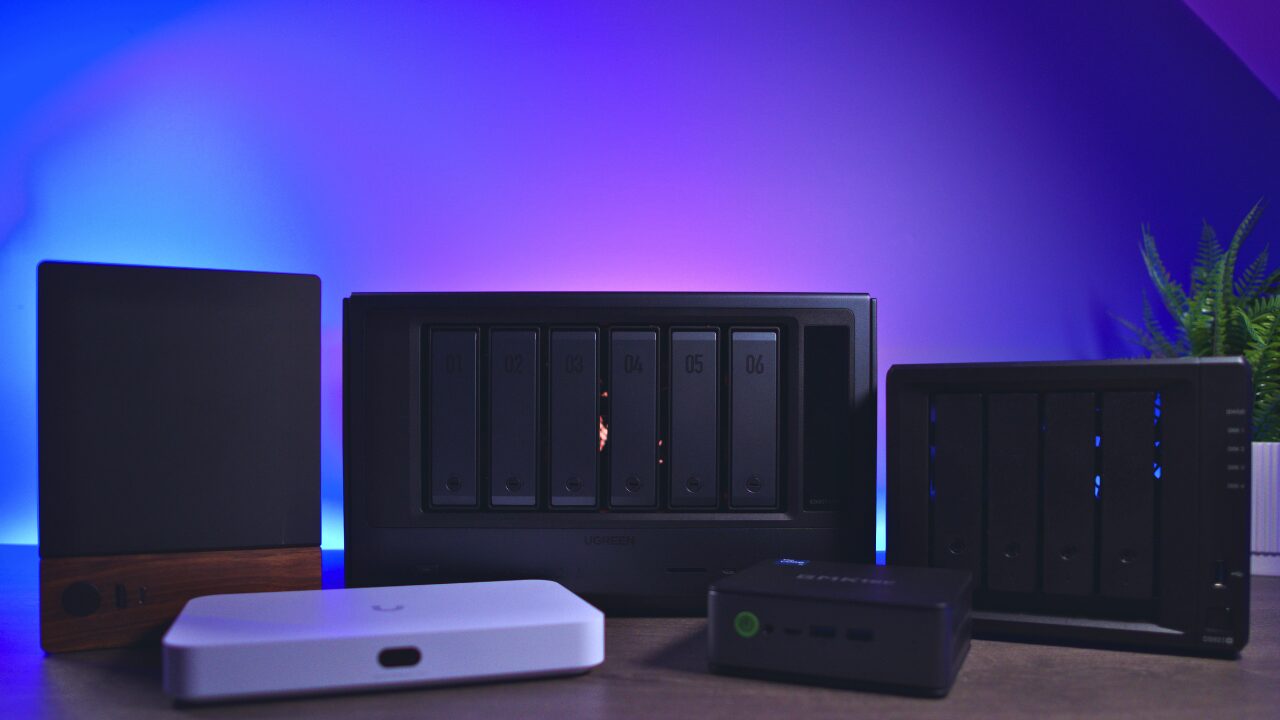
Pre-built devices are the lower-friction option. You plug them in, run through a setup wizard, and you are done. Some of them also support third-party operating systems, which means you can install TrueNAS or Unraid directly and still get all the benefits of Docker containers and self-hosted apps running on the same box. The UGREEN DXP4800 Plus is a good example — it is capable hardware that works well with both first-party and third-party systems.
When you are picking a NAS, the two most important decisions are how many drive bays you need and whether you plan to use RAID. RAID lets you build redundancy into your array so that if one drive dies, you do not lose your data. There are different RAID types worth understanding, but the core point is that any serious NAS setup should have some form of redundancy.
The Hypervisor — Run Multiple Environments on One Box
Once you have storage sorted, the next thing that transforms a home lab from a single-purpose box into something genuinely flexible is a hypervisor. A hypervisor lets you run virtual machines and containers — full isolated environments — on a single piece of hardware. That flexibility is hard to overstate.
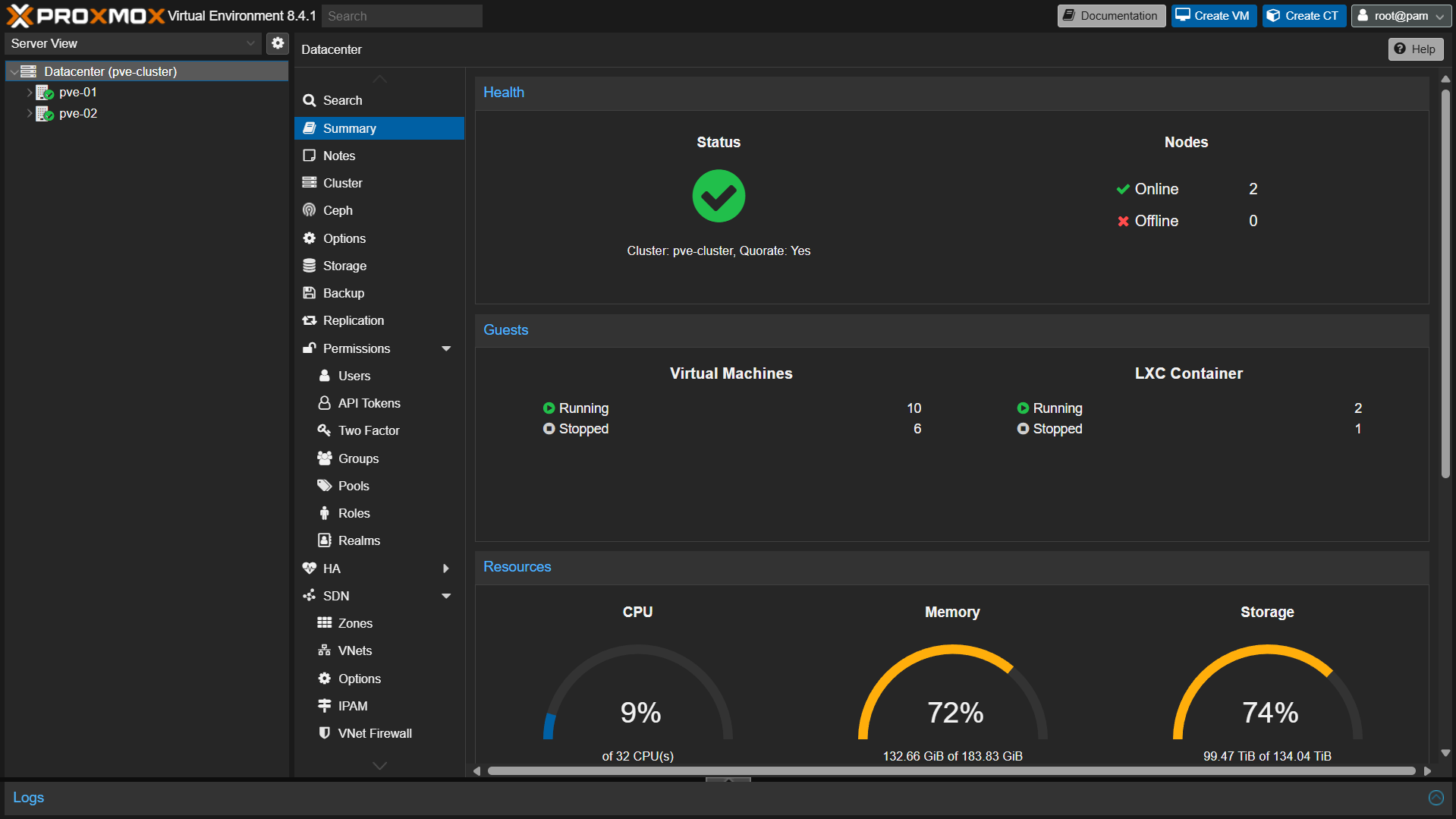
You can run a hypervisor on a mini PC, a desktop you already own, or even repurposed server hardware. The most popular option right now is Proxmox, and for good reason — there are extensive tutorials, it is enterprise-grade, and the community support is excellent.
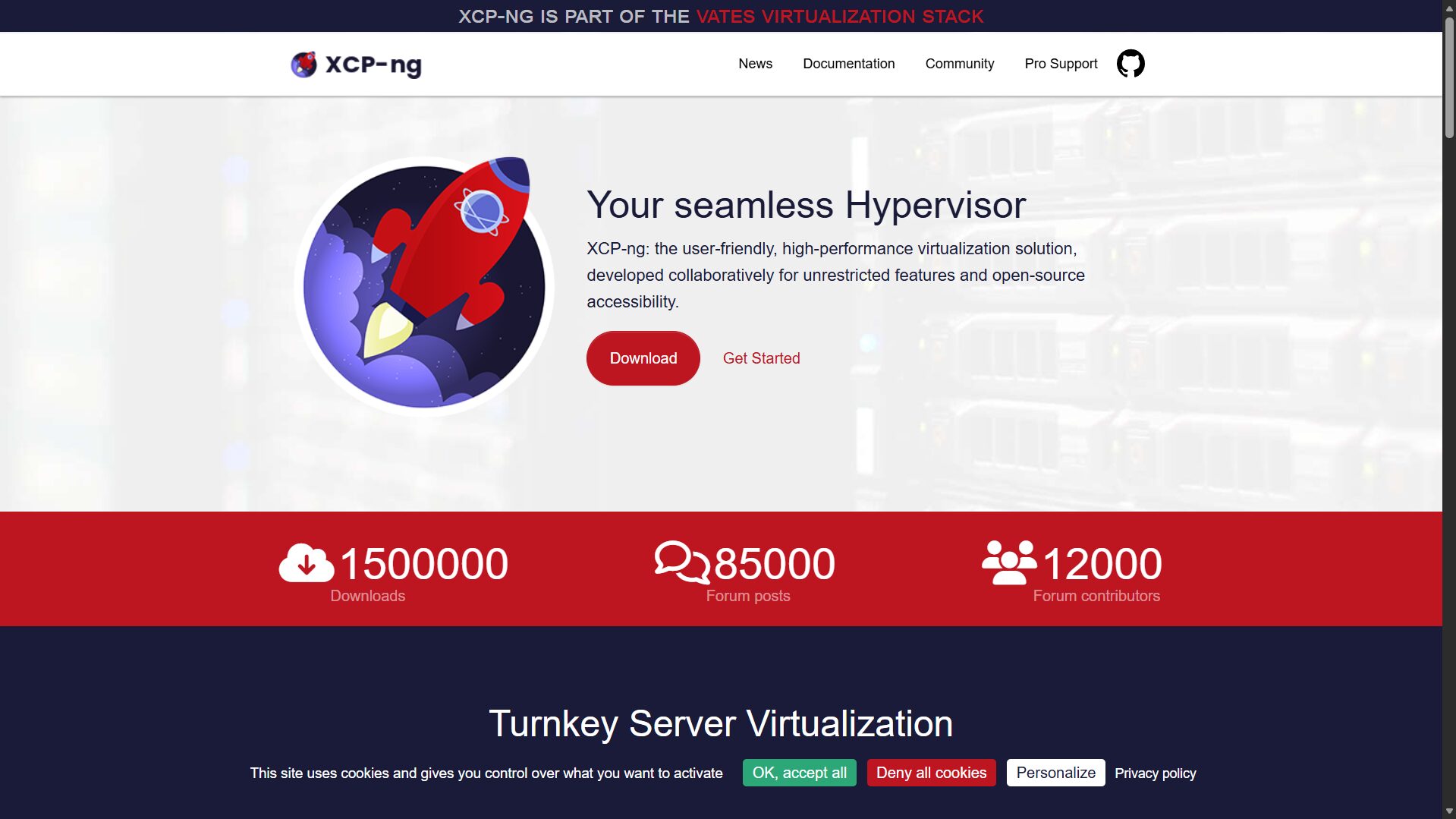
I have also used XCP-ng and it is solid, but Proxmox is what I would point most people toward today.
How to Set Up Docker in Proxmox (VM Method) and How to Install Home Assistant on Proxmox cover the two most common first steps after installation.
The main decision you need to make before buying hardware for a hypervisor is how many virtual machines and containers you plan to run simultaneously. RAM is the real constraint here, not CPU. You can have a great processor, but if you do not have enough memory to dedicate to each workload, nothing runs well.
For a smaller setup, 16GB is a reasonable floor. Intel tends to have better idle power efficiency, while AMD Ryzen tends to be more cost-effective when you need more cores and threads, but it generally depends on your needs.
The Network Upgrade — VLANs and Proper Segmentation
Most people start with whatever router their ISP gave them, and for basic internet access, that is fine. But the moment you start running a home lab with IoT devices, cameras, guest networks, and self-hosted services, that ISP router becomes a real limitation. It cannot do VLANs, it has limited firewall rule support, and you have almost no visibility into what is happening on your network.
The beginner-friendly path is a Ubiquiti Cloud Gateway. It handles VLANs, firewall rules, and network segmentation in a way that is genuinely approachable.
A VLAN lets you isolate traffic — your trusted devices on one segment, IoT devices on another, and guests on another. Firewall rules ensure those segments cannot talk to each other unless you explicitly allow it.
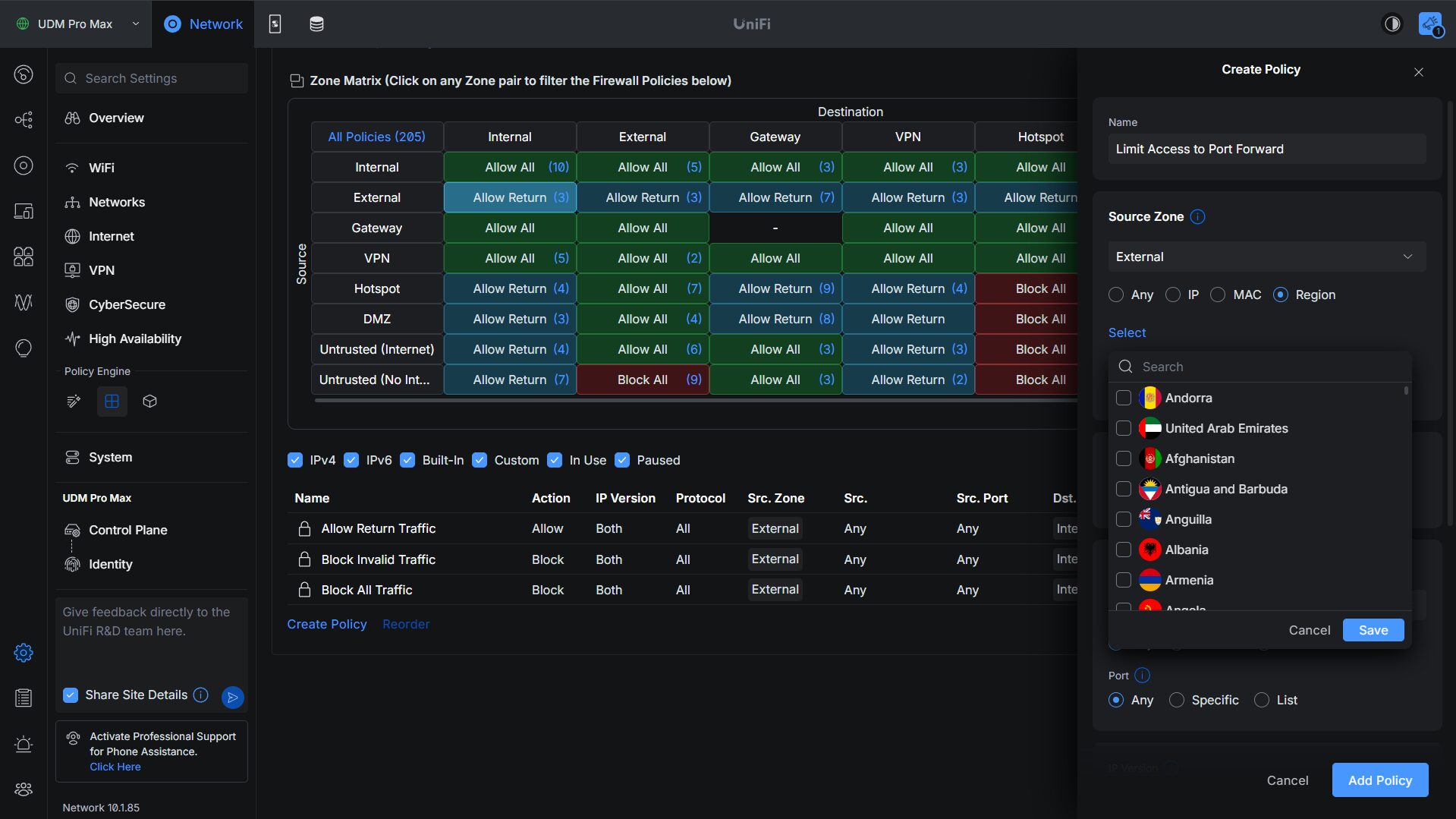
That separation meaningfully increases your network security. After setting up VLANS, configuring them in Proxmox is useful if you are running Proxmox and want to extend that segmentation into your virtual environment.
If you want more control and are comfortable with a steeper learning curve, pfSense or OPNsense are both excellent open-source options. They handle complex firewall rules and granular traffic control at an enterprise level. They also allow you to configure VLANs, and Firewall Rules.
For speed, 2.5Gb is where most home labs land today. If you are running heavier workloads or transferring large files frequently, a 10Gb switch is worth considering.
The UPS — Every Home Lab Needs One
This one is non-negotiable. A UPS — uninterruptible power supply — protects your equipment from power outages and ensures that drives and VMs shut down cleanly rather than getting cut off mid-operation. File corruption from an unclean shutdown is a real problem, and it is completely avoidable.
A 1500VA UPS is a solid starting point for most home lab setups. It gives you enough runtime during an outage to keep everything online while a clean shutdown completes. Most UPS units also integrate with your NAS or hypervisor so that shutdown can happen automatically — you configure it once and do not have to think about it again.
Sizing matters as well: check the total wattage of your equipment and match it to the UPS capacity. Do not just grab the cheapest option and assume it covers everything.
The Raspberry Pi — More Useful Than You Think
A Raspberry Pi is probably the most underestimated piece of hardware in this list. It is small, cheap, and incredibly versatile. The most common use case in a home lab is running Pi-hole or AdGuard Home for DNS-level ad blocking. Every DNS request on your network passes through it, and anything flagged as an ad or malicious domain gets blocked before it ever reaches a device.
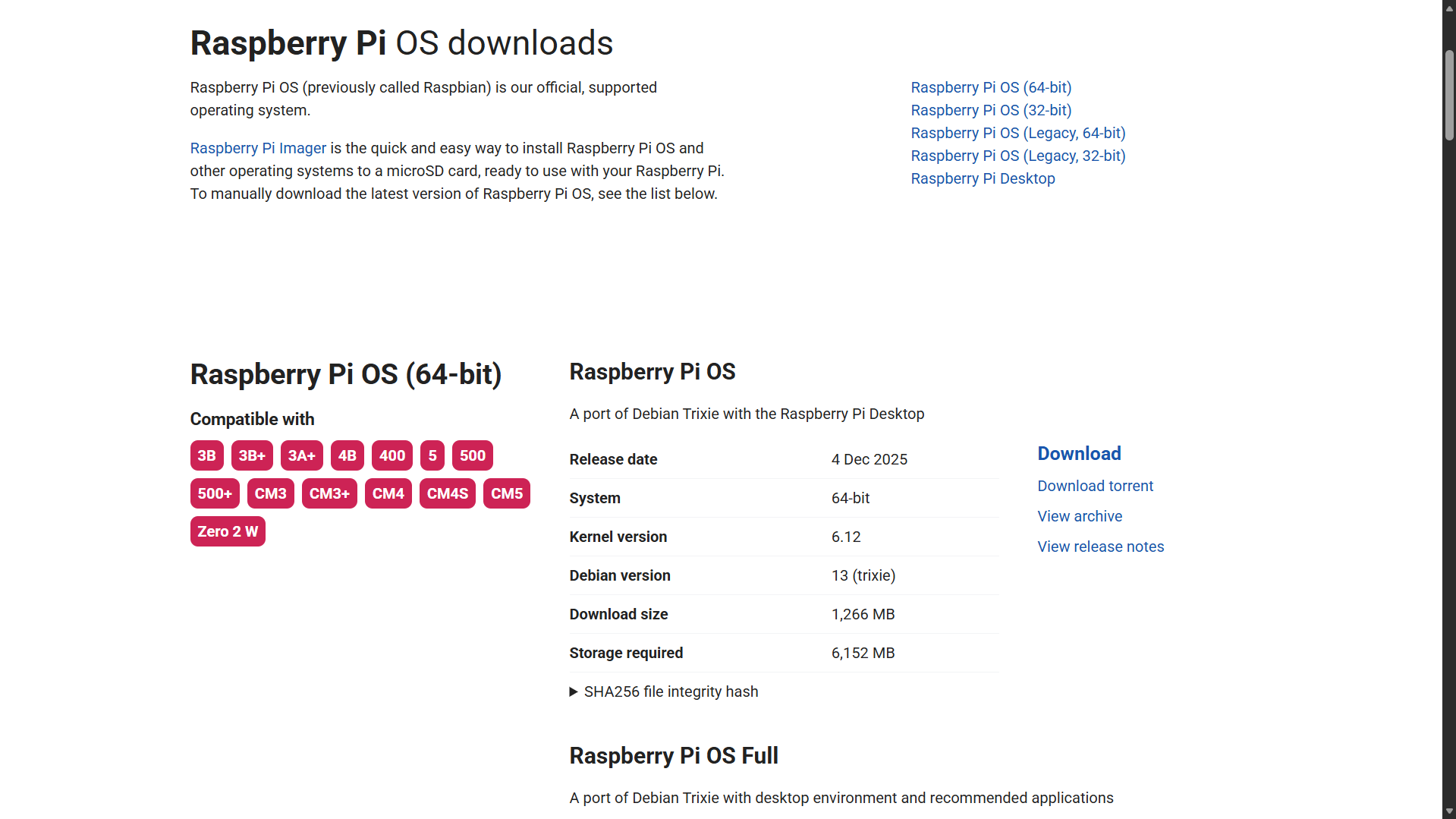
Beyond ad blocking, a Raspberry Pi can run a lightweight VPN server using PiVPN, act as a Home Assistant instance for home automation, or host small services that do not need the full resources of your hypervisor. It is not a replacement for a proper NAS or hypervisor, but as a lightweight, always-on companion device, it earns its place in almost every lab.
Picking Your OS — TrueNAS, Unraid, and Proxmox
The hardware choices above mean almost nothing without the right software running on them. For NAS operating systems, TrueNAS and Unraid are the two main options, and they work differently in important ways.
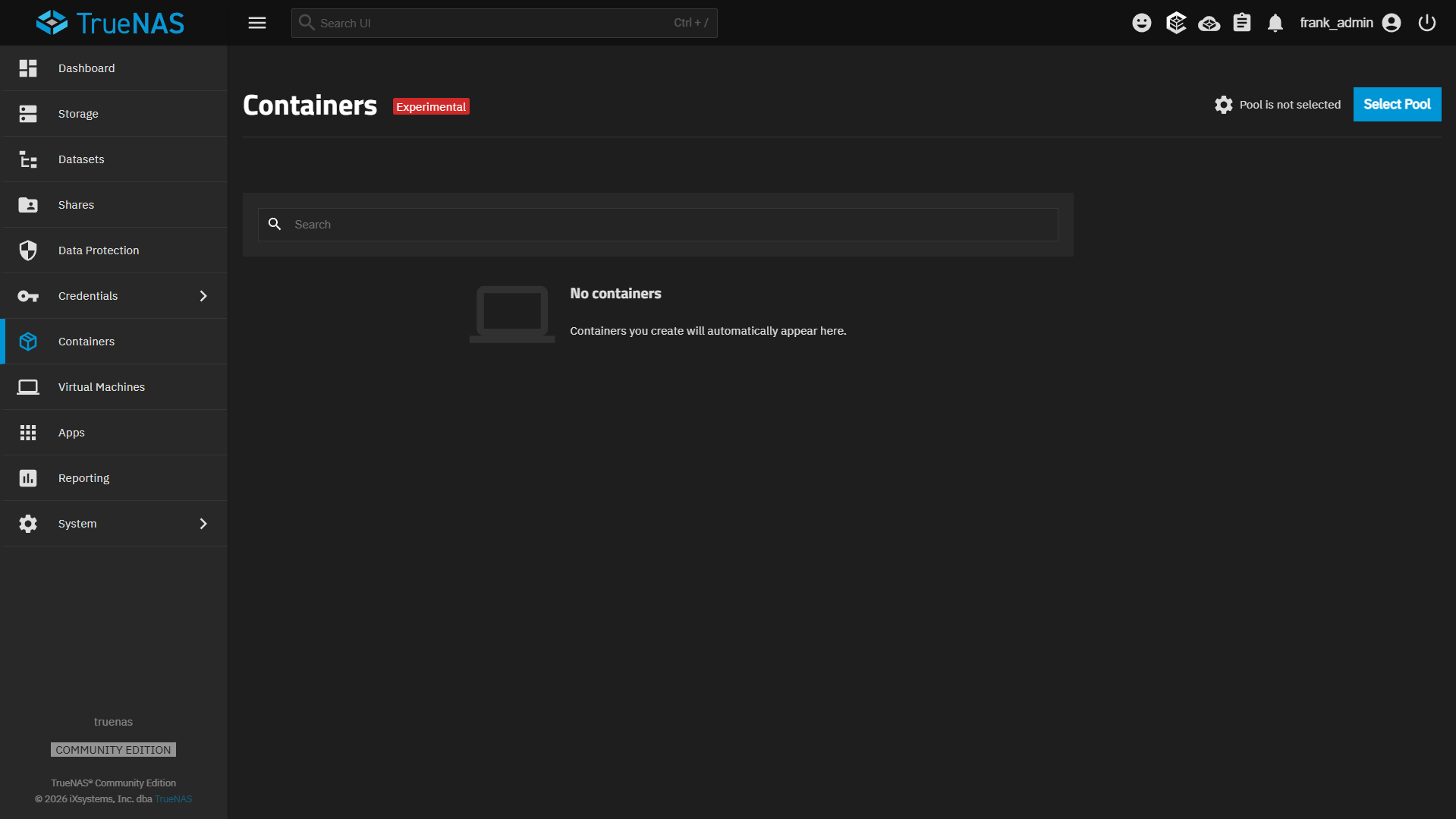
TrueNAS is built around ZFS — a highly reliable file system with strong data integrity guarantees. Unraid is more flexible with mixed drive sizes and uses a parity system where the parity drive needs to be at least as large as the largest drive in the array. Both have solid app stores and container support, though Unraid’s Docker integration is more mature.
For hypervisors, Proxmox is the option I keep recommending. It is free, well-documented, and has broad hardware support. If you are comfortable with Ubuntu and prefer to stay on bare metal without a full hypervisor layer, you can run Docker directly on Ubuntu Server or Debian and get most of the same functionality. It is a valid path — especially on lower-RAM hardware where dedicating resources to a hypervisor itself is a real trade-off.
Start with what matches your comfort level and the workloads you actually plan to run. A small lab running a handful of containers does not need the same setup as one running a dozen VMs. Build to where you are now and let it grow from there — that is how every good home lab ends up.