
You can install Pi-hole on a Raspberry Pi, an Ubuntu server or a Proxmox LXC with the official one-line script, or in Docker with a Compose file, and for most people the script is the one to use (both checked against Pi-hole v6 in October 2026).
I’ve installed Pi-hole on most of these over the years (a Raspberry Pi, Docker on a Synology NAS, and three Proxmox LXCs in February 2025), and the right Pi-hole setup depends on the hardware you already have.
Which Pi-hole Install Method Should You Use?
If you’re not sure, the native install is the right call for most people.
Use the native install (Raspberry Pi, Ubuntu, or Proxmox LXC) if:
- You want a dedicated Pi-hole instance with minimal other services running on it
- You’re on a Raspberry Pi or any supported Linux distribution
- You’re running it in a Proxmox LXC and don’t need Docker on top
- You want the fewest moving parts
Use the Docker install if:
- You already use Docker for other containers and want Pi-hole in the same place
- You’re on a Synology NAS, OpenMediaVault, Unraid, or any system that uses Docker as its primary application platform
- You want a clean, version-controlled deployment using Docker Compose
Pi-hole’s docs list the script first and Docker as an alternative, and either way it’s the same software (the image bundles the same Core, Web and FTL), with the same admin interface and blocklists.
Method 1: Native Install (Raspberry Pi, Ubuntu, Proxmox LXC)
The native install uses the official script, and the same command works on Raspberry Pi OS, an Ubuntu server, or a Debian or Ubuntu LXC on Proxmox.
Prerequisites for the Native Install
- A device that’s online 24/7. If Pi-hole goes down, so does your DNS.
- A static IP address. A DHCP reservation on your router is fine, or set it on the device.
- Root or sudo access.
- A supported OS (Raspberry Pi OS, Debian, Ubuntu, Fedora and a few others) in an actively maintained version.
- At least 512 MB of RAM and 2 GB of free disk space (4 GB recommended).
On a Raspberry Pi, flash Raspberry Pi OS Lite with Raspberry Pi Imager, setting a username and password under User and enabling SSH under Remote Access.
When I set up three Pi-hole LXCs in February 2025, I set static IP addresses on all of them first.
A Pi-hole Ubuntu install needs nothing extra, because the installer turns off systemd-resolved’s DNS stub listener itself (the service that would otherwise hold port 53).
Setting Up a Pi-hole Proxmox LXC
On Proxmox, create the container first. The menus below are the same in Proxmox VE 9.2 (October 2026), and Proxmox Containers (LXC) vs. Virtual Machines explains how an LXC differs from a VM.
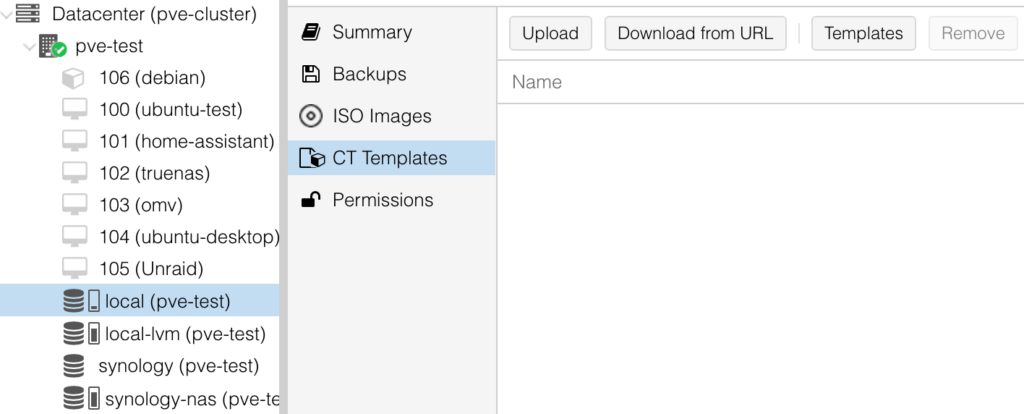
1. Select your storage, then CT Templates, and finally, Templates. Download the latest Debian or Ubuntu standard template (run pveam update if the list looks stale).
2. Select Create CT, set a hostname, root password and the template you downloaded, and leave Unprivileged container checked. Give it 1 core, 512 MB of RAM and an 8 GB disk, and on the Network step set a static IPv4 address in CIDR form (192.168.1.50/24) and the gateway. Then turn on Start at boot in its Options.
3. Start the container, log in as root, update it and install curl.
apt update && apt upgrade -y
apt install curl -y
Running the Pi-hole Install Script
You should never just run scripts that you find online without understanding them. I trust this one, but you can review the script first, or download it and run it separately (the second command below). As root (in an LXC, say), drop sudo from the commands here.
1. Run the official Pi-hole install command.
curl -sSL https://install.pi-hole.net | bashwget -O basic-install.sh https://install.pi-hole.net
sudo bash basic-install.sh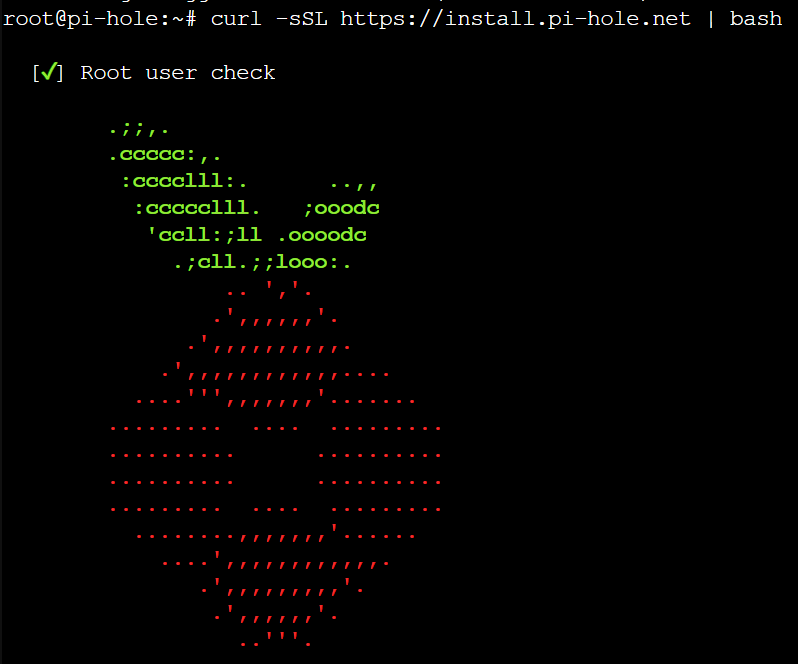
2. Select OK on the welcome and donation screens.
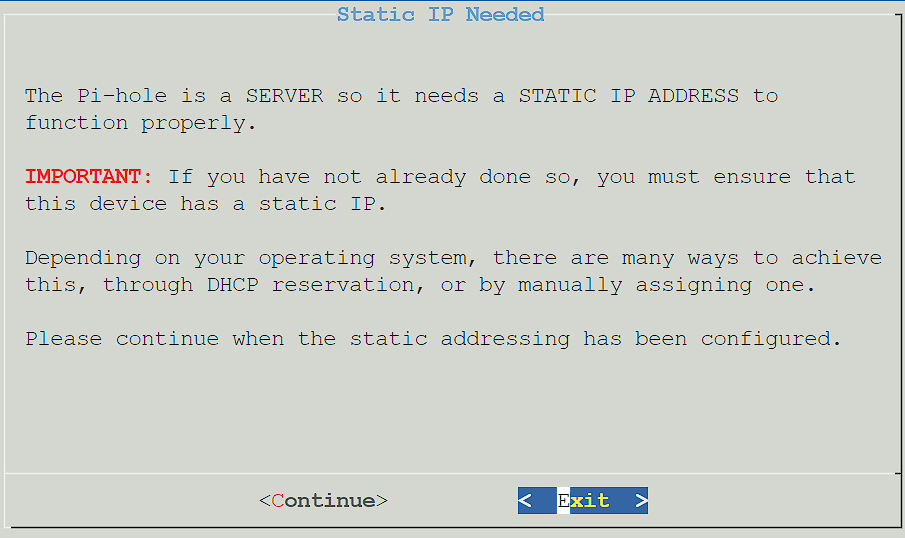
3. On Static IP Needed, select Continue. The default button is Exit, so do not just press Enter.
4. If the host has more than one network interface, pick the one Pi-hole should use.
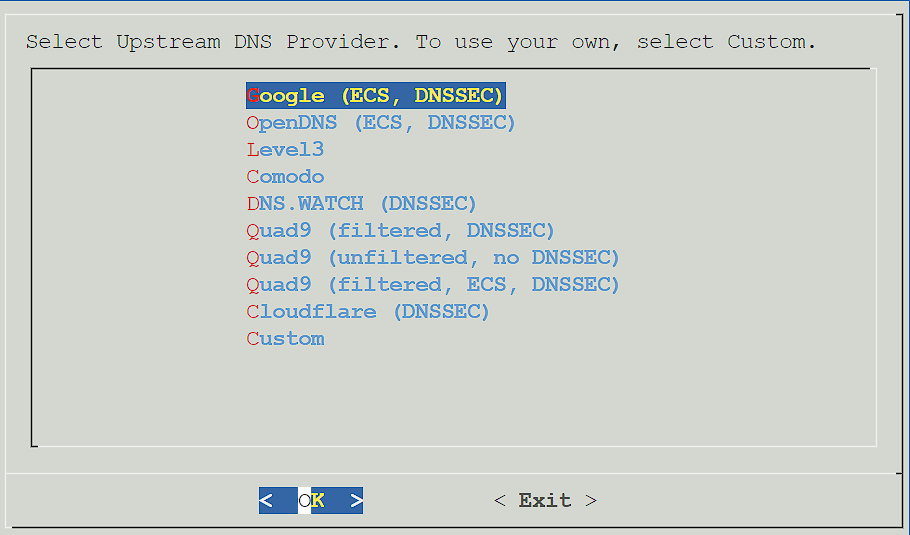
5. On Select Upstream DNS Provider, pick where Pi-hole forwards the queries it doesn’t block. Cloudflare and Quad9 are both fine, and if you’re adding Unbound later, anything works for now.
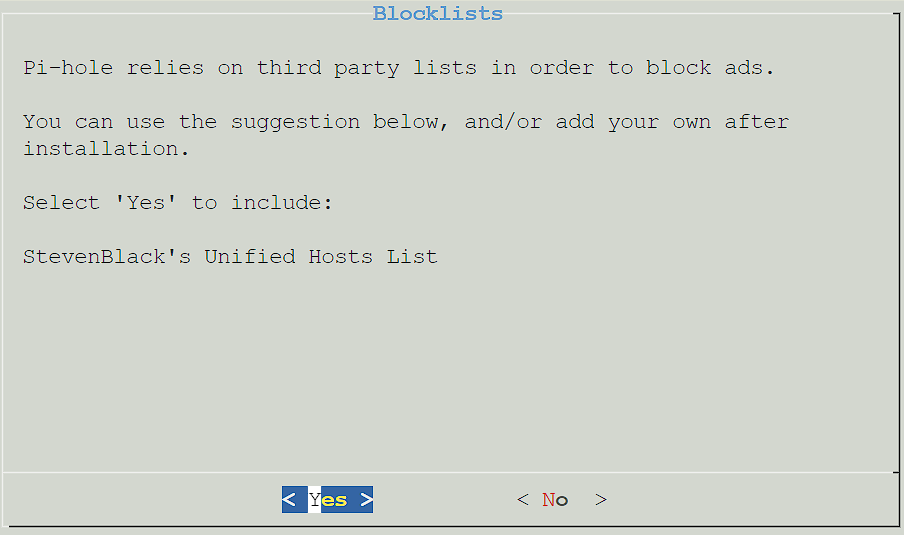
6. On Blocklists, select Yes to add StevenBlack’s Unified Hosts List.
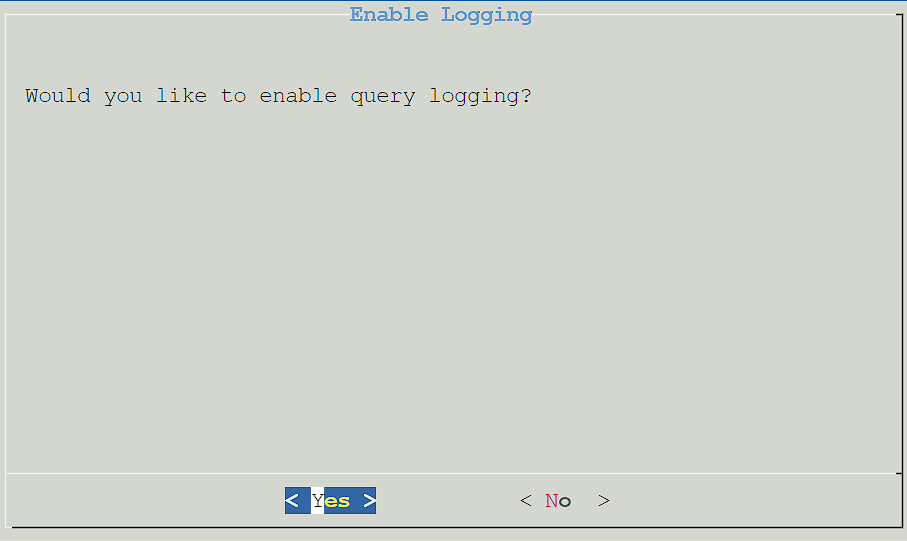
7. On Enable Logging, choose whether Pi-hole records queries.
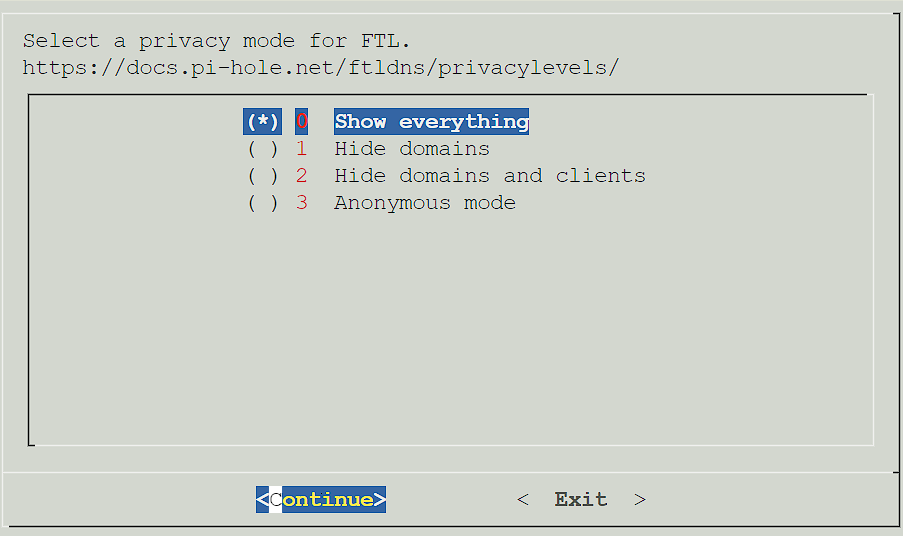
8. Choose the privacy level, from 0 (show everything, the default) to 3 (anonymous mode).
9. Installation Complete! shows the IP address, the admin URL and a random password, so write it down or set your own:
sudo pihole setpassword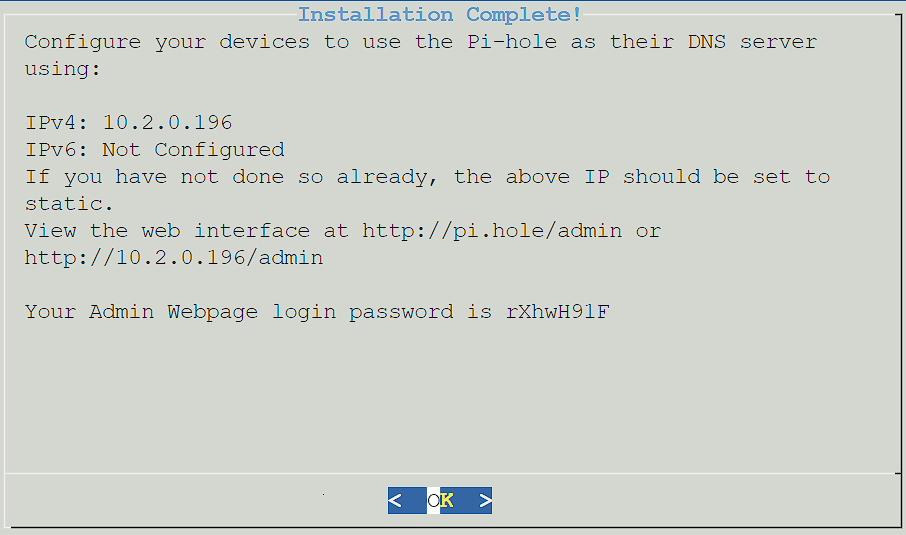
When I set mine up in February 2025, the installer left the password “NOT SET” and I ran pihole setpassword. The current script generates one, but the same command changes or resets it.
Accessing the Pi-hole Admin Interface
The admin interface is at the address below.
http://[YOUR_PI_HOLE_IP]/adminPi-hole v6 has its own web server, so there’s no lighttpd anymore. It uses port 53 for DNS and 80/443 for the admin interface (8080/8443 if another web server holds those), and none of them should be forwarded through your router.
Then skip ahead to the Configuring Your Router section, because until then nothing on your network uses Pi-hole.
Method 2: Docker Install
Docker is the right choice if you already have a Docker host (Docker Engine with Compose, on a static IP or DHCP reservation). The catch is networking, because Pi-hole needs port 53. My guide to Pi-hole on a Synology NAS uses macvlan to get around that.
On an Ubuntu (17.10+) or Fedora (33+) host, free up port 53 first. systemd-resolved’s stub resolver holds it, and Docker won’t free it for you. From Pi-hole’s docs:
sudo sh -c 'mkdir -p /etc/systemd/resolved.conf.d && printf "[Resolve]\nDNSStubListener=no\n" | tee /etc/systemd/resolved.conf.d/no-stub.conf'
sudo sh -c 'rm -f /etc/resolv.conf && ln -s /run/systemd/resolve/resolv.conf /etc/resolv.conf'
sudo systemctl restart systemd-resolved
Pi-hole Docker Compose File
This file follows the docker-pi-hole README (October 2026) with the admin interface on host port 8080, so change the time zone and password.
services:
  pihole:
    container_name: pihole
    image: pihole/pihole:latest
    ports:
      - "53:53/tcp"
      - "53:53/udp"
      - "8080:80/tcp"
    environment:
      TZ: 'America/New_York'
      FTLCONF_webserver_api_password: 'change-this-password'
      FTLCONF_dns_listeningMode: 'ALL'
    volumes:
      - './etc-pihole:/etc/pihole'
    cap_add:
      - NET_ADMIN # Only required if Pi-hole is your DHCP server
    restart: unless-stopped
Save it as docker-compose.yml in a folder like /opt/pihole and run this from that folder:
docker compose up -dThe admin interface is then at http://[HOST_IP]:8080/admin, with the password from FTLCONF_webserver_api_password. Leave that line out and docker logs pihole shows a random one. Older guides use WEBPASSWORD, the v5 variable, which does not set the password in v6.
Using Portainer Instead of Docker Compose
In Portainer’s GUI, select Containers, then Add container, and use these settings:

- Image: pihole/pihole:latest, Name: pihole
- Network: macvlan on a NAS where 53 and 80 are taken, otherwise bridge (with
FTLCONF_dns_listeningModeset toALL) or host - Volumes:
/etc/piholeto a folder on the host - Ports (bridge only): 53 TCP and UDP, and 8080 to 80
- Environment variables:
TZandFTLCONF_webserver_api_password - Restart policy: Unless stopped
- Capabilities: NET_ADMIN only for DHCP
The Compose file is worth learning (paste it into Stacks in Portainer, with a full host path for the volume), since it’s easier to back up and recreate on another host.
Adding Unbound for Recursive DNS
Without Unbound, Pi-hole forwards queries to an upstream provider like Cloudflare or Quad9, which sees every lookup, while Unbound asks the authoritative servers directly.
It’s not the end-all be-all for privacy, since someone somewhere along the chain still gets the request. The first lookup of a domain is also a bit slower, though repeats come from the cache.
Pi-hole + Unbound on Docker
In Docker, Unbound is one more service. This file uses host networking and crazymax/unbound, which is maintained (Unbound 1.26.1 as of September 2026), listens on port 5053 and resolves recursively with no config edits. The mvance/unbound image older guides use, mine included, hasn’t been updated since October 2024.
services:
  pihole:
    container_name: pihole
    image: pihole/pihole:latest
    network_mode: host
    environment:
      TZ: 'America/New_York'
      FTLCONF_webserver_api_password: 'change-this-password'
      FTLCONF_dns_upstreams: '127.0.0.1#5053'
    volumes:
      - './etc-pihole:/etc/pihole'
    restart: unless-stopped
  unbound:
    container_name: unbound
    image: crazymax/unbound:latest
    network_mode: host
    volumes:
      - './unbound:/config' # Optional overrides
    restart: unless-stopped
FTLCONF_dns_upstreams points Pi-hole at Unbound on port 5053. With host networking, Pi-hole binds the host’s ports 53 and 80, so the systemd-resolved fix still applies and the admin URL usually has no :8080.
Run docker compose up -d, then open Settings, then DNS, where the only upstream should be 127.0.0.1#5053.
Adding Unbound to a Native Pi-hole Install
On a native install, follow the official Unbound integration guide, which I followed for my LXCs in February 2025. Install it with sudo apt install unbound, add the guide’s config (port 5335), and restart and test it with these, which should return an IP address, then SERVFAIL, then NOERROR:
sudo service unbound restart
dig pi-hole.net @127.0.0.1 -p 5335
dig fail01.dnssec.works @127.0.0.1 -p 5335
dig +ad dnssec.works @127.0.0.1 -p 5335
I had to reboot my LXC at this point, because I ran into problems without it. Then open Settings, then DNS, expand Custom DNS servers, enter 127.0.0.1#5335, untick every other upstream and select Save & Apply. On Debian 11 or newer (including Raspberry Pi OS and a Debian LXC), also do the guide’s unbound-resolvconf.service step.
Configuring Your Router to Use Pi-hole
Nothing uses Pi-hole until your network’s DNS points at it. Pi-hole’s docs give three ways:
- Your router’s DHCP settings, right for most people.
- Pi-hole’s built-in DHCP server, if your router can’t change its DNS. Disable DHCP on the router first (on Docker, host networking or macvlan, plus
cap_add: NET_ADMIN). - Each device by hand, as a last resort.
On most routers it’s under LAN or DHCP settings, called DNS Server or Primary DNS, and you set it to your Pi-hole’s IP.
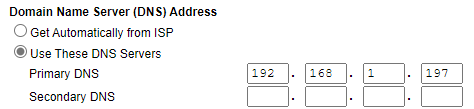
On UniFi (Network 9.0.114 in February 2025), open Settings, then Networks, select the network, and under DHCP Service Management select Show Options. Untick Auto next to DNS Server, enter the Pi-hole’s IP in DNS Server 1 and select Apply Changes. Devices switch when their lease renews.
The WAN-level DNS (select the WAN under Settings, then Internet, set Advanced to Manual, untick Auto, fill in Primary Server and select Apply Changes) covers everything, and it’s the one I used. The per-network one lets Pi-hole see each client, but UniFi’s own ad blocking stops applying there.
Pi-hole only answers its own subnet by default, so for any other network select Permit all origins under Settings, then DNS (Expert view), and Save & Apply, which is safe while port 53 isn’t forwarded. Isolated VLANs need port 53 allowed to the Pi-hole.
Do not set a public DNS server as the secondary if you only have one Pi-hole. Devices use either one, so ads get through. I’d recommend a second instance on a different physical device for redundancy, or accept that DNS is down briefly during maintenance.
Some devices skip Pi-hole even then, because IoT devices and cameras often have DNS hardcoded, so you can limit this, not entirely solve it.
The fix I showed in June 2026 is a destination NAT rule on the gateway that rewrites port-53 queries to the DNS server you choose. In UniFi’s Policy Engine, select Create New Policy and set Type to Dest. NAT, the network under Interface/VPN Tunnel, your DNS server in Translated IP Address, Protocol TCP/UDP, and Destination Port Specific 53. Add it to each IoT and camera VLAN (with Permit all origins and port 53 allowed, as above), but not the Pi-hole’s own, which would catch its own lookups.
It only catches plain DNS, though. DNS over TLS (port 853) can be blocked with a firewall rule, but DNS over HTTPS is much harder to block, since it uses 443 like all web traffic, and to get the demo working I actually had to disable DNS over HTTPS in the browser. Security changes constantly, so treat this as a way to limit the bypass, and nothing here is guaranteed.
How to Update Pi-hole
My guide on How to Update Pi-hole covers each method in more detail.
Updating a Native Install
SSH into the host (or open the LXC’s console) and run this, which checks Core, Web and FTL and updates whatever needs it:
sudo pihole -upUpdating a Docker Install
pihole -up is disabled in the container, so pull the new image and recreate it from your compose folder, as Pi-hole’s docs show. Your settings live in the /etc/pihole volume and carry over.
docker compose pull
docker compose down
docker compose up -d
Should You Update Pi-hole?
Most people should keep it current, since it handles every DNS request on your network, and the October 2026 release (Core v6.5, Docker image 2026.10.0) included security fixes. Read the release notes first, especially for a major jump like v5 to v6.
My Take on Running Pi-hole
If you run more than one and want them synced, my Ultimate Pi-hole Setup covers Nebula Sync and Keepalived. If you’re deciding between Pi-hole and AdGuard Home, there’s my side-by-side comparison.
If you’re new to it, start with the native install on a Raspberry Pi or in a Proxmox LXC, point your router at it, and run it for a few weeks before adding Unbound or a second instance. Most people overcomplicate the initial setup and end up debugging multiple things at once.