
Best Hard Drives for a Synology NAS
Buying hard drives for a Synology NAS got genuinely confusing in 2025, and most of what you’ll read about it is out of date. Synology announced that its 2025 Plus models would only work properly with Synology-branded drives, the internet reacted the way you’d expect, and then Synology reversed most of it in DSM 7.3. So the short version is that third-party drives work again, with a couple of exceptions worth knowing before you spend anything.
I’ve run Seagate IronWolf drives in my own Synology units for years, and my recommendation hasn’t changed through any of this. What has changed is the amount of explaining that has to happen first.
The links below are affiliate links, which means I earn a percentage of each sale at no cost to you. Thank you for your support.
The short answer
| What you own | Buy this | Why |
|---|---|---|
| 25-series Plus DS925+, DS425+, DS1525+, DS1825+ | Synology HAT3320 / HAT3300 | The only drives that get every DSM feature, now and later |
| Pre-2025 Synology DS923+, DS920+, DS1522+ and older | Seagate IronWolf or IronWolf Pro | None of the restrictions apply. Buy on price. |
| xs+ and enterprise | Synology enterprise drives | Effectively required, not a preference |
| Any model with M.2 slots | Synology NVMe SSDs | This restriction never got reversed |
| Anything, on a budget | WD Red Plus or WD Red Pro | Works fine. Avoid plain WD Red, which is SMR. |
If you want to stop reading here, the answer now depends on which Synology you own, and that’s new. On a 25-series NAS I’d spend the money on Synology’s own drives. Not because third-party drives don’t work, they do since DSM 7.3, but because Synology has now gated features behind its own drives twice in a year and the premium for avoiding that is small. On anything older, Seagate IronWolf or IronWolf Pro, exactly as before. Avoid the plain WD Red on any of them. Everything below is the reasoning.
Can you still use third-party drives in a Synology NAS?
Yes, on every current model, and that answer changed in October 2025 so it’s worth being precise about it.
Here’s the sequence. In April 2025 Synology said its 2025 Plus series, the DS925+ and similar, would require drives from its own compatibility list. Install anything else and you couldn’t create a storage pool or see drive health information. That was a real lockout rather than a warning, and after sales reportedly dropped and the reaction stayed loud, DSM 7.3 reversed it.
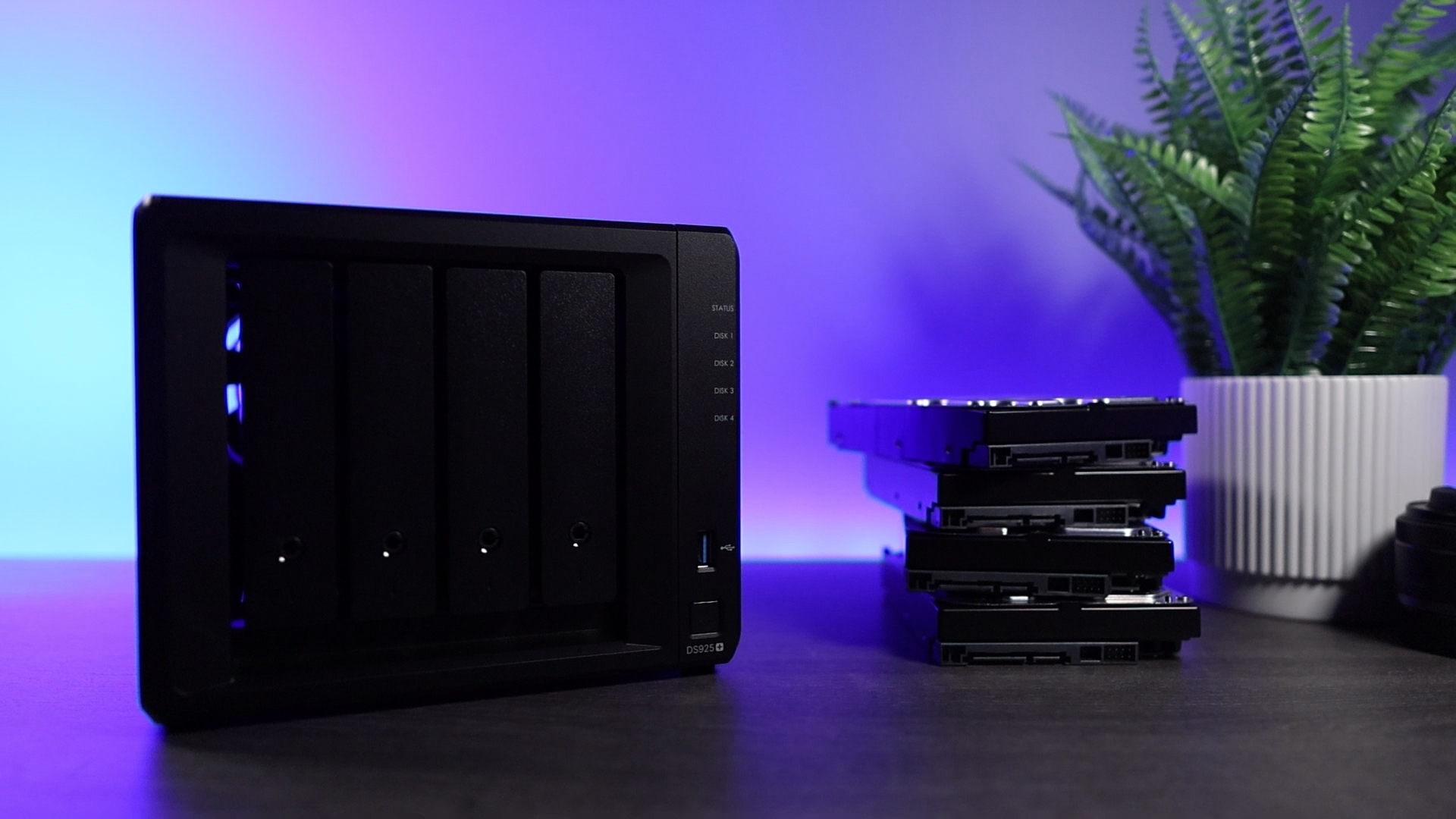
As things stand on current DSM, third-party 3.5 inch hard drives and 2.5 inch SATA SSDs install normally, create storage pools normally, and report full SMART and health data in Storage Manager. There are no nag screens and no feature lockouts, so the IronWolf or Red Plus drives you already own are fine.
Two things did not come back, and they’re the reason people still get caught out:
- M.2 NVMe drives are still restricted. If you want to add NVMe for cache or as a storage pool, it still has to be a Synology-validated model, and in practice that means the SNV3410 400GB. This is the one that catches people, because the HDD reversal got all the coverage and the NVMe rules did not change with it. Before you buy one, be honest about whether you need SSD cache at all, because on a home NAS serving files and backups it does very little.
- Deduplication and DSM-driven drive firmware updates stay unavailable on drives DSM considers unverified.
So for spinning drives, which is what this article is about, buy whatever you want. For NVMe, check the compatibility list first.
What the “unverified drive” label actually means
Third-party drives still show up in DSM marked as unverified, and that wording worries people more than it should. It means Synology hasn’t tested that exact model, not that the drive is unsupported or about to fail. The pool works, the health data is there, and the array behaves normally.
My own position hasn’t moved through any of this: if a drive is running and it isn’t reporting SMART errors, I’m using it. The label is information rather than a warning light, and I wouldn’t change a buying decision over it.
The one practical consequence is support. If you call Synology with a storage problem and the array is full of unverified drives, expect that to come up. For a home setup that’s a fair trade for saving real money on drives.
Are Synology’s own drives worth buying?
Only if you specifically want the compatibility question to never come up again, because they’re good drives but they’re not quite what the branding implies.
Synology does not manufacture hard drives. The HAT3300, HAT3310 and HAT3320 are built on Seagate IronWolf hardware, and the HAT5300, HAT5320 and HAS5300 are built on Toshiba enterprise MG drives, with Synology firmware and a Synology label. When Synology said its own drives were necessary for reliability, that is the fact that made the argument hard to follow, because you could buy the underlying drive from the original manufacturer and it was not approved.
On specifications they line up with what they’re based on. The HAT3300 tier performs in the same range as WD Red Plus and IronWolf. The HAT5300 tier matches IronWolf Pro and Red Pro on workload rating, spindle speed, and MTBF. The price premium per terabyte is usually modest, roughly nothing to fifteen percent over the equivalent third-party drive.
So here’s where I’ve landed, and it’s changed since I last updated this page. If you’re buying drives for a 25-series Synology, buy Synology drives. I don’t love writing that, because the whole 2025 episode was handled badly and I said so at the time. But the premium is usually somewhere between nothing and fifteen percent, and what it buys you is not having to care about any of this again.
The argument is future proofing, not performance. Synology has now drawn the line twice. First the 2025 lockout, which they reversed. Then DSM 7.4 shipped storage efficiency, the post-process deduplication feature, and put it behind Synology drives. That’s the pattern that matters. Buying third-party drives for a 25-series is a bet that the next feature lands on your side of the line, and I’ve watched that bet lose twice now.
The rest of it is small individually and adds up. Full drive lifetime analytics in DSM instead of basic SMART. No unverified warnings sitting in Storage Manager. Support conversations that don’t start with your drive choice. And if you’re the kind of person who keeps a NAS for six or seven years, which most people reading this are, the drives will outlive several DSM releases. That’s the window you’re actually buying into.
Where I’d still buy third-party: any pre-2025 Synology, where none of this applies and IronWolf remains the right answer. Drives you already own, which you should absolutely keep using. And builds where you want the freedom to move those disks into a TrueNAS or UGREEN box later, because Synology drives make the most sense inside Synology hardware.
If you do go Synology, there’s a wrinkle nobody mentions on the product pages. The Plus line is not one product. Synology has shipped three generations and which one you get depends entirely on the capacity you pick. The 4TB and 6TB are still HAT3300 at 5400 rpm. The 12TB and 16TB are HAT3310. The 8TB and 20TB are the newer HAT3320, at 7200 rpm with a 300TB per year workload rating. So two drives sold under the same “Plus” name can be meaningfully different hardware, and the 8TB is the one I’d point most people at.
| Capacity | Synology (B&H) | Third-party (Amazon) | |
|---|---|---|---|
| 4TB | HAT3300 Plus 5400 rpm | Seagate IronWolf 4TB | |
| 6TB | HAT3300 Plus 5400 rpm | Seagate IronWolf 6TB | |
| 8TB | HAT3320 Plus 7200 rpm | IronWolf Pro 8TB | Recommended on a 25-series |
| 12TB | HAT3310 Plus 7200 rpm | IronWolf Pro 12TB | |
| 16TB | HAT3310 Plus 7200 rpm | IronWolf Pro 16TB | |
| 20TB | HAT3320 Plus 7200 rpm | WD Red Pro 20TB |
I link B&H for the Synology drives because they’re an authorized dealer and the listings stay consistent. Amazon carries them too, but Synology-branded drives often show up there through third-party sellers at odd prices, which is not what you want when you’re buying four of something.
One gap worth knowing about: Synology doesn’t sell a 2TB drive. The Plus line starts at 4TB, so if you’re filling a two-bay unit and had 2TB in mind, your options are a third-party 2TB drive or stepping up to the 4TB HAT3300. The price gap between 2TB and 4TB NAS drives is usually small enough that I’d take the 4TB, but there is no Synology-branded 2TB to buy either way.
Seagate IronWolf: the default pick
This is what I’ve used in my own Synology units for years, and when someone asks me for the best HDD for Synology NAS use without any other detail, this is the answer. CMR recording, rated for continuous operation, anti-vibration hardware, and a three-year warranty. I’ve had good luck with them and I haven’t had one arrive dead, which is more than some people can say about any brand.
For a two to four bay Synology holding files, photos, and backups, this is enough drive. Paying more mostly buys you warranty length and headroom you won’t use.
Capacities: 4TB · 6TB · 8TB · 10TB · 12TB · 14TB · 16TB
Seagate IronWolf Pro: best overall
The Pro line takes the same idea up a tier: higher rated workload, faster, and a five-year warranty instead of three. It also goes to larger capacities than the standard IronWolf line.
The premium is usually around forty to fifty dollars for the same capacity. Whether that’s worth it comes down to how you think about the warranty. Two extra years of cover on a drive holding data you care about is a reasonable thing to buy, and it’s the main reason I’d point someone at the Pro line rather than any performance claim.
Capacities: 4TB · 8TB · 12TB · 16TB · 18TB
WD Red Plus: the Western Digital equivalent
If you prefer Western Digital, Red Plus is the drive that lines up with the standard IronWolf. CMR, three-year warranty, built for continuous operation. There’s nothing wrong with it and plenty of people run these happily.
The word Plus is doing critical work in that name, and the next section covers why getting it wrong matters more than any other mistake on this page.
Capacities: 4TB · 6TB · 8TB · 10TB · 12TB · 14TB
WD Red Pro: for heavier use
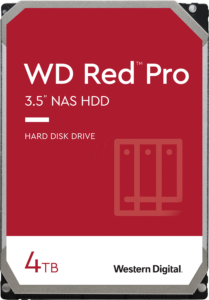
Red Pro is to Red Plus what IronWolf Pro is to IronWolf. Five-year warranty, higher workload rating, and the largest capacities of anything in this list. If you’re filling a bigger Synology and want cover that outlasts the usual replacement cycle, this is the WD option.
Capacities: 4TB · 6TB · 8TB · 10TB · 12TB · 14TB · 16TB · 18TB · 20TB
Why plain WD Red is the one to avoid
Western Digital had a bad stretch a few years ago when it shipped SMR drives under the Red name while buyers assumed they were getting CMR. The naming that came out of that mess is still with us, and it still catches people:
- WD Red (plain) is SMR
- WD Red Plus is CMR
- WD Red Pro is CMR
SMR drives overlap the data tracks they write, which makes them cheaper per terabyte and makes sustained writes much slower once the cache fills. In a redundant array that matters, because a rebuild after a failed drive is exactly the sustained write workload SMR handles worst. My recommendation is straightforward: use CMR drives in a RAID array. Every Seagate drive above is CMR, and on the WD side you want Plus or Pro.
IronWolf Health, and whether it matters
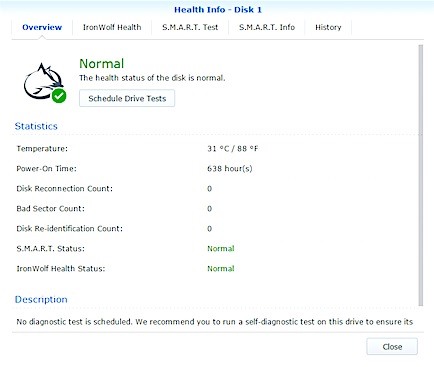
Seagate and Synology have a partnership that puts IronWolf Health Management inside DSM. Seagate frames it as prevention, intervention, and recovery, and it is genuinely a feature you only get with IronWolf drives rather than marketing attached to something every drive does.
Being honest about how much it should influence the decision: not much. DSM already has SMART testing built in, quick and extended, on whatever schedule you set. IronWolf Health is a nicer layer on top rather than the difference between catching a failing drive and missing it. Treat it as a small bonus if you were buying IronWolf anyway, not a reason to switch brands.
Why you need NAS drives at all
Every drive on this list is a NAS drive, and that is not a detail to skip past. A desktop hard drive is designed to be powered on while you’re using the computer and idle the rest of the time. A NAS runs continuously, so the drives inside it are specified for continuous duty and rated for a much higher annual workload.
The other difference people underrate is vibration. Several drives spinning in one small enclosure produce vibration that shortens drive life, so NAS drives include hardware specifically to counter it. Putting desktop drives into a multi-bay NAS and running them around the clock is asking for early failures, and it’s the sort of thing that looks fine for a year and then isn’t.
What size drives should you buy?
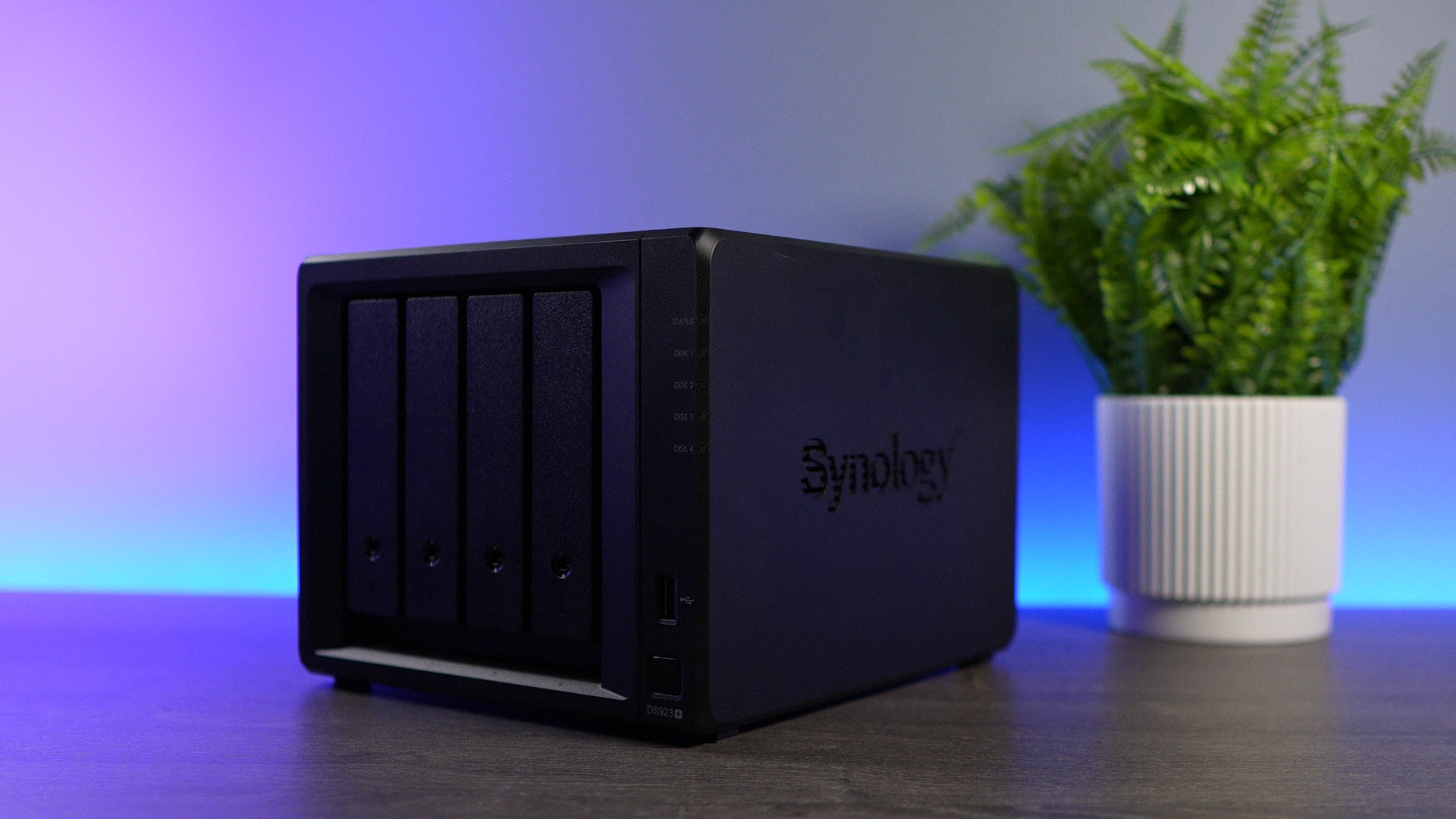
Buy larger drives than you think you need and buy fewer of them, for two reasons that only become obvious after you have filled a NAS once:
- Redundancy costs capacity. Four 4TB drives in SHR give you roughly 12TB usable, not 16TB. Work backwards from what you actually want to store.
- Leaving bays empty is not wasteful, it’s optional headroom. Filling a four-bay NAS with 4TB drives on day one means your only upgrade path later is replacing every drive. Two 12TB drives now and two more later is usually the better shape.
For most home setups, 8TB to 12TB per drive is the sensible range in 2026. Below that you’re paying nearly the same money for meaningfully less capacity, and the very largest drives carry a price-per-terabyte premium you don’t need to pay.
Drives fail, so plan for it
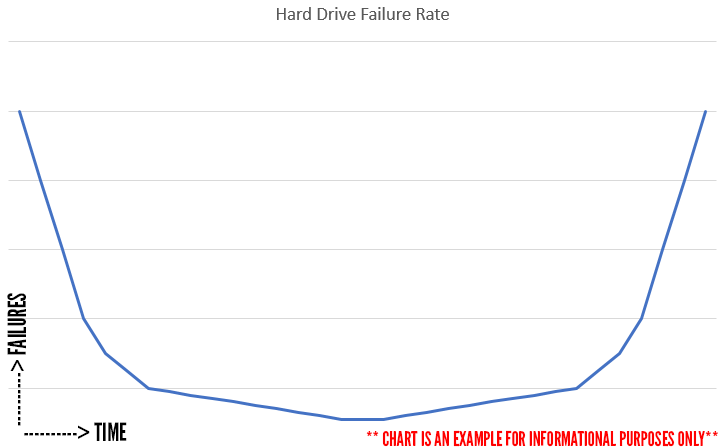
Hard drive failures follow a rough U-shaped curve. A batch of them fail early, in the first weeks or months, and then failures pick up again at the end of the drive’s usable life around the five or six year mark. The middle stretch is quieter, though it is not a guarantee of anything.
The practical consequence is that a drive arriving dead or dying quickly is normal across every brand. It does not mean the model is bad or that the manufacturer has a problem, only that the particular drive you received was one of the early failures. Keep the receipt, know your warranty length, and don’t read a single dead drive as a verdict on a product line.
This is also the argument for a five-year warranty on the Pro lines, and the argument for RAID being redundancy rather than backup. A Synology with SHR survives a failed drive. It doesn’t survive a fire, a mistake, or ransomware, so you still want a real backup somewhere else.
Cheaper routes: enterprise drives and shucking
Two options sit outside the consumer NAS lines, and both are worth knowing about even if you end up buying neither.
Enterprise drives from Seagate and Western Digital, the Exos and Gold families, sit above IronWolf Pro and Red Pro on specification. They’re technically superior to everything listed here, but they also cost more and run louder, and for a four-bay NAS sitting in a home they’re more drive than the job actually needs.
Shucking means buying an external desktop drive and removing the drive from its enclosure. External units regularly contain white-label WD drives that are close relatives of the Red line, and the price gap is large enough to be interesting rather than marginal. You give up the internal drive warranty, you take on the risk that the drive inside isn’t what you expected, and some shucked drives need a small workaround for the power pin. If you want a lot of capacity for the least money and you’re comfortable with those trade-offs, it’s a legitimate route.
Conclusion
The answer splits on which Synology you own, and 8TB to 12TB is the right capacity range either way. On a 25-series, buy Synology’s own drives. The 8TB HAT3320 is the one I’d point most people at, and the modest premium buys you every DSM feature for as long as you own the box. On anything older, a Seagate IronWolf is still the right call, or the IronWolf Pro for five years of warranty instead of three. WD Red Plus and Red Pro are equivalent if you prefer Western Digital. The only drive I’d actively steer you away from is the plain WD Red, because it’s SMR.
On compatibility, the situation is better than its reputation. Third-party hard drives work fully on current Synology models again, and they carry an unverified label that doesn’t mean much on its own. My concern isn’t today, it’s the direction. Storage efficiency in DSM 7.4 is the second feature to land on the Synology-drives-only side of the line in a year, and if you’re buying a NAS you plan to keep for six or seven years, that trend is worth more than the fifty dollars you’d save per drive. M.2 NVMe is still genuinely restricted either way.