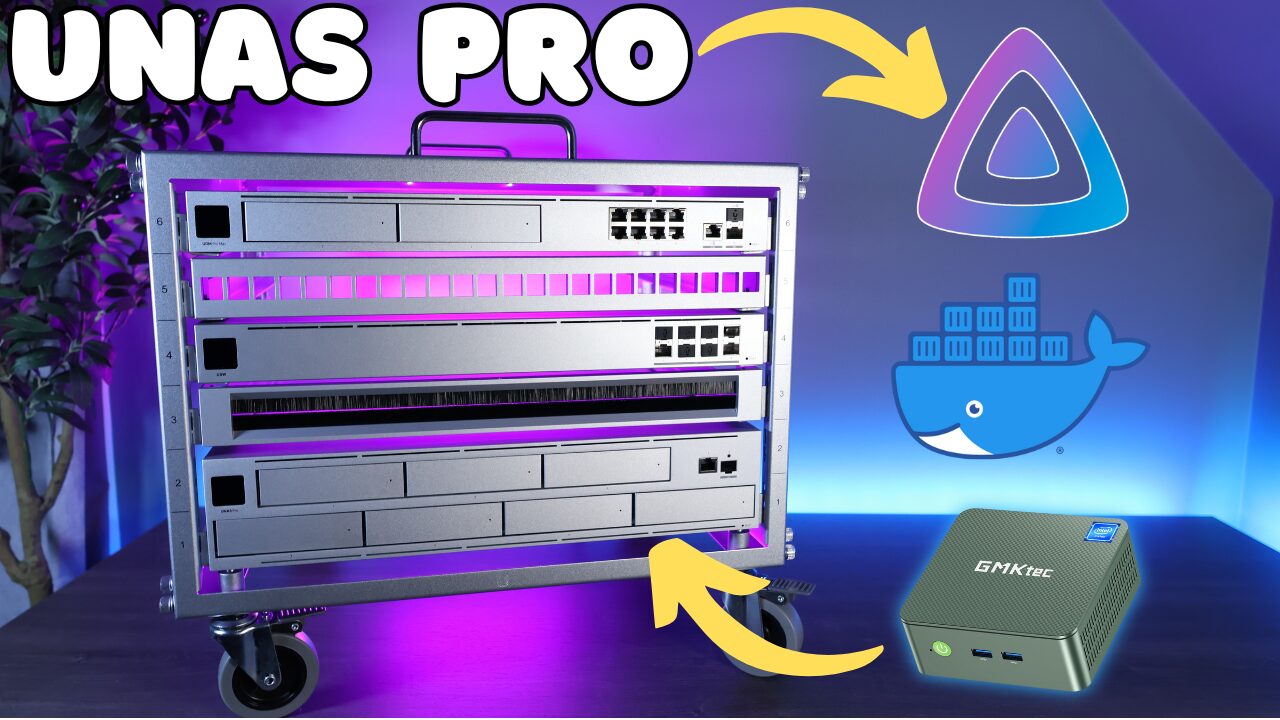
I would not put SSDs in every NAS. In fact, for most bulk storage, I would still buy hard drives. SSDs make sense when the workload actually benefits from lower latency, faster random access, less noise, or better responsiveness, like virtual machines, Docker containers, databases, active project files, or smaller all-flash NAS builds.
The mistake I see people make is assuming that SSDs automatically make a NAS faster. They can, but only if the rest of the setup supports it. If you’re still using 1GbE, normal file transfers are going to be limited by the network long before they’re limited by most SSDs.
So if you just want the quick answer: if I were buying a 2.5-inch SSD for a NAS today, I’d start with the Seagate IronWolf 125 SSD. It has strong endurance, a 5-year warranty, and it’s designed for NAS workloads instead of normal desktop use.
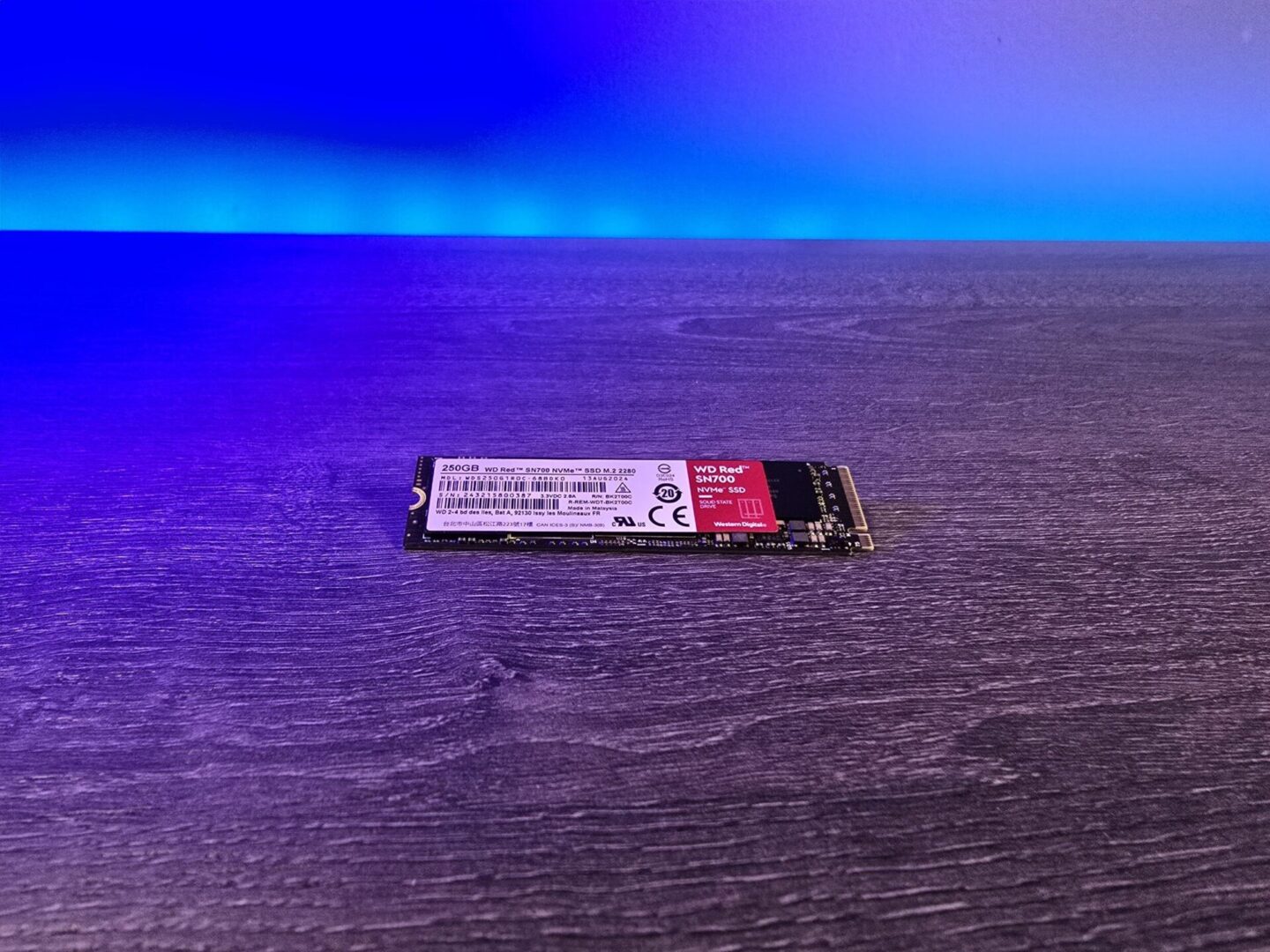
If you need a Synology-branded SSD because your NAS requires it, or because compatibility is more important than price, I’d look at the Synology SAT5200. If you need an NVMe SSD for NAS cache, I’d look at the WD Red SN700.
The links on this page are Amazon affiliate links, which means that I earn a percentage of each sale at no cost to you. Thank you for your support.
Best NAS SSDs: My Quick Picks
If I were buying SSDs for a NAS today, this is how I’d break it down:
- Best overall 2.5-inch NAS SSD: Seagate IronWolf 125 SSD. This is the one I’d buy first for most SATA SSD NAS setups.
- Best WD NAS SSD: WD Red SA500. This is a good NAS SSD, but I’d mainly buy it if it is meaningfully cheaper than the IronWolf 125.
- Best Synology-branded NAS SSD: Synology SAT5200. This is the one I’d use if the NAS requires Synology-branded drives or if endurance and compatibility matter more than price.
- Best NVMe SSD for NAS cache: WD Red SN700. This is the NVMe drive I’d look at first for NAS cache because endurance matters a lot there.
- What I would avoid: normal desktop SSDs in write-heavy NAS workloads, especially for cache, VMs, containers, or always-on services.
The biggest thing I care about with NAS SSDs is not just speed. Most SATA SSDs are already fast enough for normal NAS networking. The bigger issue is endurance, especially if the SSD is being used for cache, virtual machines, containers, databases, surveillance, or anything with frequent writes.
When SSDs Actually Make Sense in a NAS
I would use SSDs in a NAS when the workload actually benefits from them. That usually means you care about responsiveness, latency, random reads/writes, noise, or power usage more than raw capacity.
These are the situations where SSDs make the most sense to me:
- Virtual machines: VMs usually feel much better on SSDs than hard drives.
- Docker containers: Application data, databases, and container volumes can benefit from SSD latency.
- Databases: Random reads/writes matter a lot more here than they do for normal file storage.
- Active project files: If you edit or work from the NAS directly, SSDs can help, especially with 10GbE.
- Quiet NAS setups: SSDs are silent, which matters if the NAS is in an office, bedroom, or living space.
- Small all-flash NAS builds: If you do not need huge capacity, an all-flash NAS can be fast, quiet, and simple.
- SSD cache: Cache can help in some workloads, but it is not a guaranteed speed upgrade.
For bulk storage, backups, media libraries, camera archives, and general file shares, I would usually still buy hard drives. You get far more capacity for the money, and for a lot of NAS workloads, hard drives are still the better fit.
If capacity and price per terabyte matter more than low latency, check out my guide on the best hard drives for NAS devices.
When I Would Not Use SSDs in a NAS
I would not use SSDs just because they are faster on paper. That is where people usually get disappointed.
If your NAS is only connected with 1GbE, you may not feel a huge difference during normal file transfers. A 1GbE connection tops out around 125 MB/s, which means the network can become the bottleneck before the drives do.
I would also avoid SSDs if the main goal is storing a lot of media, backups, photos, surveillance footage, or archives. SSDs can do it, but the cost per terabyte usually does not make sense compared to NAS hard drives.
Where SSDs shine is not “I copied one large file faster.” It is when the NAS is doing a lot of smaller reads and writes, running apps, hosting VMs, serving databases, or acting as active storage instead of cold storage.
Why NAS SSDs Are Different
The reason I would not throw any random consumer SSD into a NAS is endurance. A NAS is normally powered on 24/7, and depending on the workload, the drives can see a lot more sustained writes than a normal desktop SSD.
This matters even more for SSD cache. A read cache is generally easier on the drive, but write cache can create a lot of writes. If you are using SSDs for VM storage, Docker containers, databases, or surveillance-related workloads, endurance matters there too.
That is why I look at NAS SSDs differently than normal desktop SSDs. Sequential read/write speeds are useful, but for NAS SSDs, I care more about endurance, workload suitability, warranty, and compatibility.
WD Red SA500 SSD
The WD Red SA500 is Western Digital’s SATA SSD designed for NAS use. It comes in multiple capacities and has a 5-year limited warranty.
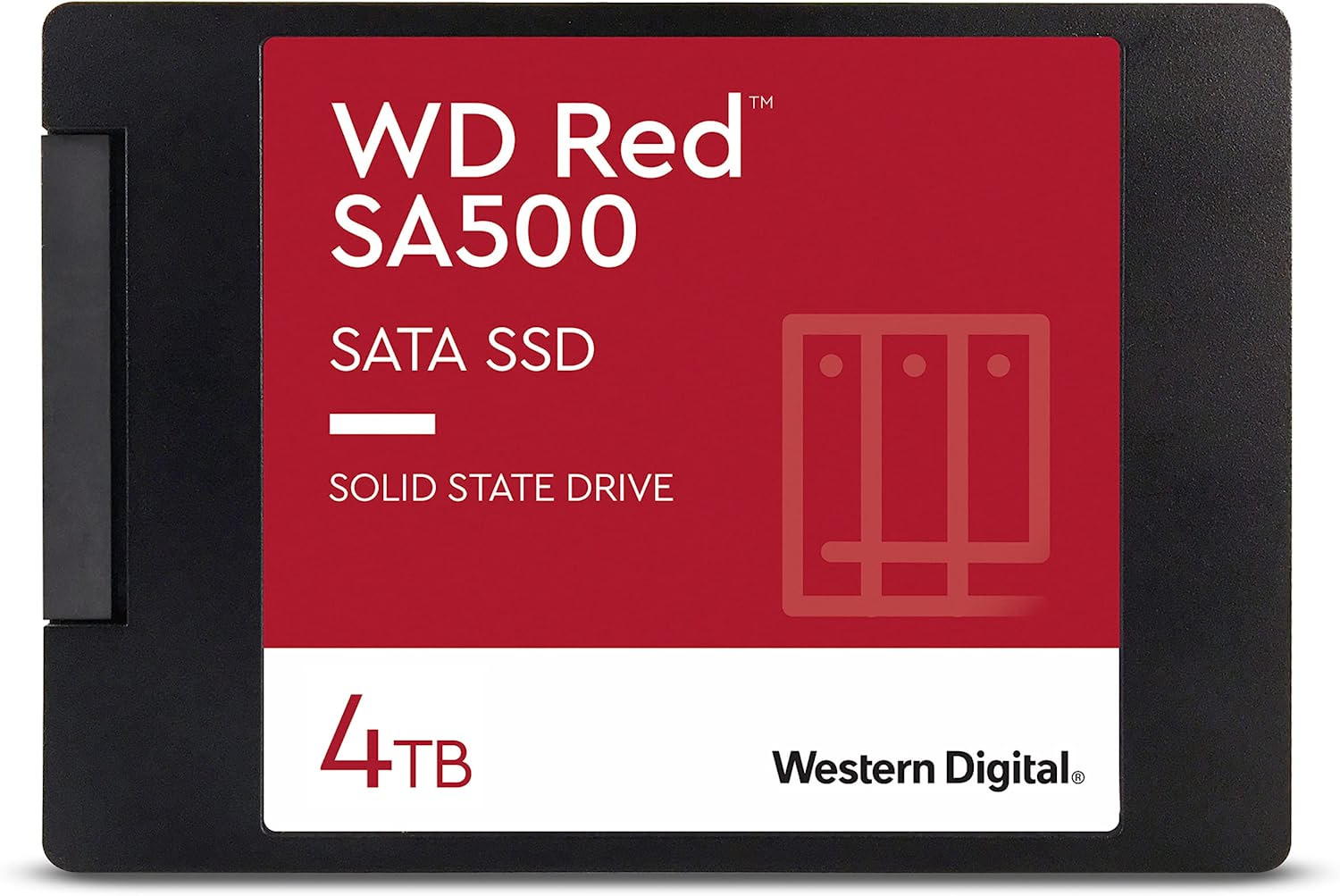
I do not think the SA500 is a bad SSD. I just would not make it my default pick unless the price is right. Compared to the Seagate IronWolf 125, the SA500 generally has lower endurance at the same capacity.
That does not mean you should never buy it. If it is on a strong sale, or if you prefer Western Digital, it can still make sense. I just would not pay the same price for the SA500 if the IronWolf 125 is available for similar money.
- 500GB WD Red SA500: 350 TBW
- 1TB WD Red SA500: 600 TBW
- 2TB WD Red SA500: 1,300 TBW
- 4TB WD Red SA500: 2,500 TBW
Seagate IronWolf 125 SSD: The NAS SSD I’d Start With
The Seagate IronWolf 125 SSD is the 2.5-inch NAS SSD I would look at first. It is designed for NAS use, has a 5-year limited warranty, and has much higher endurance than the WD Red SA500 at the same capacity.
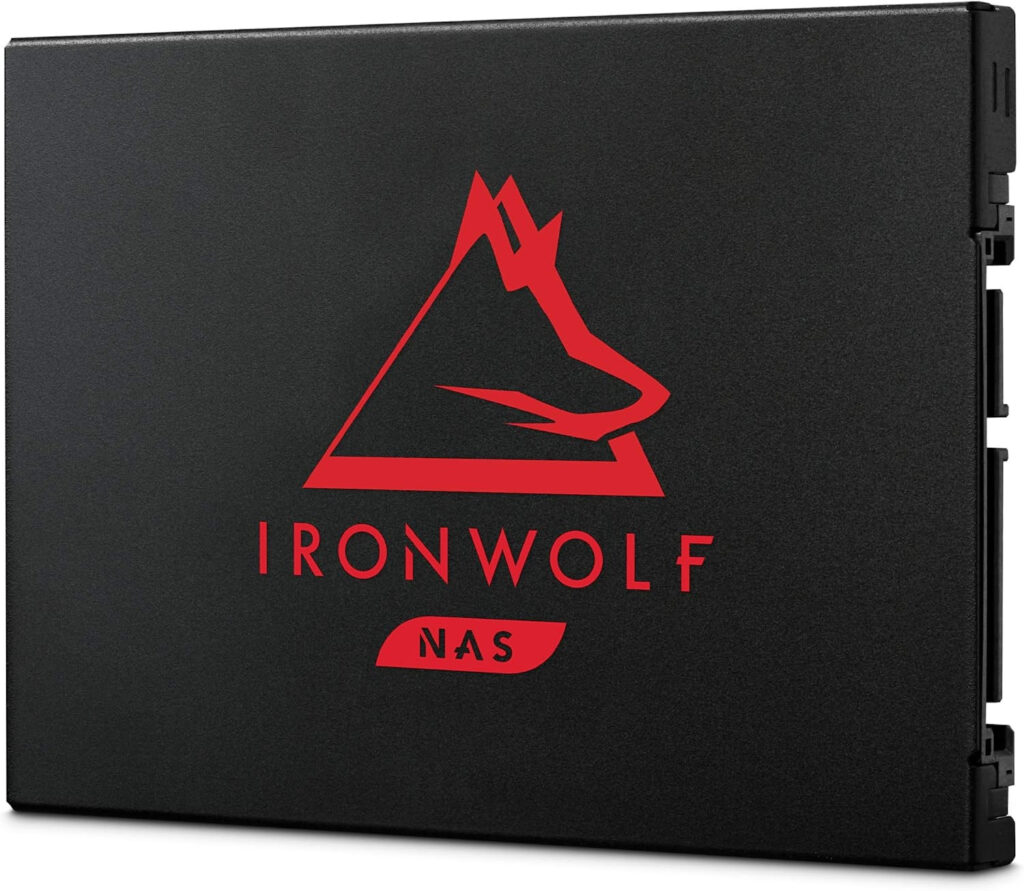
This is the SSD I would buy for most SATA SSD NAS setups unless the WD Red SA500 is significantly cheaper or you specifically need a Synology-branded SSD.
The reason is simple: most SATA SSDs are going to be similar from a top-speed perspective because SATA itself becomes the limit. So if performance is close, I care more about endurance, warranty, and whether the SSD is designed for NAS workloads.
For that reason, the IronWolf 125 is the one I’m most comfortable recommending as the default 2.5-inch NAS SSD.
- 500GB Seagate IronWolf 125: 700 TBW
- 1TB Seagate IronWolf 125: 1,400 TBW
- 2TB Seagate IronWolf 125: 2,800 TBW
- 4TB Seagate IronWolf 125: 5,600 TBW
Synology SAT5200 SSD
The Synology SAT5200 is the SSD I would look at if you need a Synology-branded drive or if endurance and compatibility are the priority.
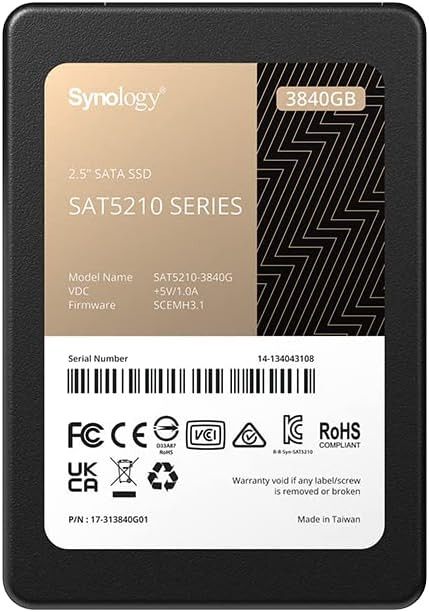
For most home NAS users, this drive is probably overkill. It is more expensive, and unless your Synology model requires supported Synology-branded drives, you may not need to spend this much.
Where it does make sense is in higher-end Synology systems, rackmount Synology units, xs+ models, business environments, or write-heavy workloads where the additional endurance matters.
I would not buy the SAT5200 just because it exists. I would buy it because the NAS requires it, compatibility matters, or the workload justifies the price.
- 500GB Synology SAT5200: 1,097 TBW
- 1TB Synology SAT5200: 2,194 TBW
- 2TB Synology SAT5200: 4,800 TBW
- 4TB Synology SAT5200: 8,533 TBW
WD Red SN700: The NVMe SSD I’d Use for NAS Cache
The WD Red SN700 is the NVMe SSD I would look at first for NAS cache. Cache drives are one of those areas where I would be careful about using random desktop SSDs, especially if write cache is involved.
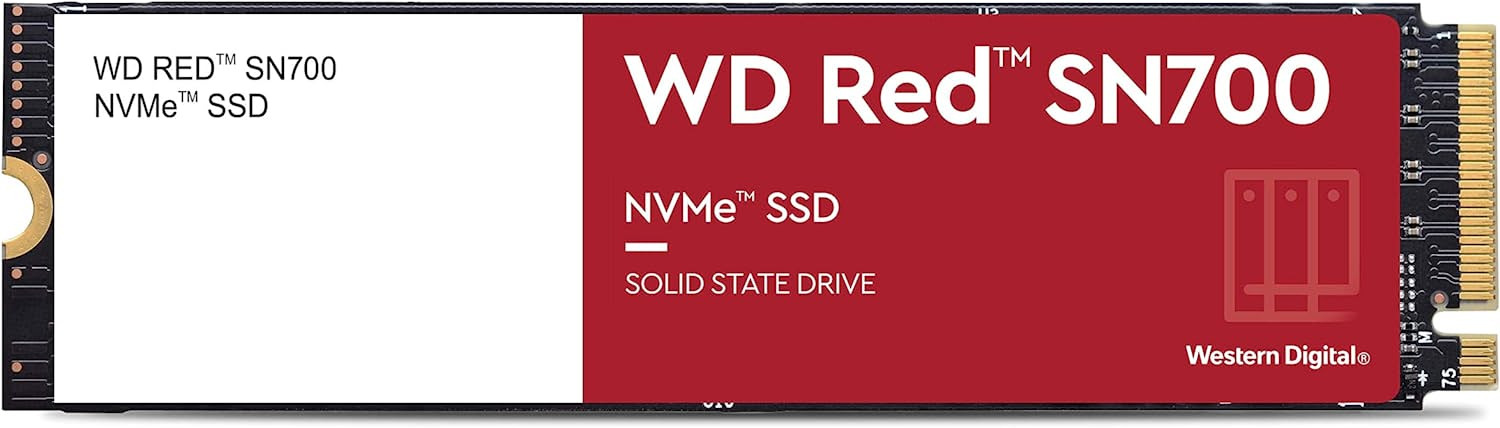
The main reason is endurance. Cache drives can see a lot of write activity, and that is not where I want to use the cheapest consumer NVMe drive I can find.
One thing I want to be clear about: SSD cache does not automatically make your NAS faster. A lot of people add cache expecting faster network transfers, but if the bottleneck is 1GbE, 2.5GbE, the hard drives, the workload, or the client device, cache may not help much at all.
SSD cache can help in specific workloads, especially repeated reads, metadata-heavy workloads, and some multi-user environments. But for many home users, it is not the first upgrade I would make. I’d usually look at better networking, more RAM, or a better storage layout first.
If you want to learn more, check out my guide on SSD cache on a Synology NAS and Synology’s overview of SSD cache considerations.
SSD Cache vs SSD Storage
This is an important distinction. Using SSDs as storage and using SSDs as cache are not the same thing.
If you create an SSD storage pool or volume, your data lives on the SSDs. This is what I’d use for VMs, containers, active project files, or an all-flash NAS.
If you use SSD cache, the SSDs are there to speed up access to data stored somewhere else, usually on hard drives. That can help in the right workload, but it is not guaranteed to make everything faster.
If I had to choose between SSD storage and SSD cache for a home lab NAS, I would usually rather have a dedicated SSD storage pool for workloads that actually benefit from it. Cache can be useful, but I would only add it after I understand what problem I’m trying to solve.
What I Would Avoid
There are a few things I would avoid when buying SSDs for a NAS:
- Do not buy SSDs just because they are faster on paper. If your NAS only has 1GbE, you may barely notice the difference for normal file transfers.
- Do not ignore endurance. TBW matters much more in a NAS than it does for casual desktop use.
- Do not use random desktop SSDs for write cache. Cache can create heavy writes, and endurance matters.
- Do not assume SSD cache will fix every performance issue. Sometimes the bottleneck is networking, RAM, drive layout, or the application itself.
- Do not use SSDs for bulk storage unless the cost makes sense. Hard drives are still usually better for large media libraries, backups, and archives.
- Do not overpay for enterprise or Synology-branded SSDs unless you actually need them. The Synology SAT5200 is great, but it is not necessary for every home NAS.
- Do not forget backups. SSDs can fail too, and faster storage does not replace a backup strategy.
The best NAS SSD is not just the fastest SSD. It is the SSD that matches your workload, endurance needs, network speed, NAS compatibility, and budget.
Final Recommendation: Which NAS SSD Should You Buy?
If I were buying a 2.5-inch SSD for a NAS today, I’d start with the Seagate IronWolf 125. It has the endurance, warranty, and NAS-focused design that I would want for most SATA SSD NAS setups.
If the WD Red SA500 is on a strong sale, it can still make sense, but I would not buy it over the IronWolf 125 at the same price. If you need Synology-branded drives or very high endurance, look at the Synology SAT5200.
For NVMe cache, I would use the WD Red SN700, but I would only add SSD cache if your workload actually benefits from it.
For most people, the bigger decision is whether SSDs make sense at all. If you need bulk storage, buy NAS hard drives. If you need low latency, better responsiveness, quiet operation, VM/container storage, or an all-flash NAS, SSDs can make a lot of sense. Just make sure you buy SSDs designed for NAS workloads.